

Review your chart of accounts
The chart of accounts is “what we’ll post your transactions to”. Spine starts you with a standard chart, and your industry template adds the cost accounts your kind of business uses. Look it over once, and rename any account so its name matches how you think about your business.
-
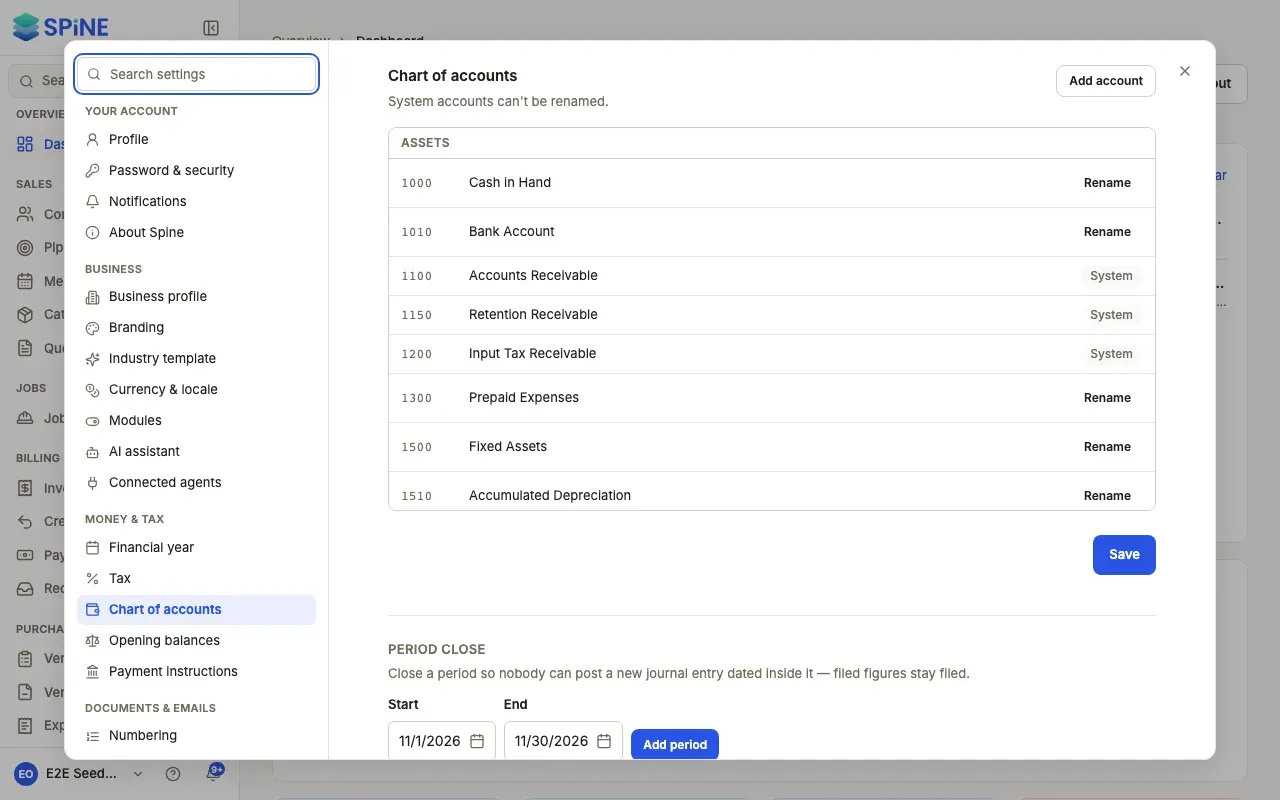
Open Settings › Chart of accounts — Open your user menu, choose Settings, and pick Chart of accounts under Money & tax. You can also press Set up or Review on the Chart of accounts card on the Set up Spine page.
-
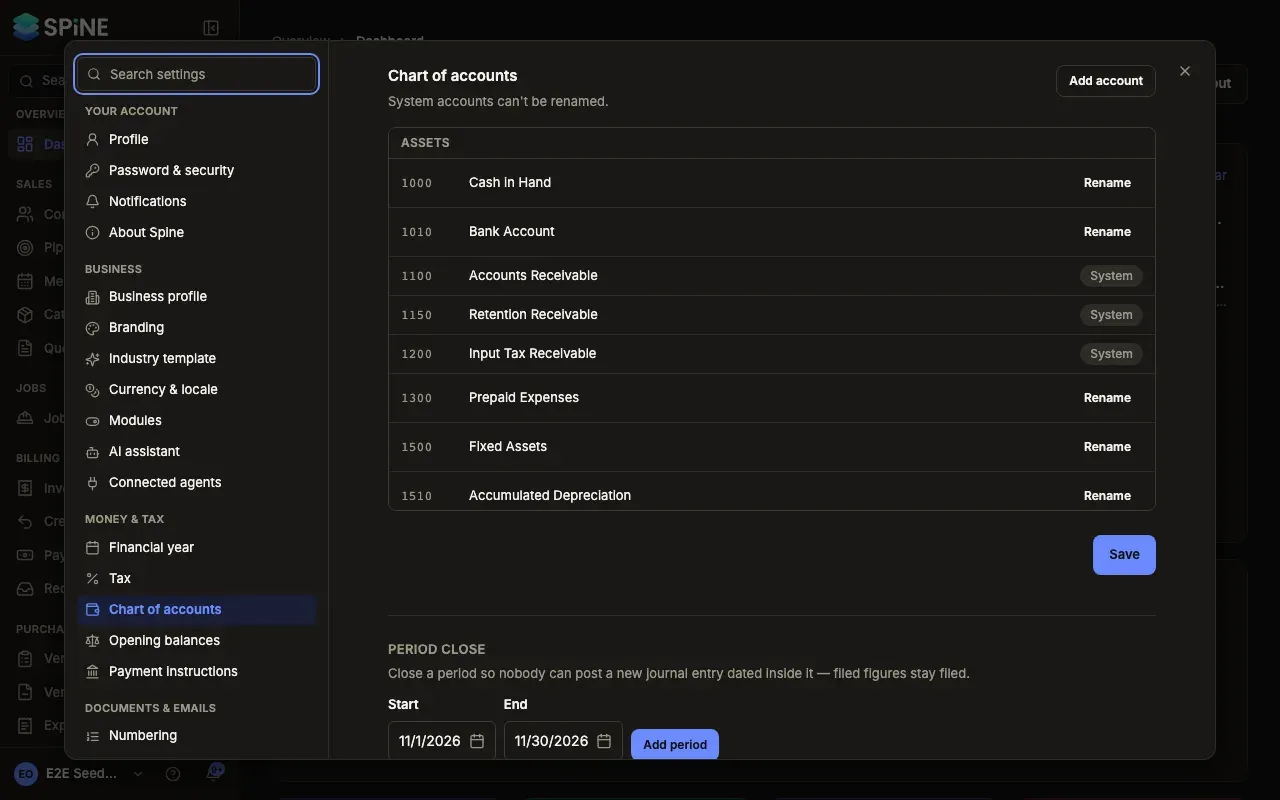
Look through the groups — Accounts are listed under Assets, Liabilities, Equity, Income and Expenses, each with its code. Rows marked System are the ones Spine needs for its own postings.
-
Rename an account — Press Rename on its row, type the new name, and press Save on the row. Press Cancel to keep the old name.
-
Press Save — The renames are already saved as you make them; Save at the bottom confirms with a “Saved” message.
Good to know
Section titled “Good to know”- “System accounts can’t be renamed.” They include 1100 Accounts Receivable, 1150 Retention Receivable, 1200 Input Tax Receivable, 2000 Accounts Payable, 2100 Output Tax Payable, 2200 Customer Advances, 3200 Retained Earnings and 3900 Opening Balance Adjustments.
- A new name is used everywhere — on reports and in pickers. The account code doesn’t change.
- Accounts can’t be deleted or hidden here. If you don’t use one, leave it as it is.
- The same list is in setup. The Accounts step of the setup wizard shows this list with Continue instead of Save.
Last updated with Spine 1.0.0-beta.2