

Review or undo a reconciliation
Every finished reconciliation is kept, so you can show your accountant how the bank and the books agree. If the latest one was wrong, you can undo it: its entries go back to unreconciled and nothing is deleted.
See past reconciliations
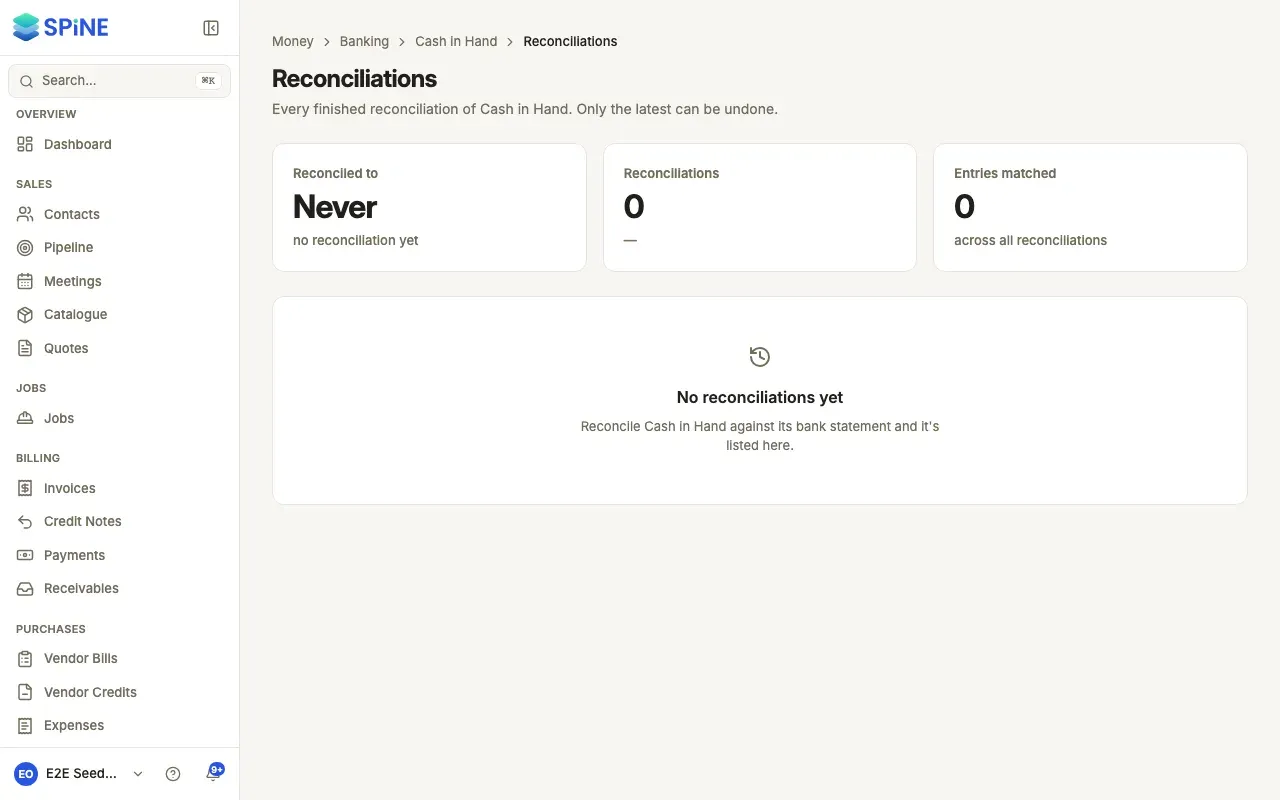
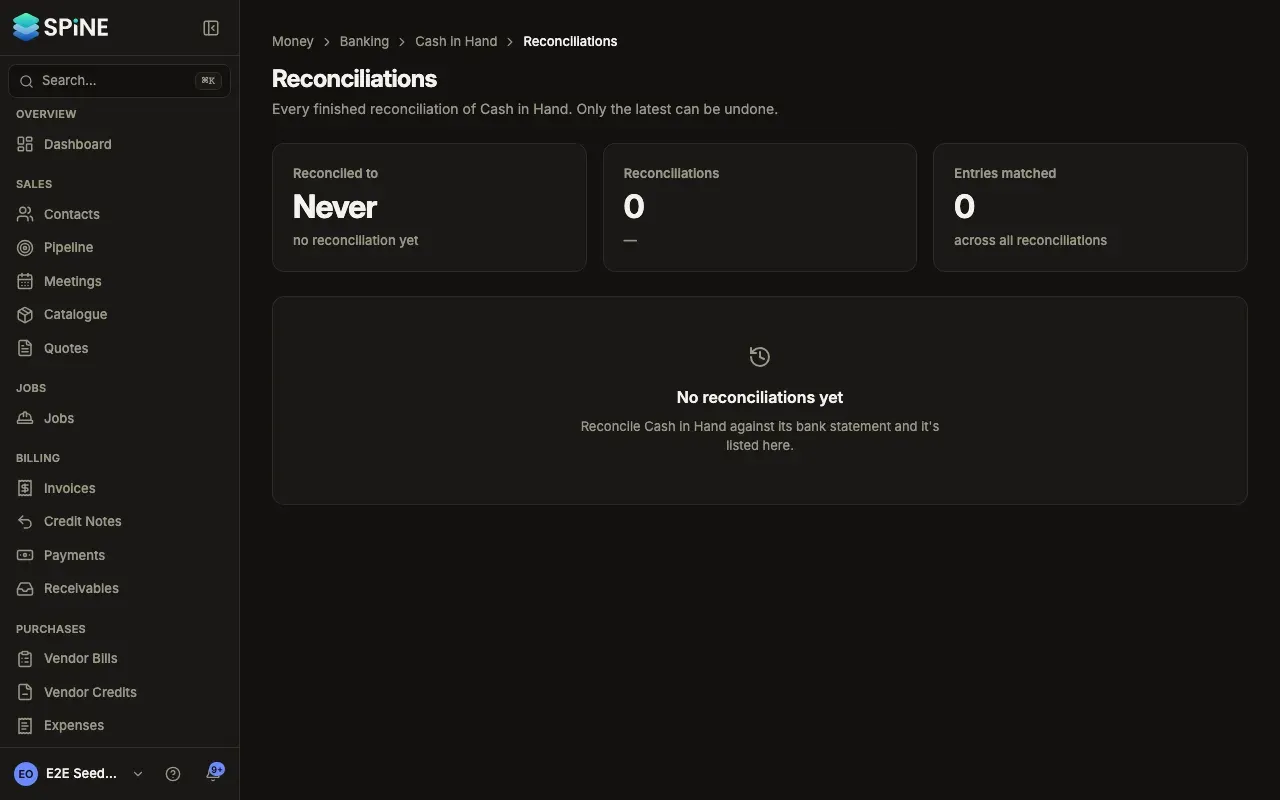
Section titled “See past reconciliations”Open the account’s register and choose Reconciliations under More. Each finished reconciliation shows its Statement end date, Closing balance, Entries matched, who finished it and when. The newest is marked Latest.
Open the reconciliation report
Section titled “Open the reconciliation report”Press a row, or choose View in its menu. The report opens read-only with:
- the account, statement end date and closing balance, the opening and cleared balances, and who finished it and when;
- a summary that reads: statement closing balance + deposits not yet on the statement − payments not yet on the statement = balance in Spine on the end date;
- Matched lines with the entries they matched, the Excluded lines with your notes, and What’s outstanding — entries in Spine up to the end date that weren’t on the statement.
Choose Download report to save it as a PDF. It’s made when you ask for it, in light colours, and named after the account and end date.
Undo the latest reconciliation
Section titled “Undo the latest reconciliation”-
Find the latest one — In Reconciliations, open the menu on the row marked Latest and choose Undo. You can also press Undo on its report page.
-
Read the confirmation — “Undo this reconciliation?” says its entries go back to unreconciled, nothing is deleted, and its statement lines go back to unmatched.
-
Confirm — Press Undo reconciliation. The toast reads Reconciliation undone.
What happens next
Section titled “What happens next”The entries lose their Reconciled tick, and you can void or delete the documents behind them again. The statement lines are still imported; reconcile the account again when you’re ready. See Reconcile an account.
Last updated with Spine 1.0.0-beta.2