

Add notes to a job
Job notes are a running log everyone on the job can read: a delivery that’s late, a change the customer asked for on site, access instructions for the next visit. Each note shows who wrote it and when.
- Open the job — Go to Jobs, open the job and choose the Notes tab.
- Write the note — Type in Add a note about this job….
- Add it — Press Add. The note appears at the top of the list with your name and the time.
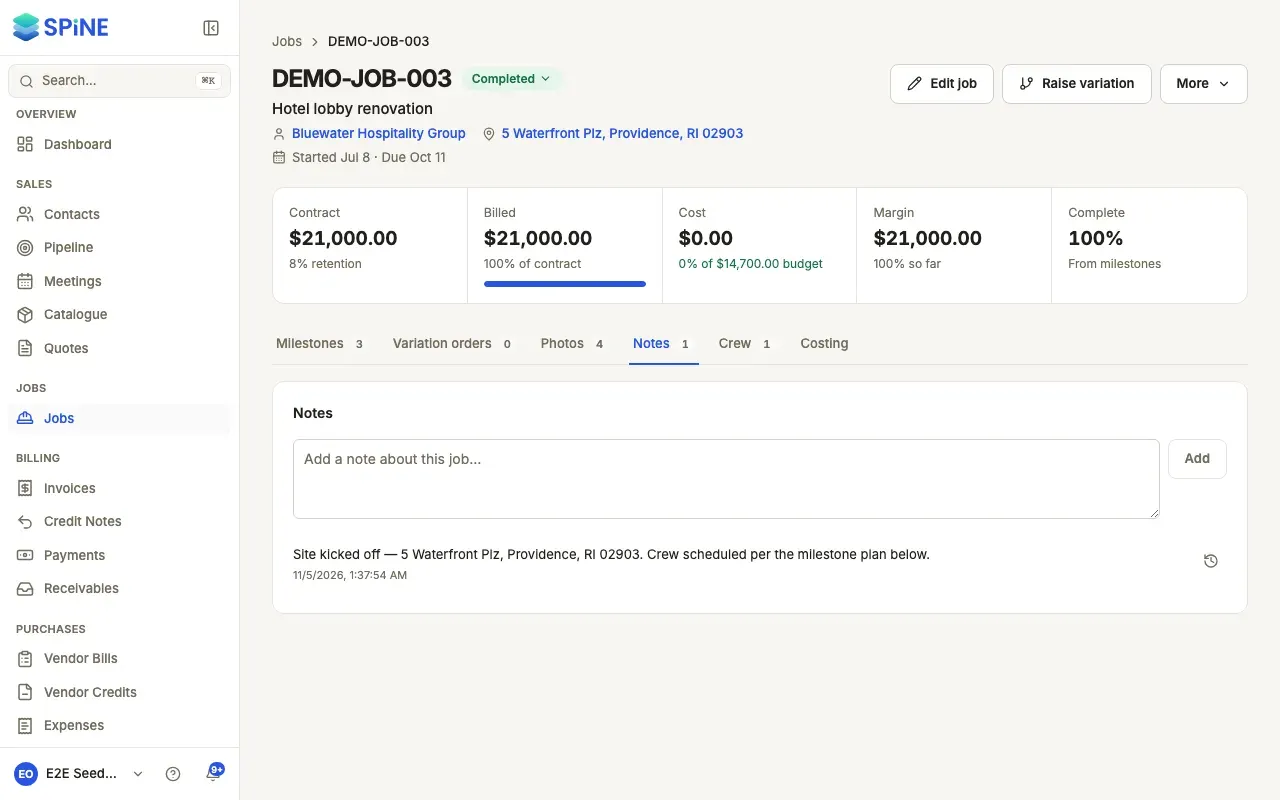
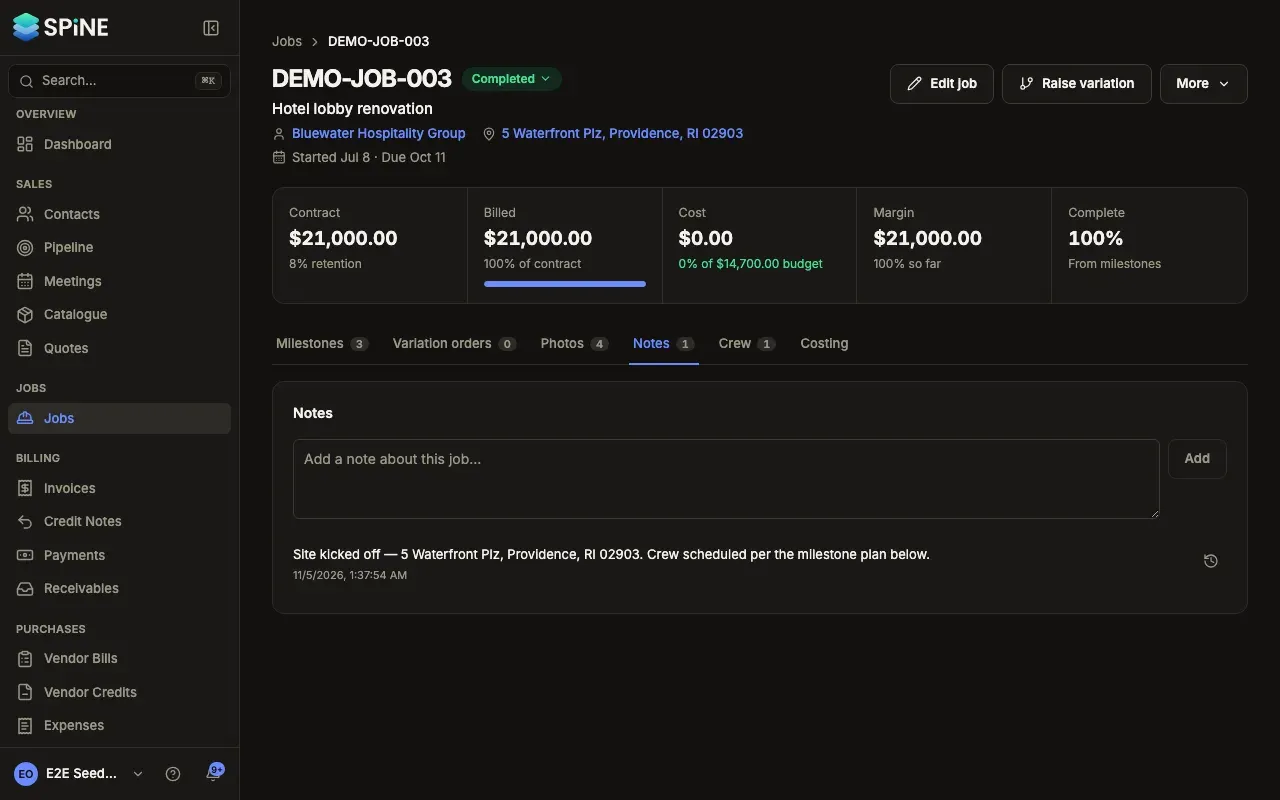
With no notes yet, the tab says “No notes yet.” The tab’s count shows how many notes the job has.
If a note can’t be saved, you see “Could not add this note.” Your text stays in the box, so you can press Add again.
Notes in other places
Section titled “Notes in other places”- The job’s own Notes field, in New job and Edit job, is one description that shows under the job’s header. Use it for what stays true about the job, and the Notes tab for what happens over time.
- Completion notes you add when you mark a milestone complete show under that milestone on the Milestones tab, not on the Notes tab.
- Notes added appear in the job’s Activity panel: see See what happened on a job.
Last updated with Spine 1.0.0-beta.2