

Invite people
Each person gets their own sign-in through an email invite. You choose their role when you invite them and, for Staff, the Teams they’ll join, so they can work the moment they accept.
-
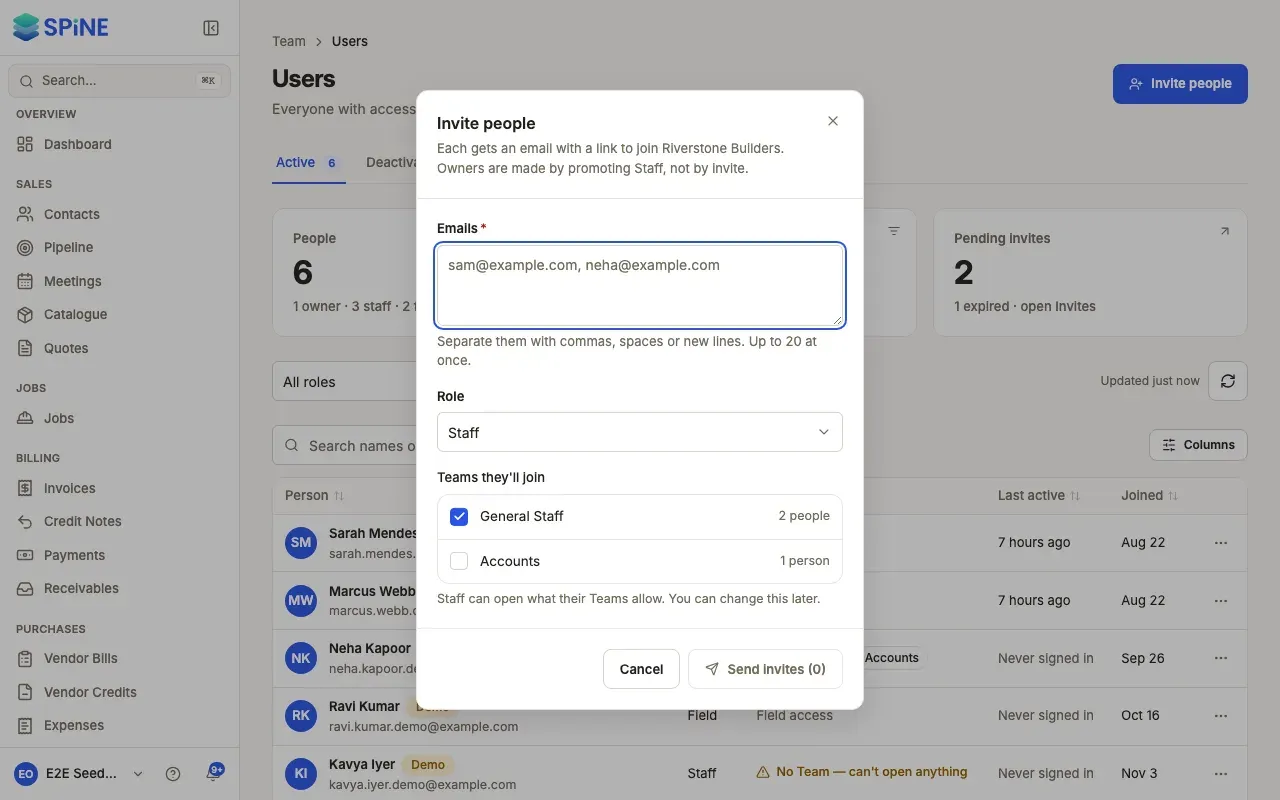
Open Users — In the sidebar, go to Team › Users and press Invite people.
-
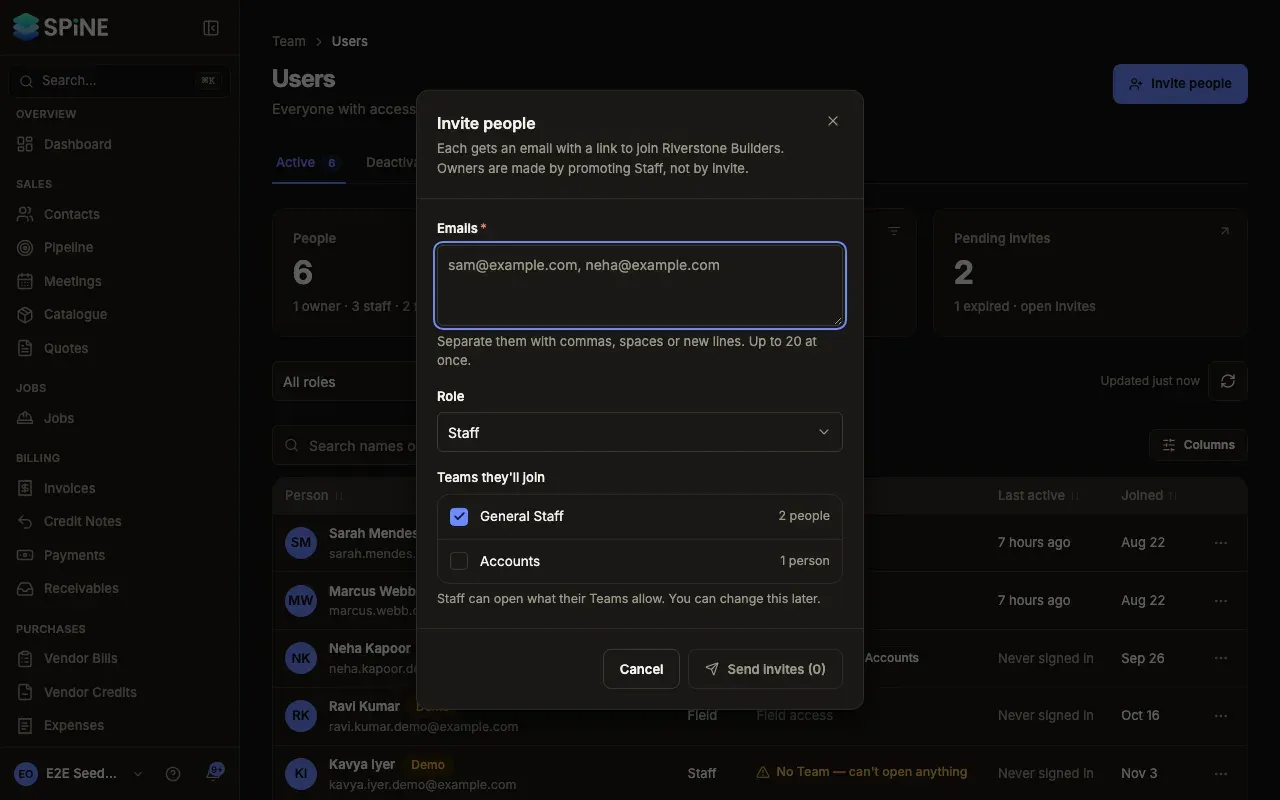
Enter the emails — Type or paste one or more addresses in Emails, separated by commas, spaces or new lines. You can invite up to 20 at once.
-
Choose the role — Pick Staff or Field. Owners are made by promoting Staff, not by invite.
-
Choose their Teams (Staff only) — Under Teams they’ll join, tick the Teams they should be on. General Staff is ticked to start with.
-
Send — Press Send invite, or Send invites (3) for several. The toast says who was invited, and the invites appear on the Invites tab until they’re accepted.
When some can’t be invited
Section titled “When some can’t be invited”Spine sends the ones it can and lists the rest under “These weren’t invited:” with the reason:
- already a member — they already have access.
- already invited — resend it instead — use Resend on the Invites tab.
- not an email address — fix or remove it.
What the invitee sees
Section titled “What the invitee sees”They get an email from your business, such as “Alex Morgan invited you to join Riverstone Builders as staff.”, with a link to accept. They sign in, or create an account, with the address the invite was sent to, then press Accept. Staff join the Teams you chose; Field users can sign in to the field app.
What happens next
Section titled “What happens next”The new person appears on the Active tab of Users. If a Staff member joined without a Team, the Staff without a Team card counts them — press it to see who, then add them to a Team.
Last updated with Spine 1.0.0-beta.2