

Edit a job's details
Keep a job matching the real work: rename it, move its dates, change the site address, or record how far along it is. Every change is kept in the job’s history with who made it and when.
- Open the job — Go to Jobs and open the job.
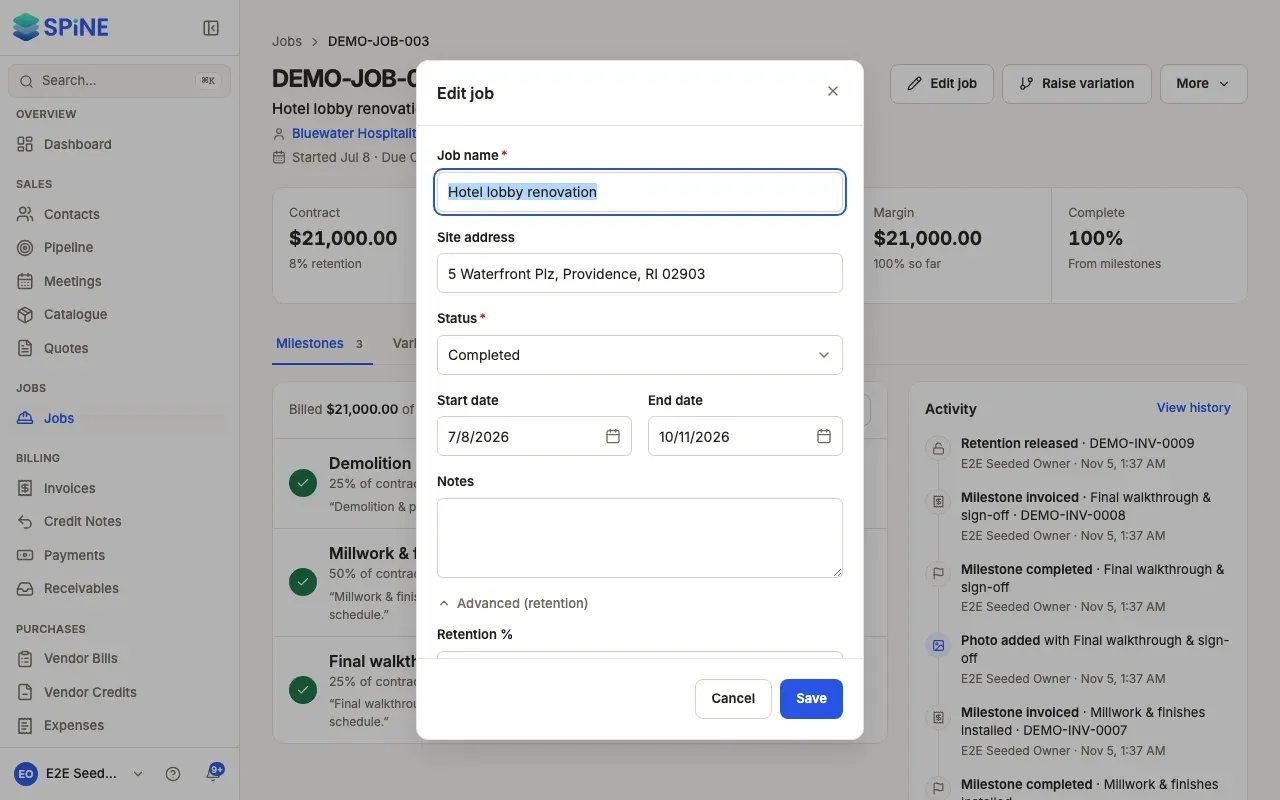
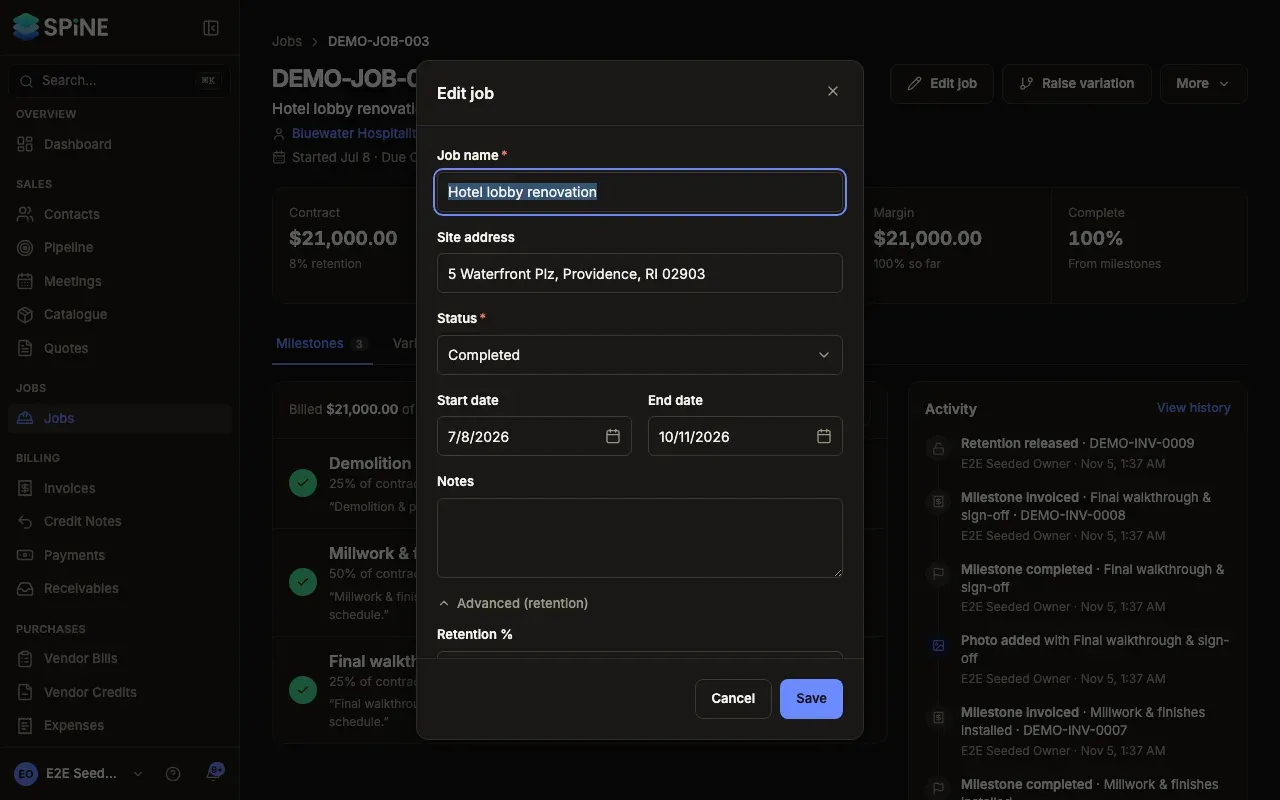
- Open the dialog — Press Edit job.
- Change the details — Edit Job name, Site address, Status, Start date, End date and Notes. Open Advanced (retention) to change Retention %.
- Set budget and progress — Under Budget and progress, enter a Cost budget (what you expect the job to cost; leave it blank if you don’t budget it) and Percent complete (your estimate of how much of the work is done).
- Save — Press Save. A toast says “Job updated”.
What you can’t change here
Section titled “What you can’t change here”- The contract value. For a job started from a quote it’s the quote’s total. It changes only when you apply an accepted variation order.
- The job number. It’s permanent once given.
Rules when you save
Section titled “Rules when you save”- Job name is required (“Job name is required.”).
- The end date can’t be before the start date. If it is, an error shows and nothing is saved.
- Cost budget must be zero or more (“Enter a budget of zero or more.”).
- Percent complete must be from 0 to 100 (“Enter a percentage from 0 to 100.”).
Related
Section titled “Related”- Setting the job to Completed or Cancelled: see Change a job’s status or close it.
- How the budget and percent complete are used: see Set a cost budget and track billing progress.
- Applying an accepted variation order doesn’t change the budget. Edit it yourself if the extra work costs more.
Last updated with Spine 1.0.0-beta.2