

See a job's cost and margin
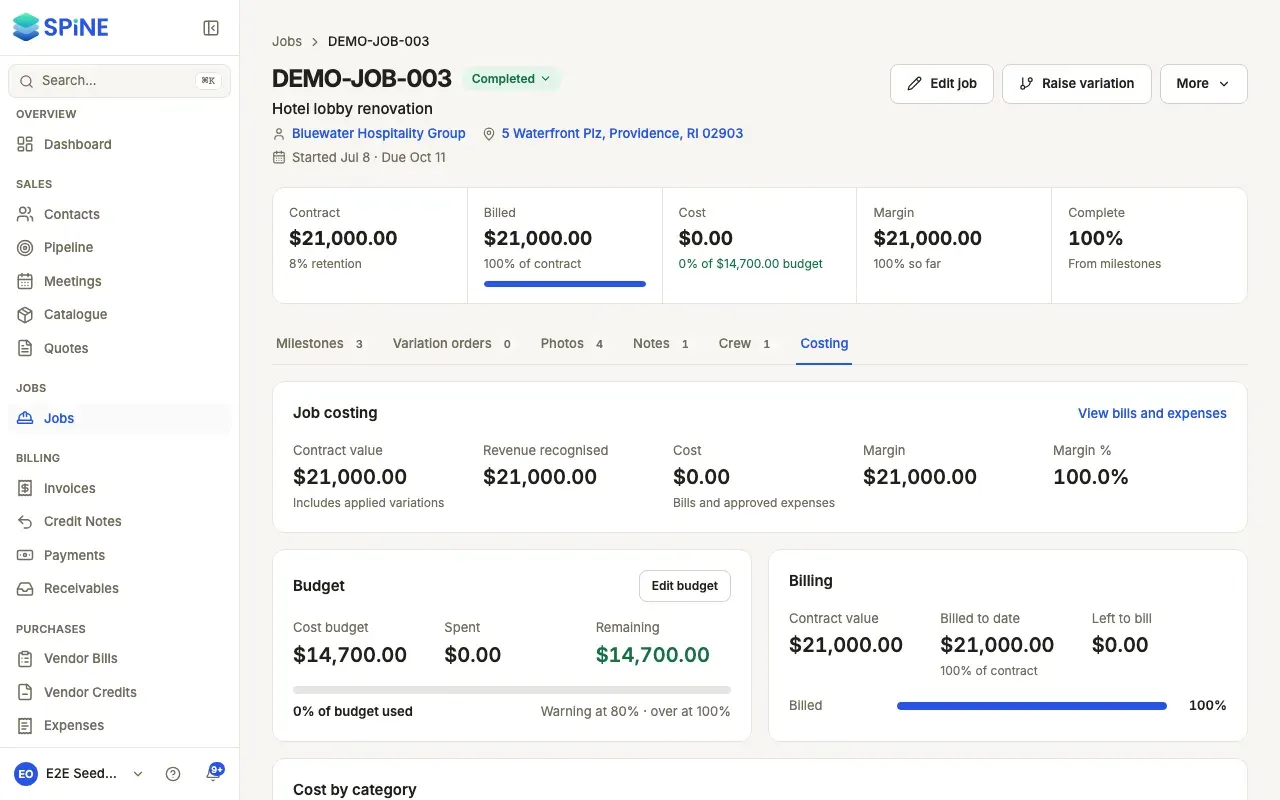
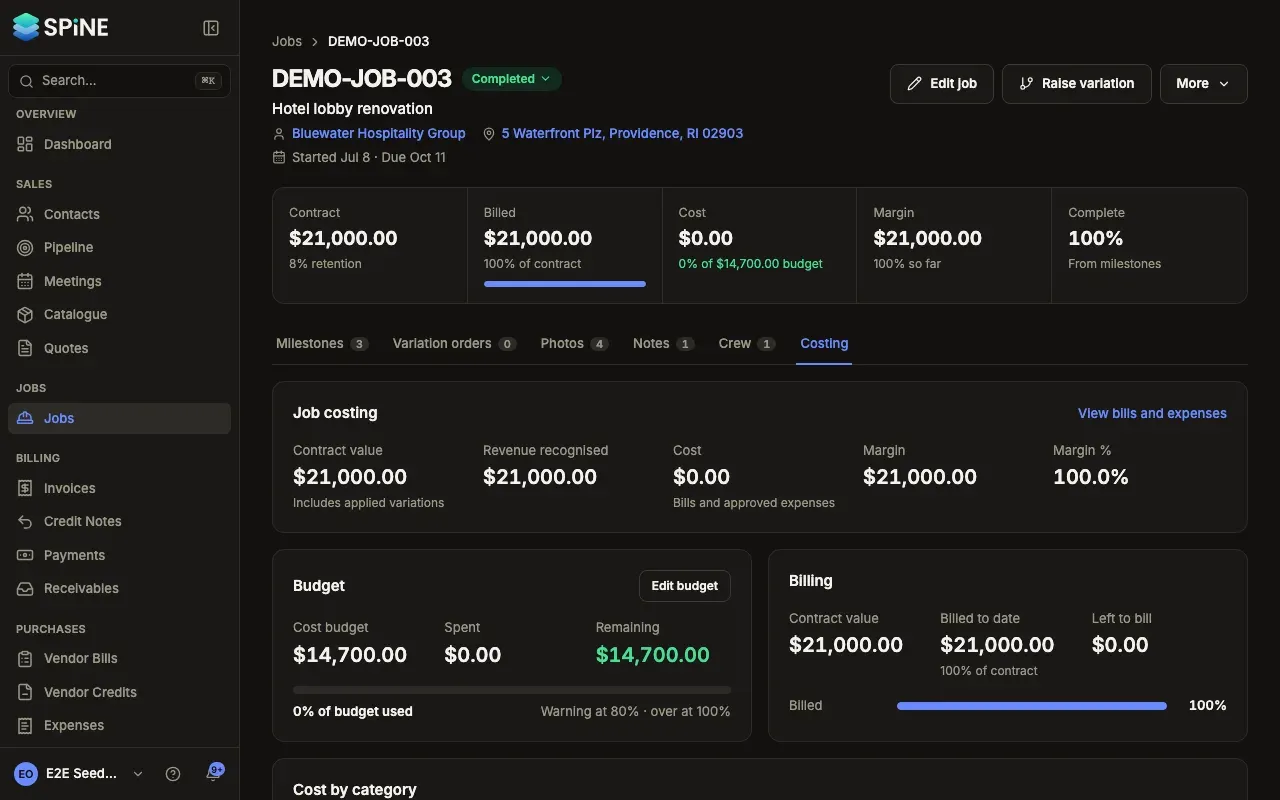
The Costing tab shows how a job is doing while it runs: what it has cost, what you’ve billed, and the margin between them. Everything comes from the entries in your books tagged to the job, so it agrees with your reports.
- Open the job — Go to Jobs and open the job.
- Open Costing — Choose the Costing tab.
- Read the figures — “Job costing” shows Contract value (including applied variations), Revenue recognised, Cost, Margin and Margin %.
- See the costs behind it — Press View bills and expenses to open the bills and expenses tagged to this job.
Where the numbers come from
Section titled “Where the numbers come from”- Cost is the net amount of vendor bills and approved expenses tagged to the job. A submitted or rejected expense doesn’t count. A voided bill’s cost is removed.
- Revenue recognised is the job’s issued invoices, such as its progress invoices.
- Margin is revenue less cost. When cost is ahead of billing, the margin shows in the danger colour with “Cost is ahead of billing”.
With no costs yet, cost is 0.00. Tag bills and expenses to the job when you enter them, so they count here.
Cost by category
Section titled “Cost by category”The Cost by category card splits the cost by the expense account each bill line or expense posts to, such as materials, labour, subcontractors and plant hire. Each row shows the amount and its share (“Cost of Materials · 11,200.00 · 45%”), largest first, beside a donut. The rows add up to Total cost, which is the same as Cost.
With more than six accounts, the donut shows the five largest and “Other”, while the list shows every account. If you have View ledger / journals, click a row to see the entries for that account on this job.
With no costs, the card says “No costs yet — bills and approved expenses tagged to this job show up here.”
For the Budget and Billing cards on this tab, see Set a cost budget and track billing progress.
Last updated with Spine 1.0.0-beta.2