

Chase customers from Receivables
Once you know who owes you, you can act straight from Receivables: remind a customer, record a payment that’s arrived, or send them a statement. Each action asks first where it should, and the page refreshes when it’s done.
Act on one invoice
Section titled “Act on one invoice”Open an invoice row’s menu on By invoice (or under an expanded customer). It offers:
- Record payment — the Record a payment dialog for that customer, with this invoice ticked. See Record a payment.
- Apply credit — while the customer has credit. See Apply customer credit to an invoice.
- Send reminder — the reminder dialog, which asks before sending. If it can’t be sent, the menu says why: “Already reminded today.” or “The customer has no email address.”
- Download PDF and Open invoice.
Act on one customer
Section titled “Act on one customer”Open a customer row’s menu on By customer. It offers Send statement (see Send a customer a statement), Record payment (with the customer chosen) and Open contact.
Remind several customers at once
Section titled “Remind several customers at once”-
Tick the invoices — On By invoice, tick each invoice to chase.
-
Press Send reminders — The bar shows how many are selected. Press Send reminders (3), with your count.
-
Check the confirmation — “Send 3 payment reminders?” says each customer gets the reminder email with the invoice attached, straight away. It names any invoices it will skip and why.
-
Confirm — Press Send reminders. The toast reads, for example, 3 reminders sent, and the selection clears.
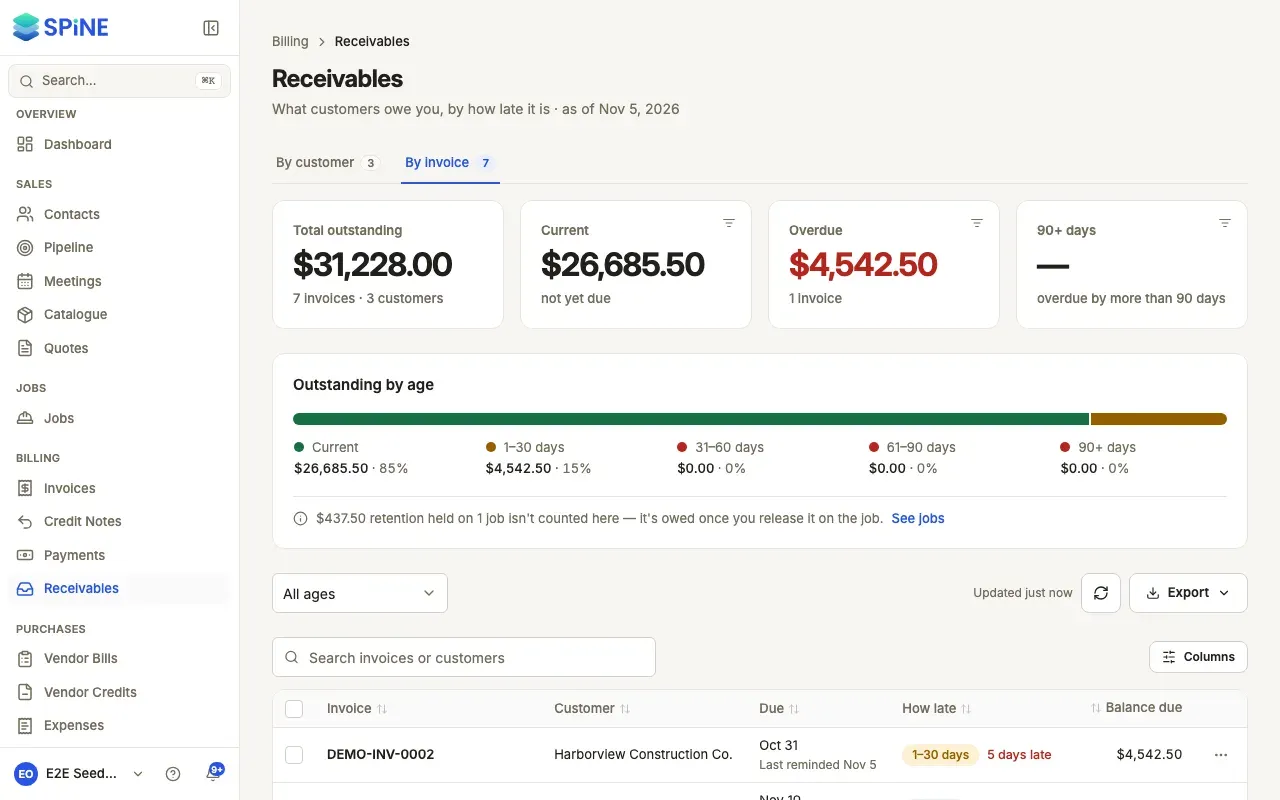
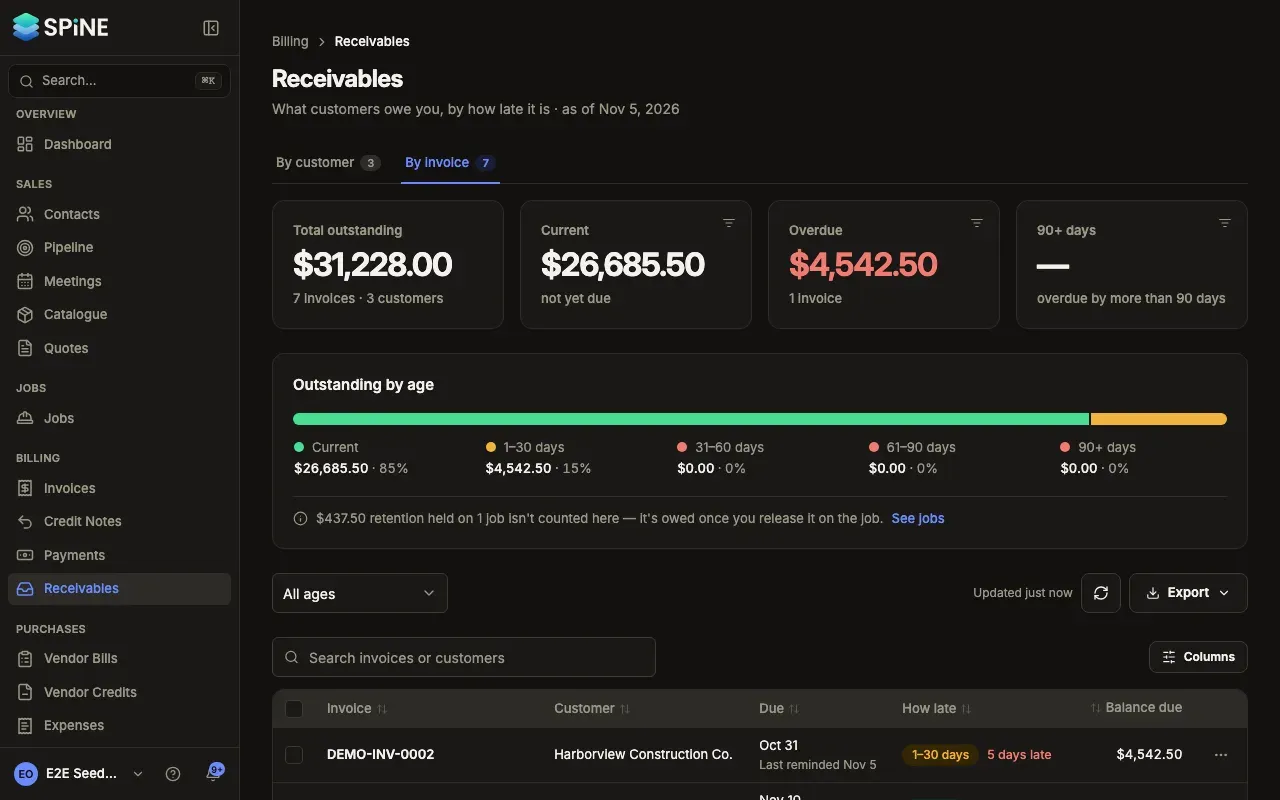
When an action finishes, the page refreshes in place and the toast says what happened. If something fails, Spine says so above the list. Email has to be set up for reminders to go out — see Email.
Last updated with Spine 1.0.0-beta.2