

Schedule a meeting
Put every site visit, call and catch-up on the calendar, so you can plan your week and your colleagues know where you are. Link a meeting to a customer and it shows on their timeline too.
- Start the meeting — Go to Meetings and press New meeting. It starts at the next half hour today, for 30 minutes, or at 9:00 AM on the day you’re looking at. In Day or Week view you can instead drag across empty time to choose the start and end.
- Name it — In the New event dialog’s Details tab, fill in Title, such as “Site visit — Acme Contracting”. It’s the only required field.
- Link a contact — In Contact, choose the customer or vendor it’s with. Leave it as None for an internal meeting.
- Set the time — Change Start and End, or turn on All day.
- Add the details — Choose a Category colour, and add a Location and Notes if you like.
- Invite people — Open the People tab to invite colleagues and choose who can see it. See Invite people and choose who sees a meeting.
- Save — Press Create event. The meeting appears on the calendar in its colour.
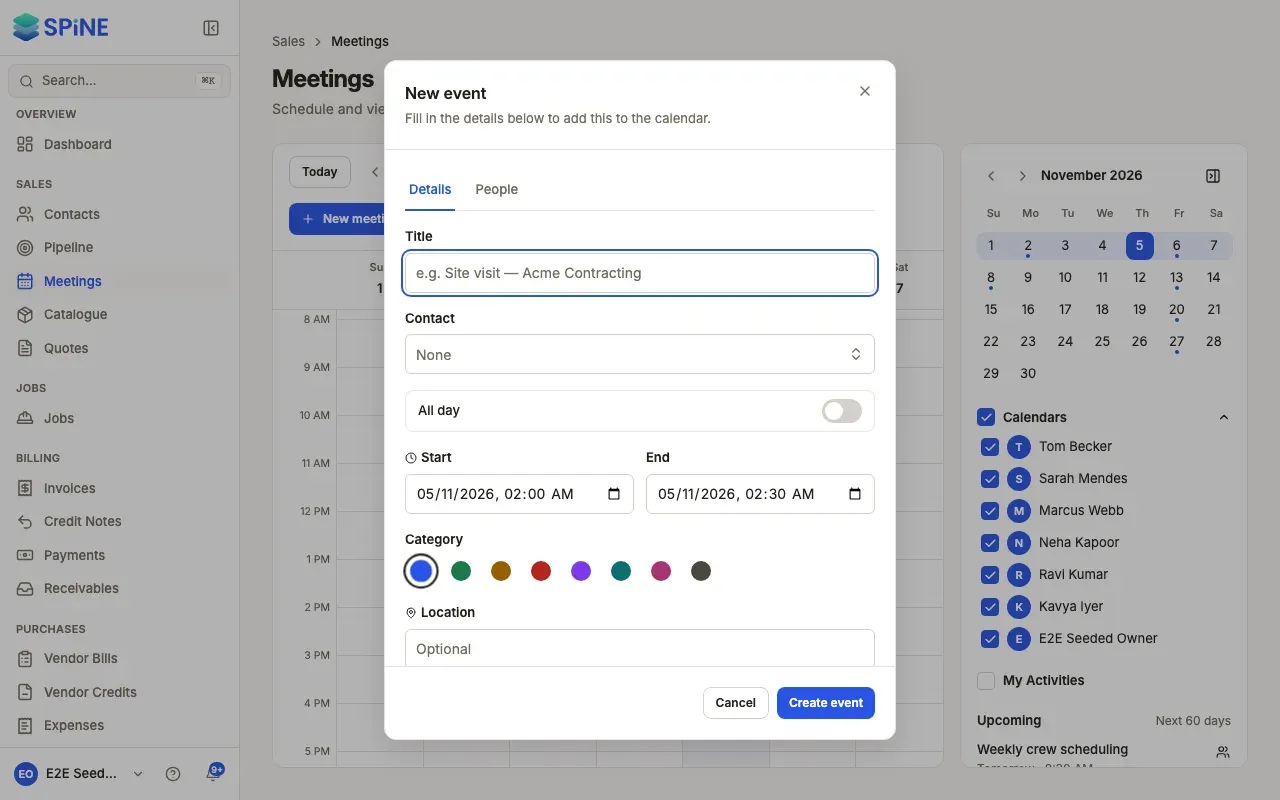
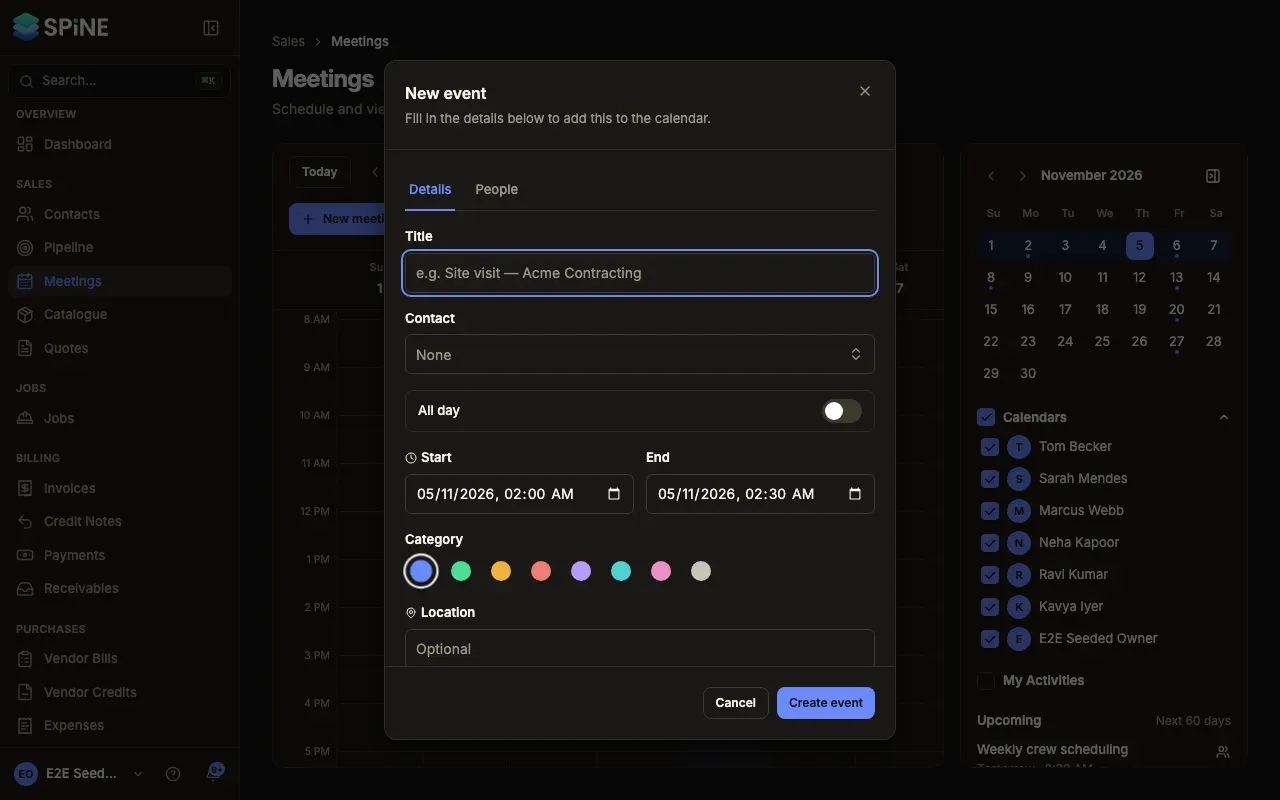
If the end is before the start, the End field shows an error and nothing is saved.
To make the meeting repeat, turn on Repeats in the same dialog. See Set up a recurring meeting.
Move or resize a meeting
Section titled “Move or resize a meeting”- Drag a meeting to another time or day to move it.
- Drag its bottom edge to change when it ends.
- With the keyboard, focus the meeting and press Shift and the Up or Down arrow to change its start, or Shift, Alt and the Up or Down arrow to change its end.
The change is saved straight away. You can move only meetings you’re allowed to edit. For a recurring meeting, Spine asks whether to move just this event or all events.
Linked meetings and contacts
Section titled “Linked meetings and contacts”A meeting linked to a contact shows on that contact’s Timeline, at the time it takes place. In the calendar’s sidebar, Meetings by contact counts the linked meetings in the range you’re looking at. In Agenda, each meeting shows its contact, or “Internal”.
Last updated with Spine 1.0.0-beta.2