

Raise a deposit invoice
A deposit invoice (type Advance) asks the customer for money up front. It isn’t revenue yet, so issuing it posts nothing to your books. When the customer pays, the money is held as their credit until you take it off a later invoice.
-
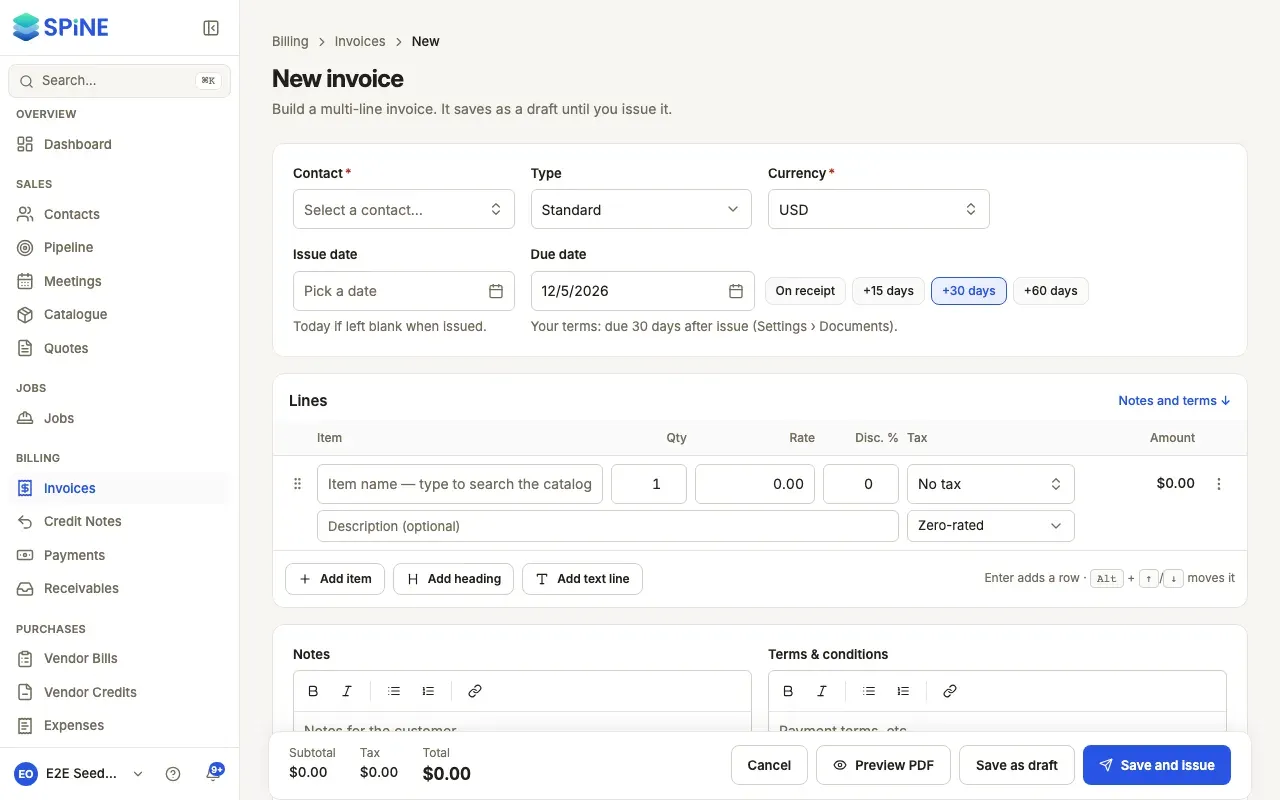
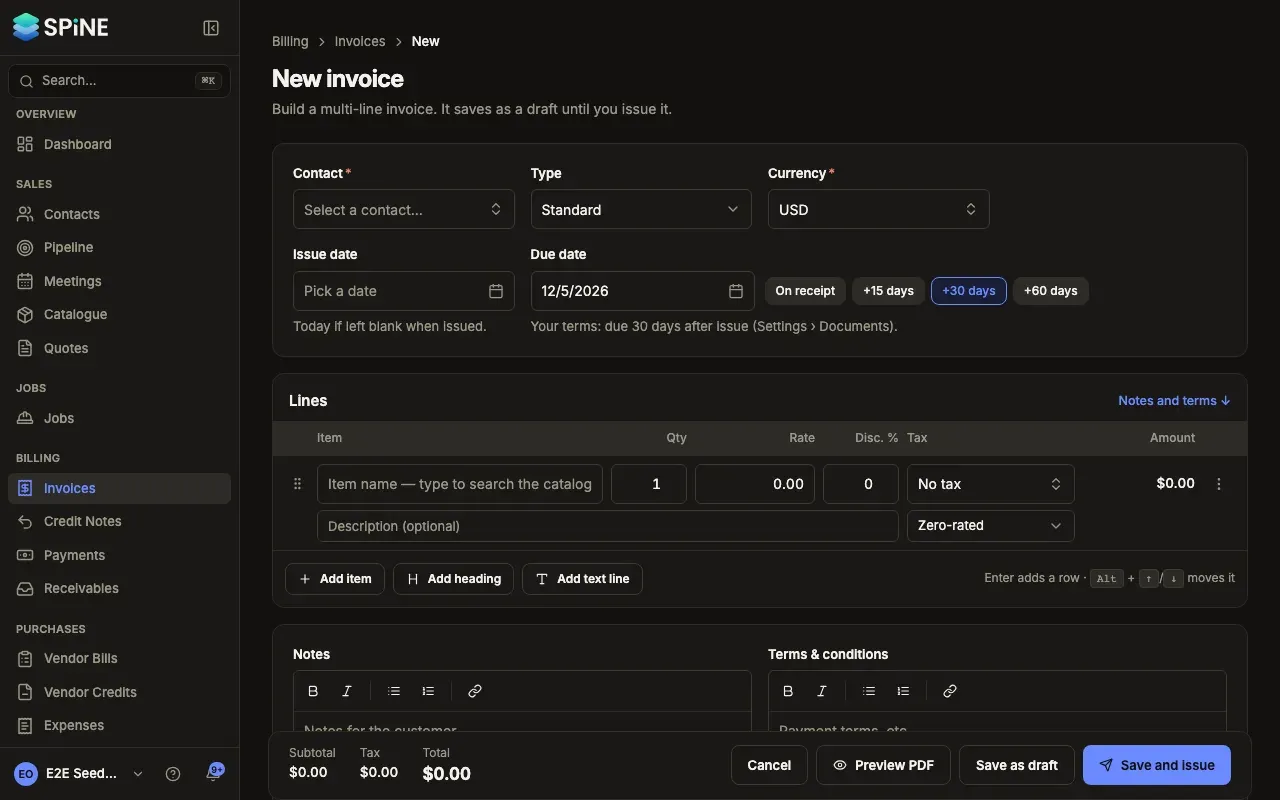
Start a new invoice — Go to Invoices and press New invoice. Pick the Contact.
-
Choose Advance — Set Type to Advance.
-
Add the deposit line — Add a line for the deposit, for example “Deposit — 20% of contract”. A deposit carries no tax, so Spine removes any tax from its lines when you save. The final invoice carries the full tax.
-
Save and issue it — Press Save as draft, check it, then press Issue invoice. Issue this invoice? says who will owe what and when. Press Issue invoice to confirm.
In the Invoices list it shows “Deposit” under its number.
Record the deposit when it arrives
Section titled “Record the deposit when it arrives”A deposit invoice’s page has no Record payment button. Record the money from Payments instead: press Record payment, pick the customer and put the amount against the deposit invoice. It then shows Paid (or Part paid if they paid some of it). The money is held as the customer’s credit, ready for the final invoice. See Payments and receivables.
Take the deposit off the final invoice
Section titled “Take the deposit off the final invoice”When you issue the customer’s next invoice, Spine asks Apply this customer’s credit?. Press Apply credit and issue, and the invoice asks only for what’s still owed. You can also do it later with Apply credit. See Apply a customer’s credit to an invoice.
Last updated with Spine 1.0.0-beta.2