

Send a receipt
Every payment has a receipt the customer can keep as proof they paid. Spine can email it when you record the payment, and you can send it again or download it at any time.
Send it as you record the payment
Section titled “Send it as you record the payment”In the Record a payment dialog, if the customer has an email address, Email a receipt to … is on. The receipt is emailed once, when you press Record payment. Turn it off and nothing is sent.
Email it later
Section titled “Email it later”-
Open the payment — Go to Payments and open it.
-
Press Email receipt — It’s the main button once the payment has no credit left; otherwise it’s under More. The Email receipt dialog opens with the customer’s address and a message.
-
Check the email — Leave Attach the receipt PDF ticked to include the PDF.
-
Send it — Press Send receipt. The toast reads Receipt sent.
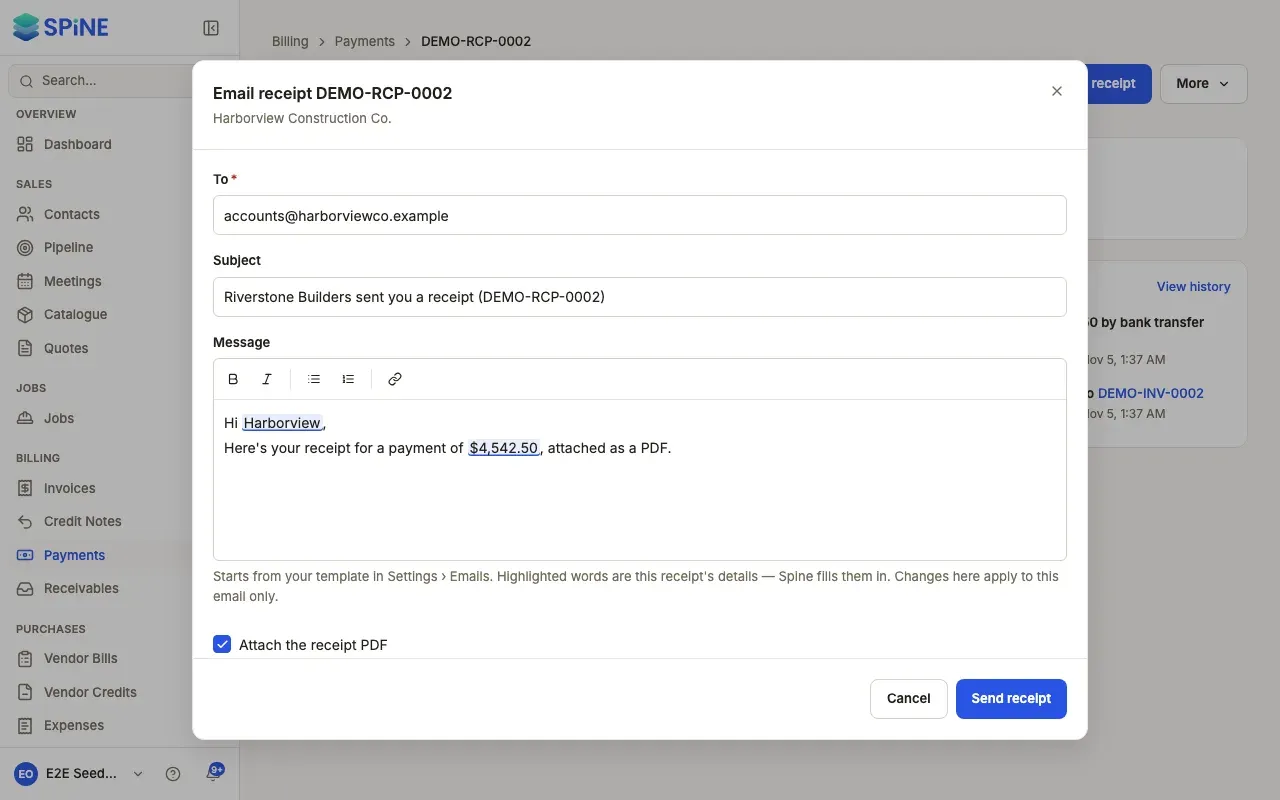
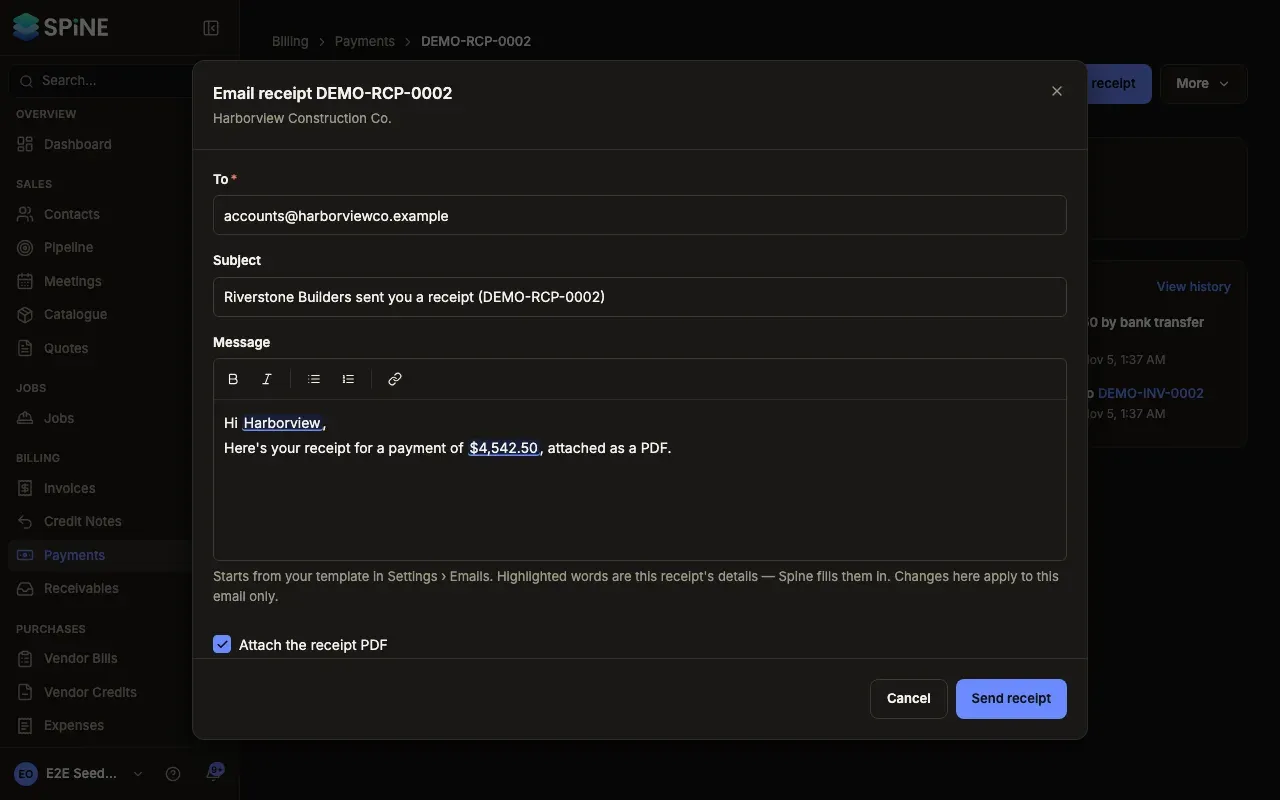
The customer gets an email titled with your business name and the receipt number, saying you received their payment. The payment’s Activity records “Receipt emailed to …”.
Download the receipt
Section titled “Download the receipt”Press Download PDF on the payment’s page or in its row menu. The receipt shows your business details, RECEIPT, its number, who it was received from, the date, the method, the invoices it was applied to and the amount received. If you later move the payment off an invoice, the PDF lists only what’s still applied.
When a payment arrives
Section titled “When a payment arrives”Each time a payment is recorded, Owners get an email, “Payment received from” the customer, and an in-app notification saying who paid and how much. Clicking the notification opens the payment.
Last updated with Spine 1.0.0-beta.2