

Find and review payments
The Payments list answers “did they pay?” quickly. Each payment also has its own page that shows what it paid, the credit it has left and everything that happened to it.
Find a payment
Section titled “Find a payment”-
Open Payments — Choose Payments in the sidebar. The newest payment is first.
-
Read the cards — Received this month totals what came in. Credit to use shows credit left on payments and for how many customers; press it to show only those payments, and press again to clear. Refunded this month totals refunds of payment credit.
-
Filter the list — Use the contact, Method and date range filters (All time, This month, Last month, Last 90 days or This financial year). Clear filters removes them.
-
Search — Type in Search receipts, references, customers or invoices.
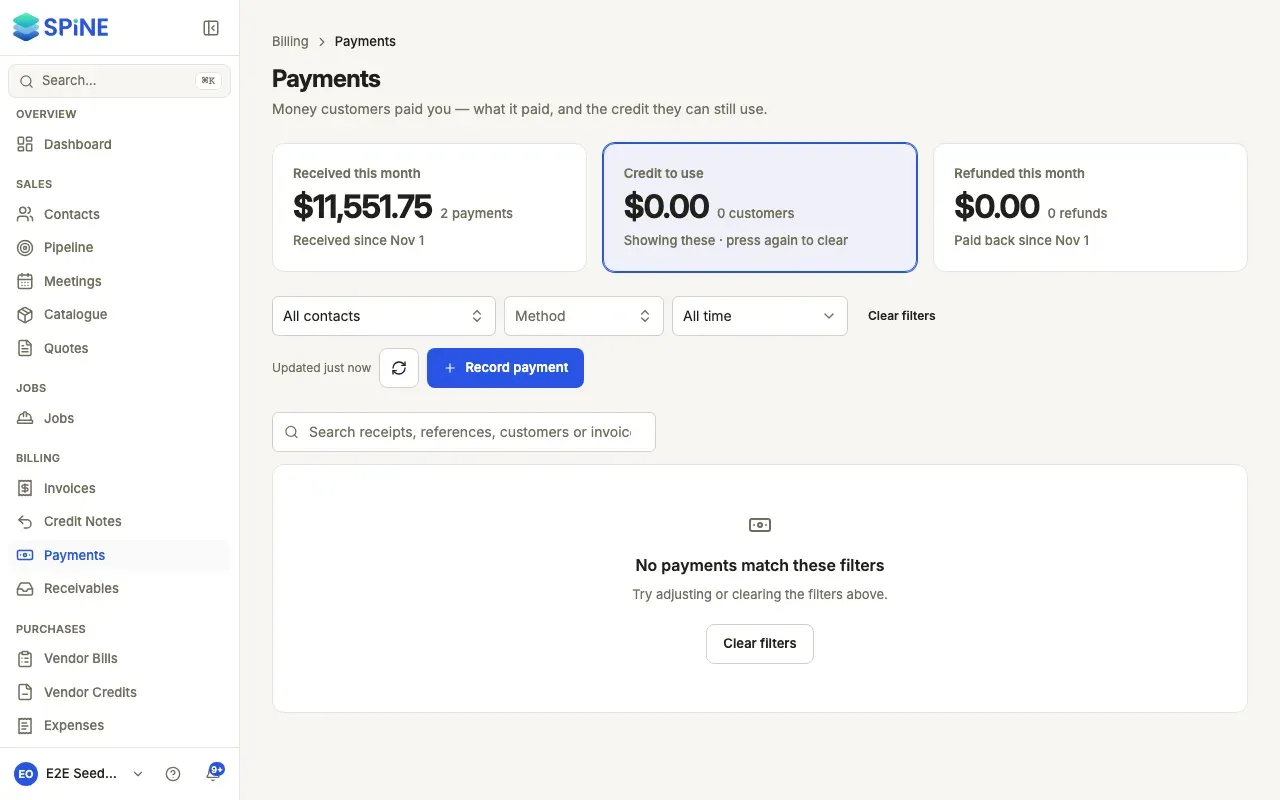
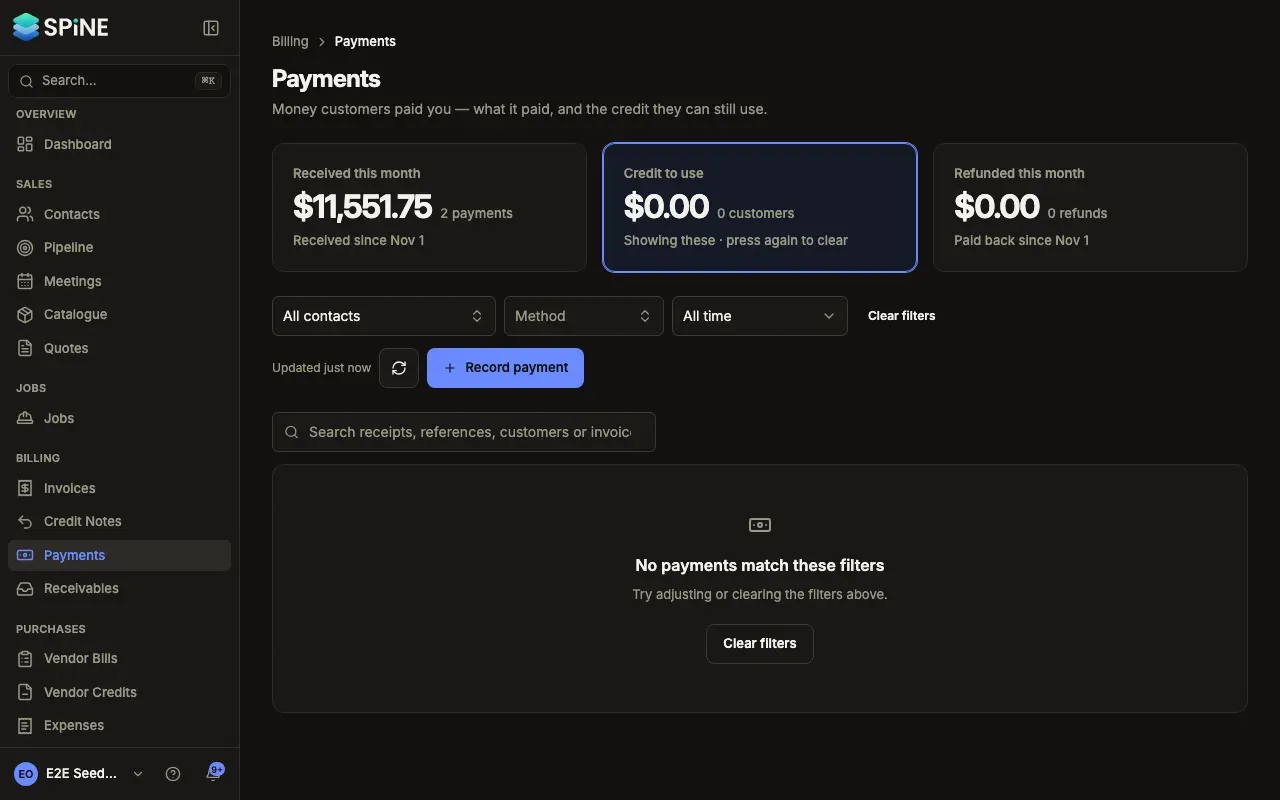
Each row shows the receipt number with its reference, the date, the customer, the method with the account it went into, the amount, Applied to (the invoice numbers, or Not applied) and Credit left. The row menu offers View, Apply credit, Refund, Email receipt, Download PDF and Delete payment, each only when you have the right. Actions that change anything open the payment’s page with that dialog, so nothing happens in one click.
Your search and filters are kept in the address, so going Back or opening a bookmark brings back the same list. Press Refresh list to reload it.
Read a payment’s page
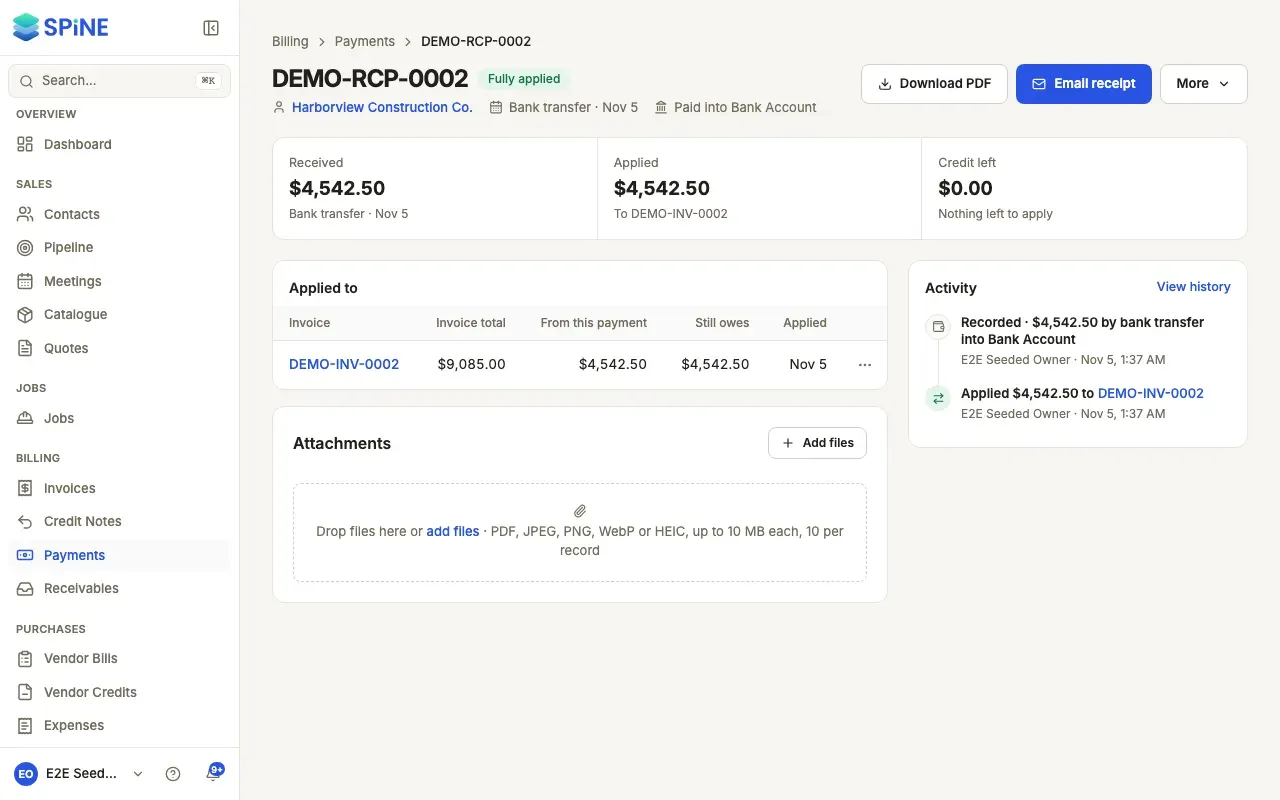
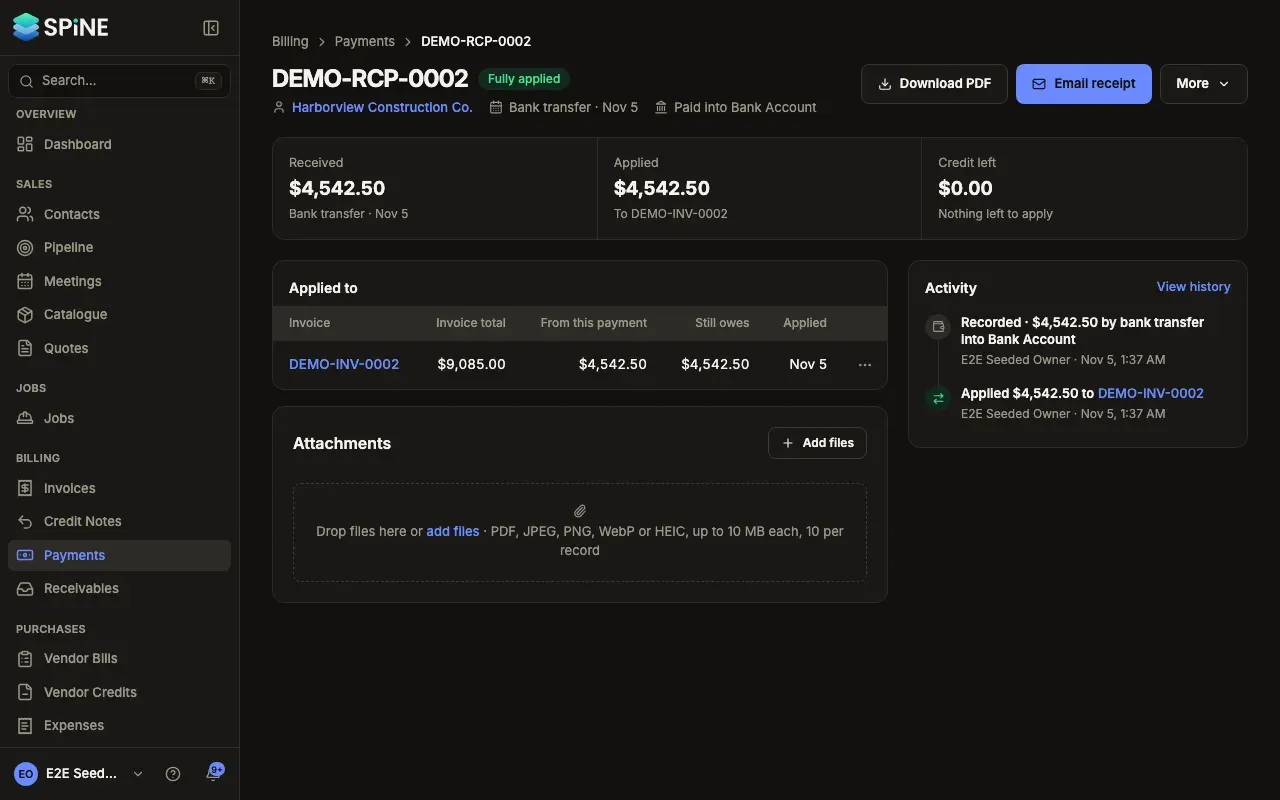
Section titled “Read a payment’s page”The title is the receipt number with its state: Fully applied, Credit left or Refunded. Under it are the customer, the date, the method, Paid into the account and the reference.
- The strip reads Received, Applied, Refunded (when any) and Credit left.
- Applied to lists each invoice with its total, what this payment put on it, what it Still owes (or Paid) and when it was applied.
- Activity lists, newest first, when it was recorded, applied, receipted, moved off an invoice or refunded, and by whom. View history under More shows field-level changes.
Last updated with Spine 1.0.0-beta.2