

Find items and fix missing setup
A catalogue grows quickly. Search and filters find an item in seconds, and the cards at the top show which items still need a tax rate or an income account, so your documents and books come out right.
- Open the catalogue — Go to Catalogue. The Items tab is open, with its count beside it.
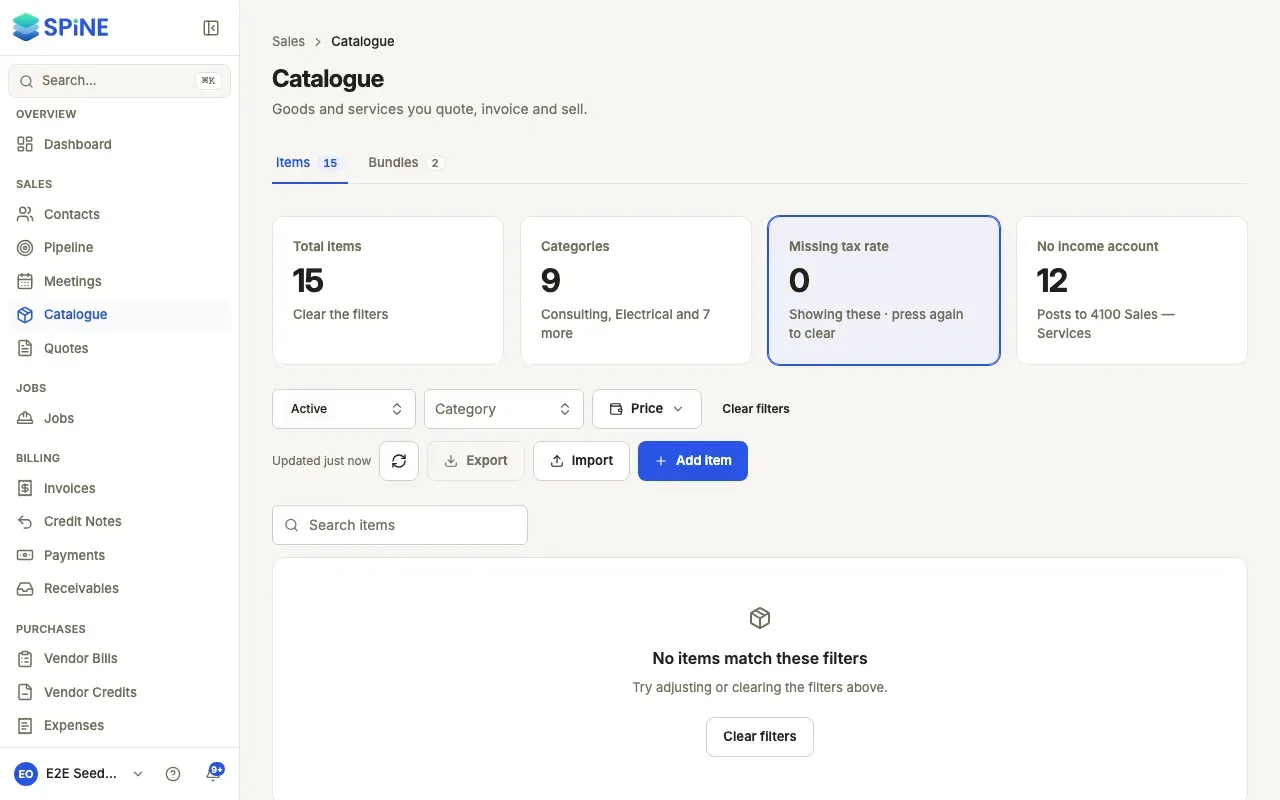
- Read the cards — Total items and Categories count your active items. Missing tax rate counts taxable items with no default tax. No income account counts items whose sales post to 4100 Sales — Services.
- Search — Type in Search items.
- Filter — Choose a Status (Active or Archived) or a Category. Press Price to set a Min and Max default price and press Apply; the button then shows the range.
- Choose columns — Press Columns to show or hide columns in the table.
Fix missing setup
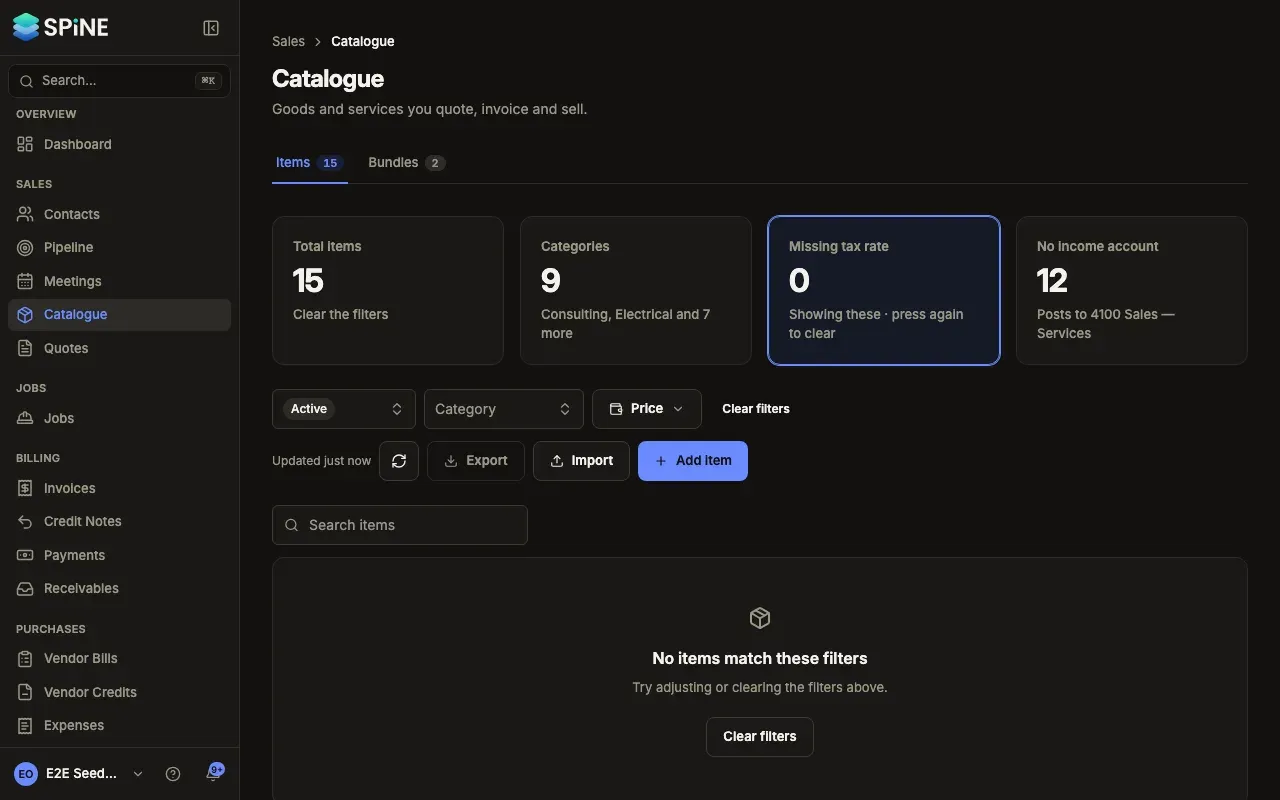
Section titled “Fix missing setup”- Press a card — Press Missing tax rate or No income account. The table shows just those items, and the card says “Showing these · press again to clear”.
- Fix the items — Edit them one by one, or tick them all and use Set tax or Set income account. See Change many items at once.
- Clear it — Press the card again. Total items clears every filter.
Exempt and non-taxable items never count as missing a tax rate. For a GST business, zero-rated items don’t count either.
Reading the table
Section titled “Reading the table”- The Tax column names the default tax, such as “GST 18%”. A zero-rated, exempt or non-taxable item says so. A taxable item with no tax says No tax with a warning icon.
- An item’s description shows as a muted line under its name. Hover over it to read it in full.
- Archived items, shown when you filter by Archived, carry an Archived badge.
- For a GST business, an HSN/SAC column shows each item’s code, or “—” when it has none.
Come back to the same list
Section titled “Come back to the same list”The address in your browser keeps your search, filters, setup card, sort and page (for example /catalog?category=Labour&setup=tax), so Back and bookmarks bring you to the same list. Clear filters clears them. Press Refresh list to see colleagues’ changes; the list also refreshes when you come back to the tab after 30 seconds or more away.
When nothing matches, you see “No items match these filters” with Clear filters.
Last updated with Spine 1.0.0-beta.2