

See the entries behind a figure
Every figure on a report is a total of journal entries, and every entry was posted by a document: an invoice, a payment, a bill, an expense or a journal. When a number looks wrong, click it. Spine lists the entries that make it up, and each one opens the document that posted it.
- Open a report — For example Reports › Profit & Loss, Balance Sheet or Trial Balance. The note under the table reads “Click an account to see every journal entry behind its figure.”
- Click the account — Accounts show as code and name, such as “4100 · Sales — Services”. A dialog opens titled with the account.
- Read the entries — Each entry in the report’s range shows its description, its date, and its amount marked Dr (debit) or Cr (credit).
- Open the source — Click an entry from an invoice, payment, bill or expense to open that document.
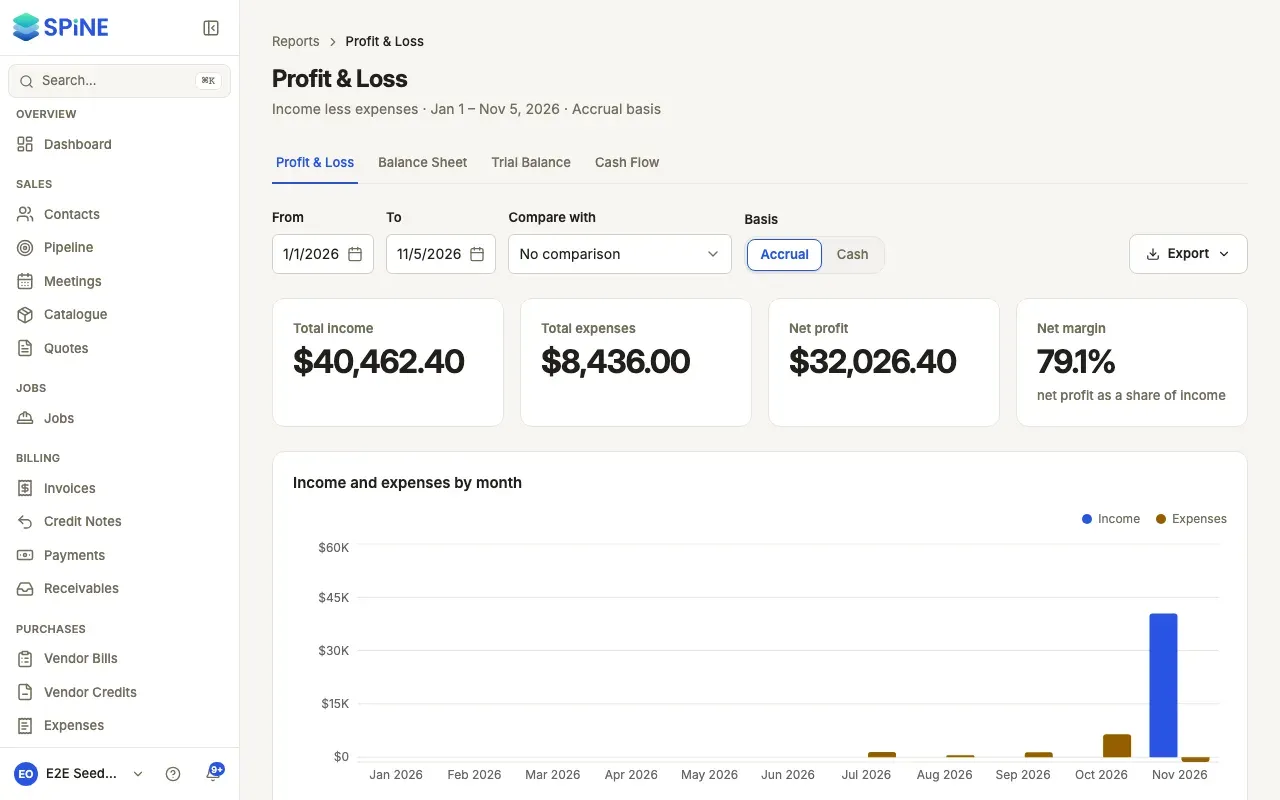
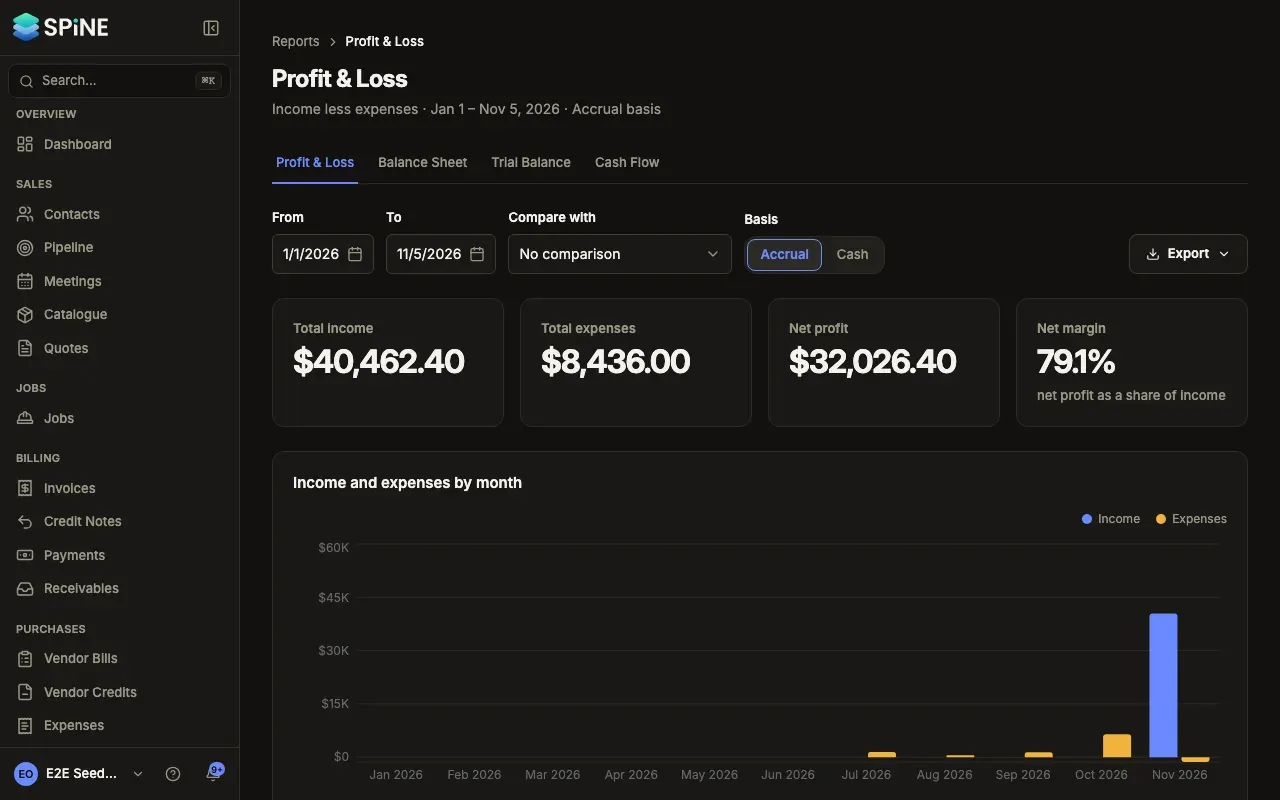
If nothing was posted to the account in the range, the dialog says “No journal entries posted to this account in range.”
Other places you can drill down
Section titled “Other places you can drill down”- Cash Flow: click a line to see the accounts behind it. A positive amount brought cash in.
- Expenses by category: click a category to see every journal entry behind it.
- Sales by customer, Sales by item and Purchases by vendor: click a row to list its invoices or bills.
Entries are never edited. If one is wrong, correct the document that posted it, for example by voiding or crediting an invoice, or post an adjusting journal.
Last updated with Spine 1.0.0-beta.2