

Issue an invoice
Issuing turns a draft into a real invoice. It gets the next number in your sequence, it’s posted to your books, and its PDF is saved exactly as it is at that moment. Issue an invoice only when it’s right: after this it can’t be edited, only voided or credited.
-
Open the draft — Go to Invoices and open the draft. Drafts show Draft in the number column.
-
Check it — Read the lines and totals. Press Preview PDF to see what the customer will get.
-
Press Issue invoice — Issue this invoice? says who will owe what and when it’s due, and that it can then only be voided or credited.
-
Confirm — Press Issue invoice. Press Go back to leave it as a draft.
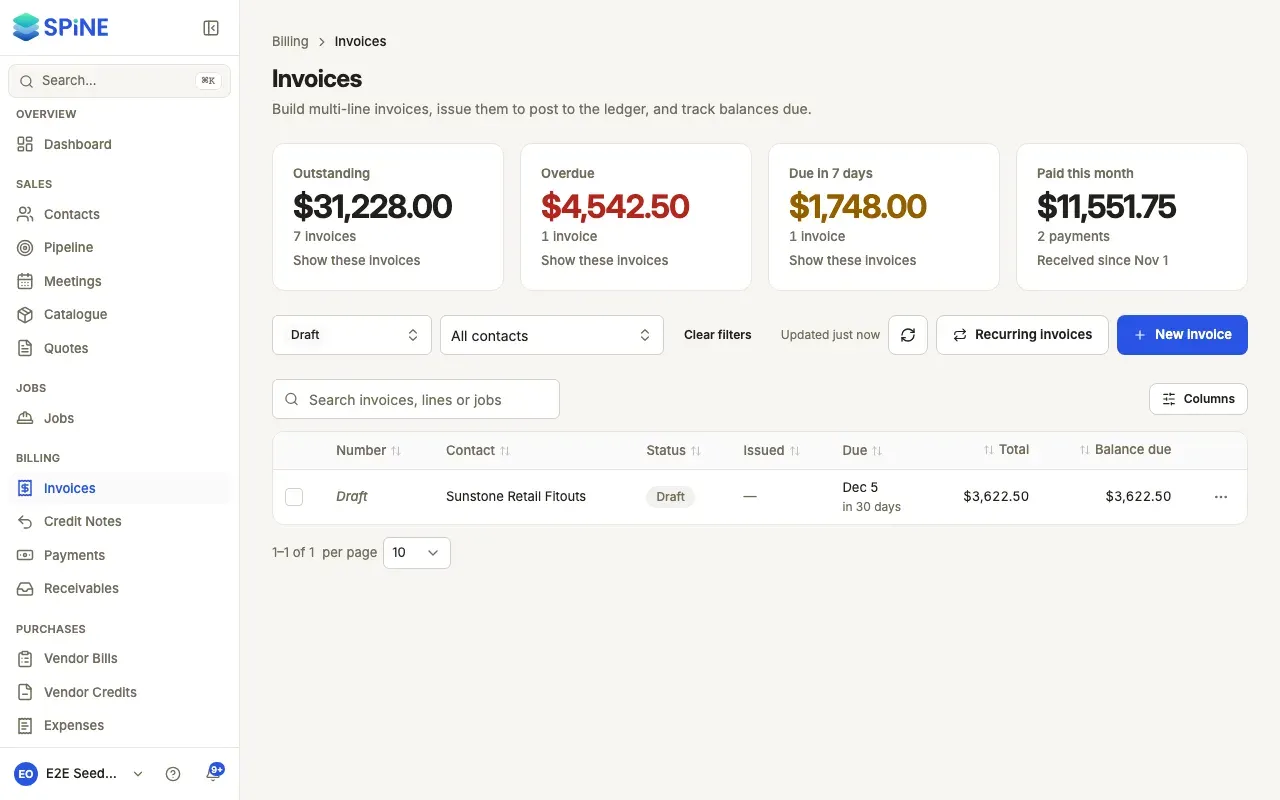
You can also issue from a draft’s row menu (Issue) or with Save and issue in the builder. Both open the same question first, so nothing is issued in one click.
What happens next
Section titled “What happens next”- A toast says Invoice issued, and the invoice gets its number, such as INV-0012.
- Its status becomes Due, and its lines can no longer be changed.
- If it had no due date, it gets one from your payment terms.
- One balanced entry is posted to your books: the customer owes the total, and the revenue and tax are recorded line by line. A deposit (Advance) invoice is the exception — nothing is posted until the money arrives.
Questions Spine may ask instead
Section titled “Questions Spine may ask instead”- Apply this customer’s credit? — when the customer has credit from payments or credit notes. Apply credit and issue uses it, so the invoice (and its UPI QR code, if it has one) asks only for what’s still owed. Issue without credit leaves the credit for later.
- Issue without HSN/SAC codes? — on a GST invoice to a registered business when lines have no HSN/SAC code. Go back to add them, or Issue anyway.
Answering either question is the confirmation.
Next: Email an invoice.
Last updated with Spine 1.0.0-beta.2