

Add and manage tax rates
A tax rate is a name and a percentage that a line on a quote, invoice, bill, expense or catalogue item can use. Your rates live in Settings › Tax. Changing one later is safe: documents already issued keep the percentage they were issued with.
- Open Settings › Tax — Open your account menu, choose Settings, then Tax. The Tax rates list shows each rate as its name and percentage, for example “GST 10%”.
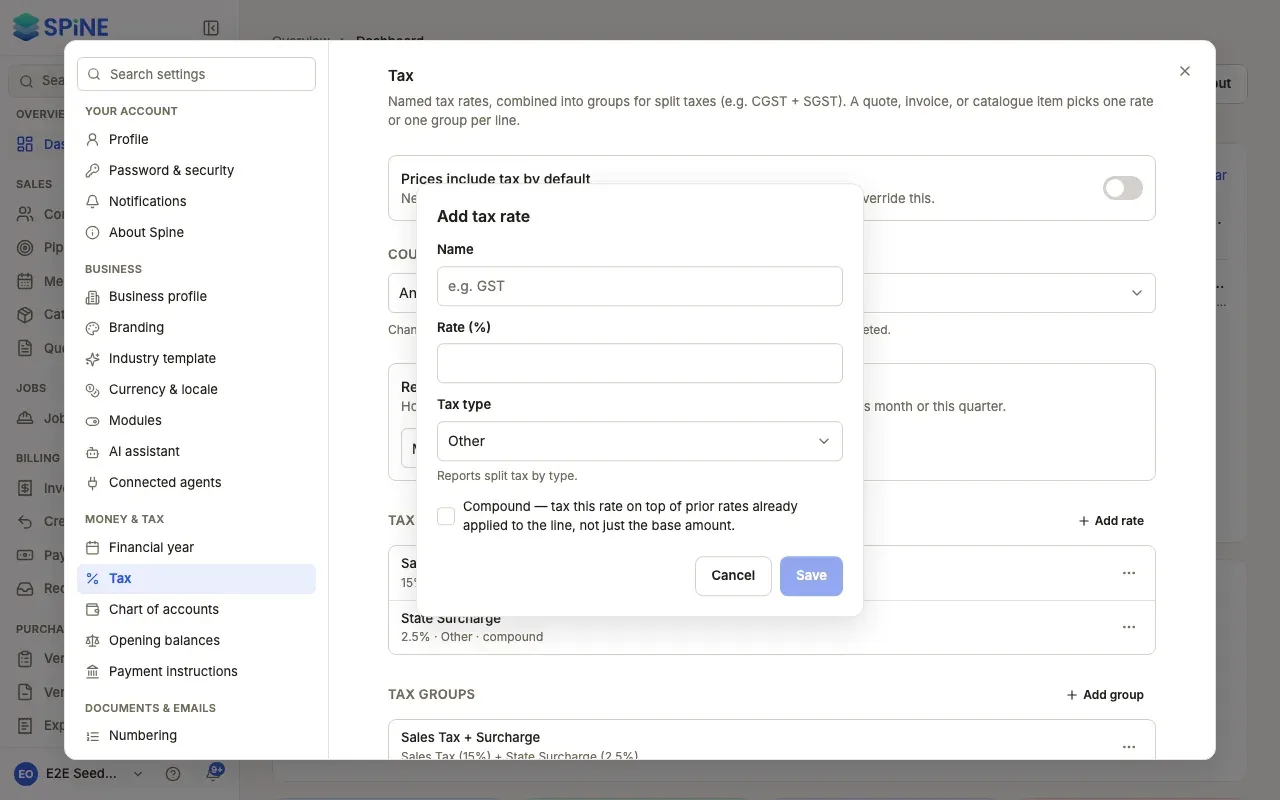
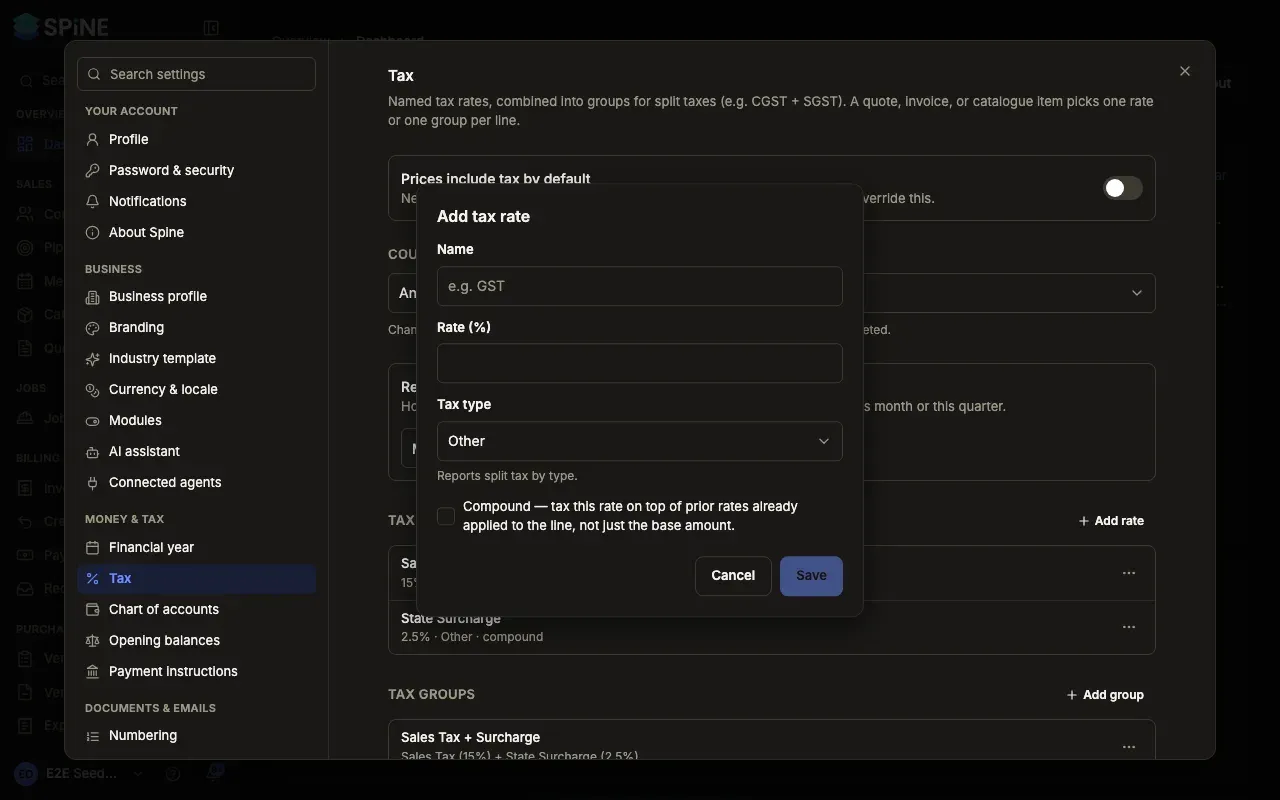
- Add a rate — Press Add rate. The Add tax rate dialog opens.
- Name it — Enter a Name (for example “GST”) and the Rate (%). Rates are stored exactly, so 8.875 stays 8.875.
- Choose the tax type — Pick a Tax type: VAT, GST, Sales tax or Other. For India, the choices are CGST, SGST, UTGST, IGST and Cess. Reports split tax by this type.
- Say what lines with this rate are — Under Lines with this rate are, choose the supply type a line gets when it picks this rate, such as Taxable or Zero-rated.
- Tick Compound if it applies — Compound taxes this rate on top of earlier rates in a group, not only on the base amount. Use it for a surcharge charged on tax.
- Save — The rate joins the list.
Edit, archive or restore a rate
Section titled “Edit, archive or restore a rate”Open the rate’s menu (Actions for the rate) and choose:
- Edit to change its name, percentage or type. Issued documents keep the percentage they were issued with. Drafts and new lines use the new one.
- Archive to hide it from line pickers. It still shows on old documents, marked Archived in the list.
- Restore to bring an archived rate back.
If saving fails you see “Could not save tax rate.” Check the fields and try again.
A 0% rate is how you enter zero-rated sales. To say why a line has no tax, see Mark a line as zero-rated, exempt or non-taxable. To charge two rates together, combine them into a tax group.
Last updated with Spine 1.0.0-beta.2