

Choose what your documents show
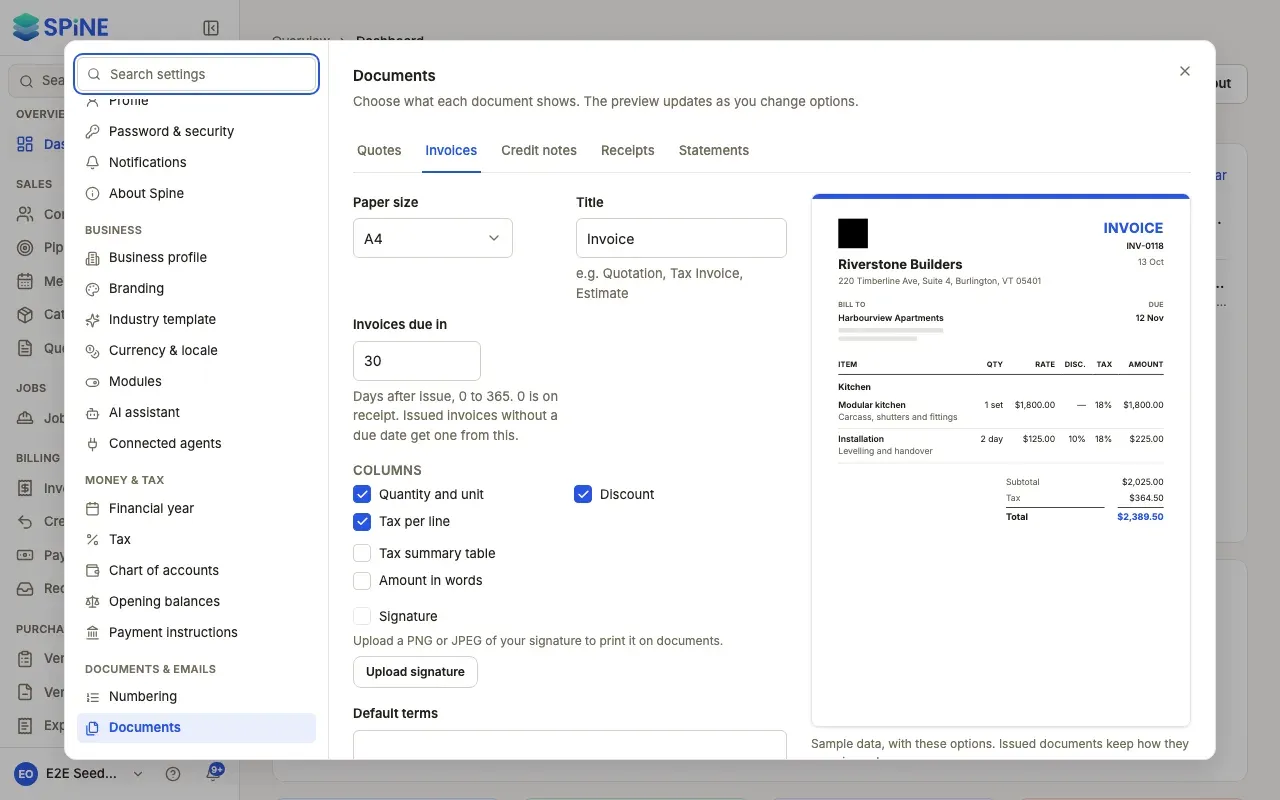
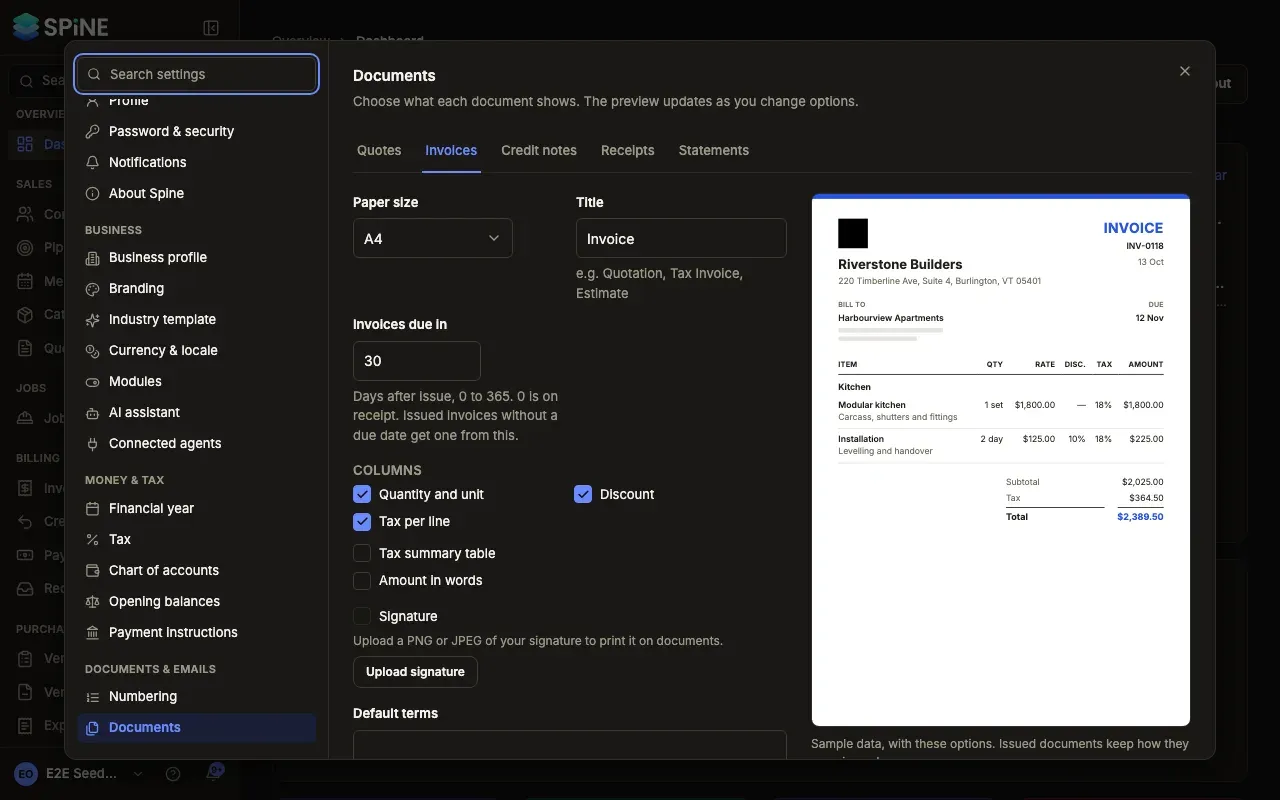
The Documents pane decides what your quotes, invoices, credit notes, receipts and statements look like when they’re issued. A live preview beside the options shows a sample page as you change them, so you can see the result before any customer does.
-
Open Settings › Documents — Open your user menu, choose Settings, and pick Documents under Documents & emails.
-
Pick a document type — Choose a tab: Quotes, Invoices, Credit notes, Receipts or Statements. Each has its own options.
-
Set the page — Choose a Paper size (A4 or Letter) and a Title, such as “Quotation”, “Tax Invoice” or “Estimate”. On Quotes, Quotes valid for sets how many days new quotes are valid (1 to 365). On Invoices, Invoices due in sets the days after issue (0 to 365; 0 is on receipt).
-
Choose the columns — On quotes, invoices and credit notes, tick what to show under Columns: Quantity and unit, Discount, HSN/SAC (only when GST is on) and Tax per line. Tick Tax summary table and Amount in words if you want them.
-
Add your signature — Press Upload signature and choose a PNG or JPEG, then tick Signature on the document types that should show it. It prints above “Authorised signatory”.
-
Write default terms and notes — Default terms and Default notes are up to 2,000 characters each. On quotes and invoices, new drafts start with them and you can change them on each document; on the others they’re printed on every one.
-
Press Save — A “Saved” message appears. The next document you issue uses these options.
Good to know
Section titled “Good to know”- Hidden columns don’t change amounts. “Hidden columns don’t change any amounts. Issued PDFs never change.” A line with a discount still shows its discounted price when the Discount column is hidden.
- GST titles win. With GST on, the invoice and credit note titles are “Tax Invoice” and “Credit Note” and the field says “Set by your GST settings”. See Tax.
- Amount in words uses your currency, and lakh and crore for rupees.
- Every character prints. ₹ and names in Devanagari print correctly on PDFs.
- Replace or remove a signature with Replace signature or Remove signature. Issued PDFs keep the signature they were issued with.
Last updated with Spine 1.0.0-beta.2