

Save and reuse lines as a bundle
If you quote the same package of work again and again, save its lines as a bundle. Next time, pick the bundle and all its lines go in at once, in order, with their prices and tax.
Save a bundle from a quote
Section titled “Save a bundle from a quote”-
Open the quote — Go to Quotes and open a quote that has the lines you want. It can be a draft or a sent quote.
-
Choose Save lines as a bundle… — Press More and choose Save lines as a bundle…. You see this only when the quote has at least one item line.
-
Name it — Enter a Bundle name, such as “Bathroom refit — standard”, and an optional Description. The dialog shows a summary of the lines it will save.
-
Save — Press Save bundle. A toast says Bundle saved, and the bundle is in the catalogue under Bundles.
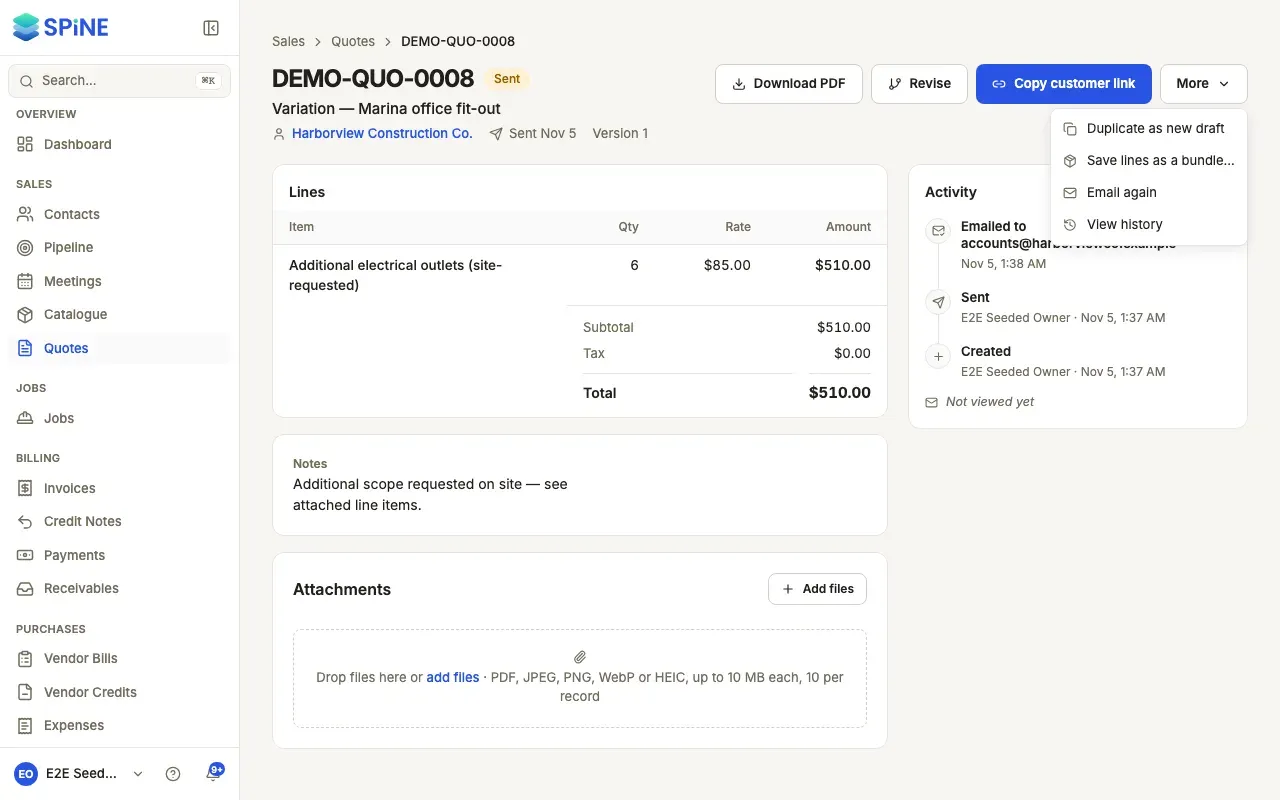
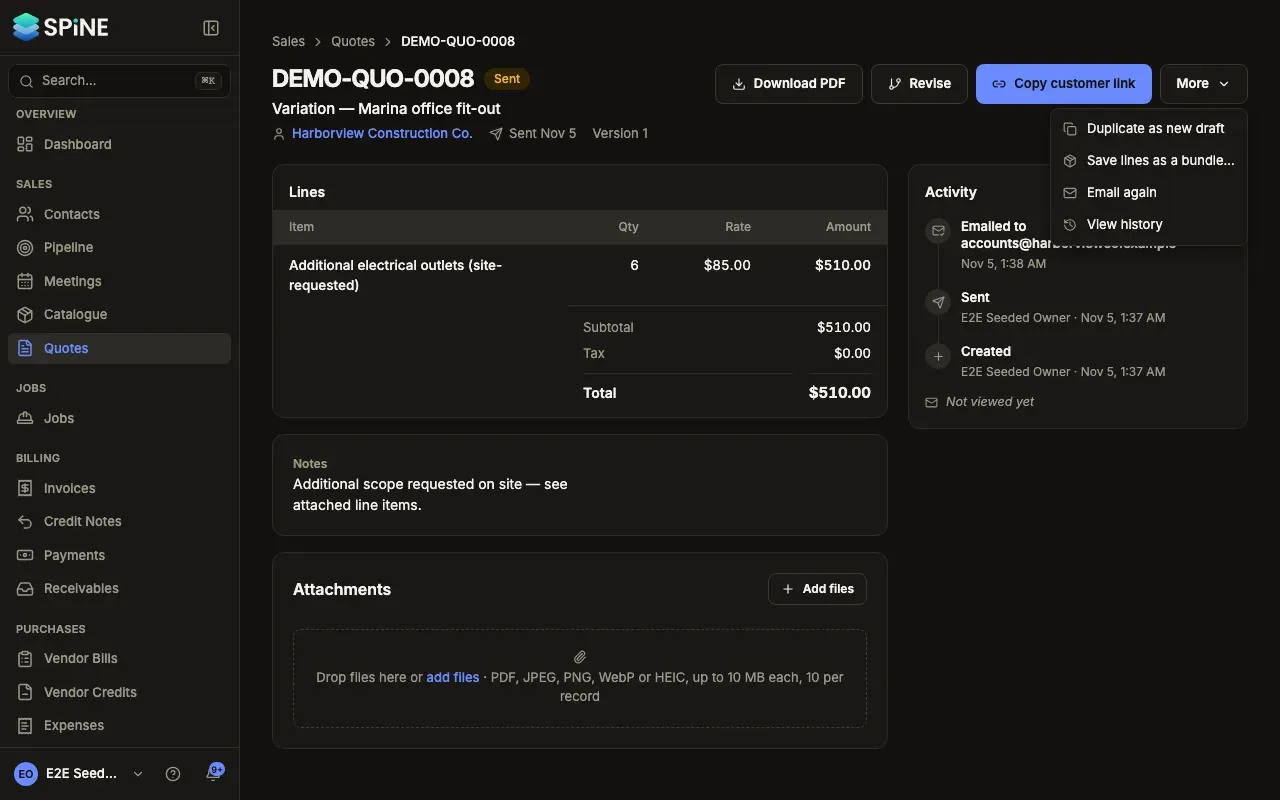
If you press Save bundle without a name, you’re asked to give the bundle a name.
Add a bundle while building a quote
Section titled “Add a bundle while building a quote”-
Type in a line’s Item field — In the quote builder, start typing the bundle’s name.
-
Pick from Bundles — Matching bundles are listed first under Bundles, each with its total and a summary such as “Adds 3 lines: …”. Items follow under Items.
-
Check the lines — The bundle’s lines go in at that position, in order. Each is an ordinary line you can change or remove.
Good to know
Section titled “Good to know”- A bundle is a copy. Changing the quote you saved it from later doesn’t change the bundle, and changing a bundle doesn’t change quotes that already used it.
- Prices and tax come from the bundle, not today’s catalogue prices.
- If an item in a bundle has since been archived, its line is still added, as a one-off line.
- Bundles appear in the item picker on quotes and invoices. Vendor bills show items only.
- To edit, archive or delete a bundle, go to the catalogue’s Bundles tab. See Catalogue.
Last updated with Spine 1.0.0-beta.2