

Add a bank, cash or card account
Add each place your business keeps money — every bank account, the cash box and each business card — so payments and expenses are recorded where the money really is. Spine creates a ledger account for each one, so you don’t need to touch the chart of accounts.
-
Open Banking — Choose Banking under Money in the sidebar. Your Spine starts with Bank Account (marked Default) and Cash in Hand.
-
Press Add account — It’s on the right of the filter bar.
-
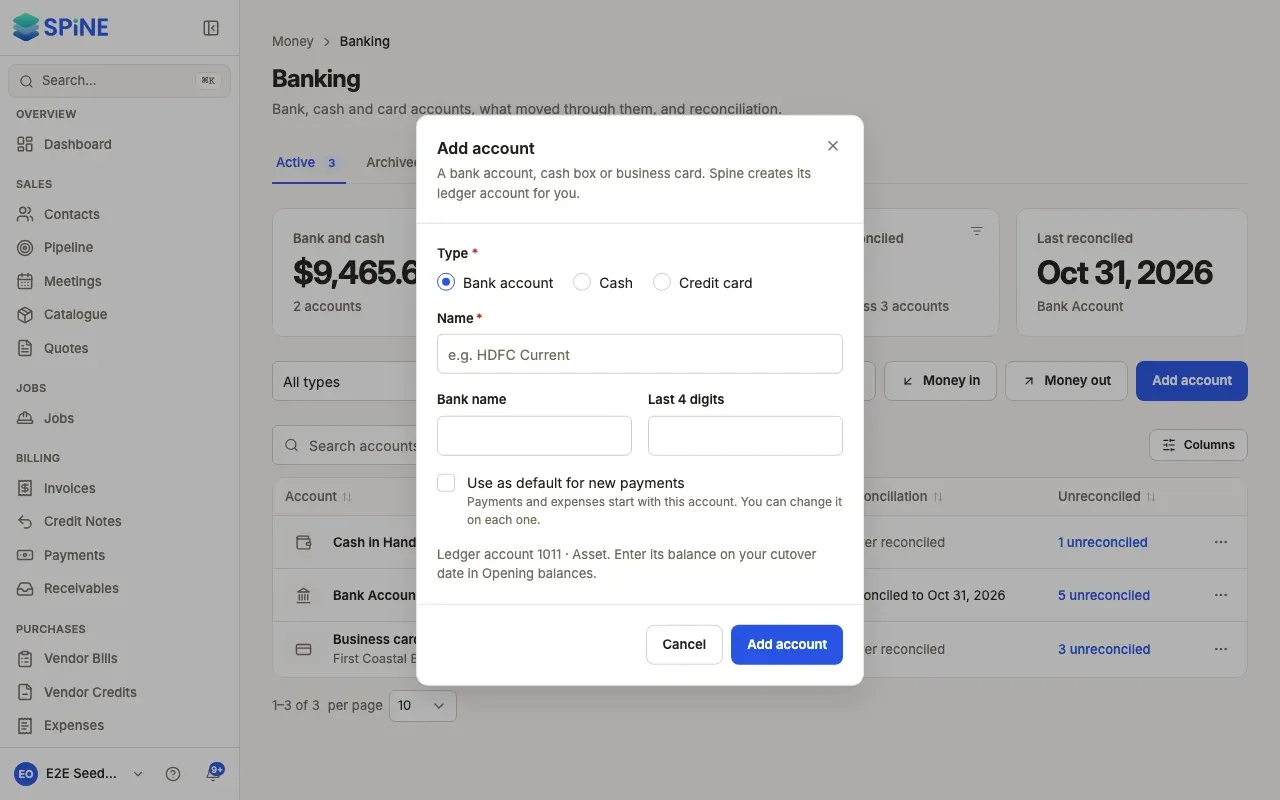
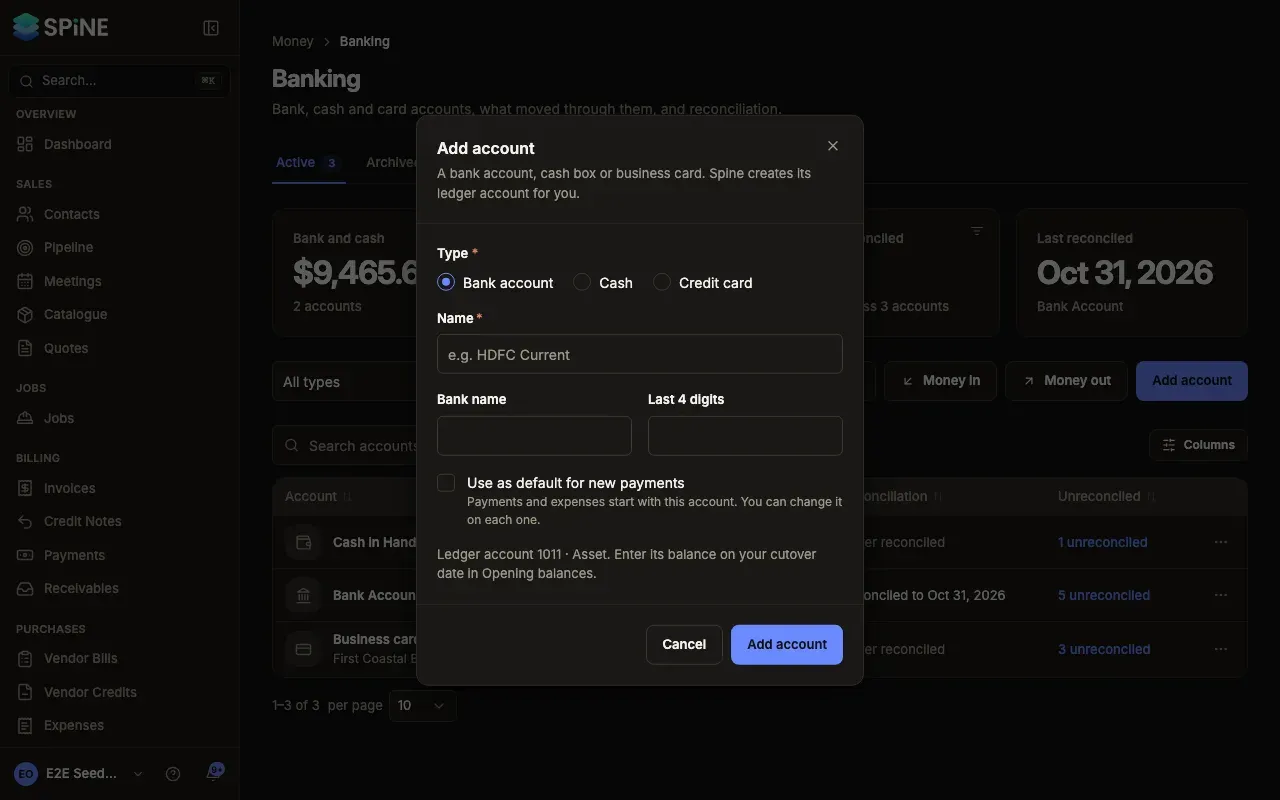
Choose the type — Under Type, pick Bank account, Cash or Credit card.
-
Name it — Enter a Name, such as “First Coastal — Operating”. For a bank account or card, add the Bank name and the Last 4 digits so you can tell accounts apart.
-
Choose whether it’s the default — Tick Use as default for new payments if payments and expenses should start with this account. You can still change it on each one.
-
Save — Press Add account. The toast reads Account added and the account is listed with a balance of 0.00.
What happens next
Section titled “What happens next”The dialog shows the ledger account Spine will create. A bank or cash account is an asset. A credit card is a liability: its balance is what’s owed on the card.
If you were using these accounts before Spine, enter each one’s balance on your cutover date in Settings › Opening balances.
Change an account or the default
Section titled “Change an account or the default”Open an account’s row menu on Banking and choose Edit to change its name, bank or last four digits, then press Save changes. You can also choose Edit account under More in its register.
To make another account the default, choose Set as default in its row menu. Only one account is the default; the toast names the account it replaces.
Last updated with Spine 1.0.0-beta.2