

Act on what needs your attention
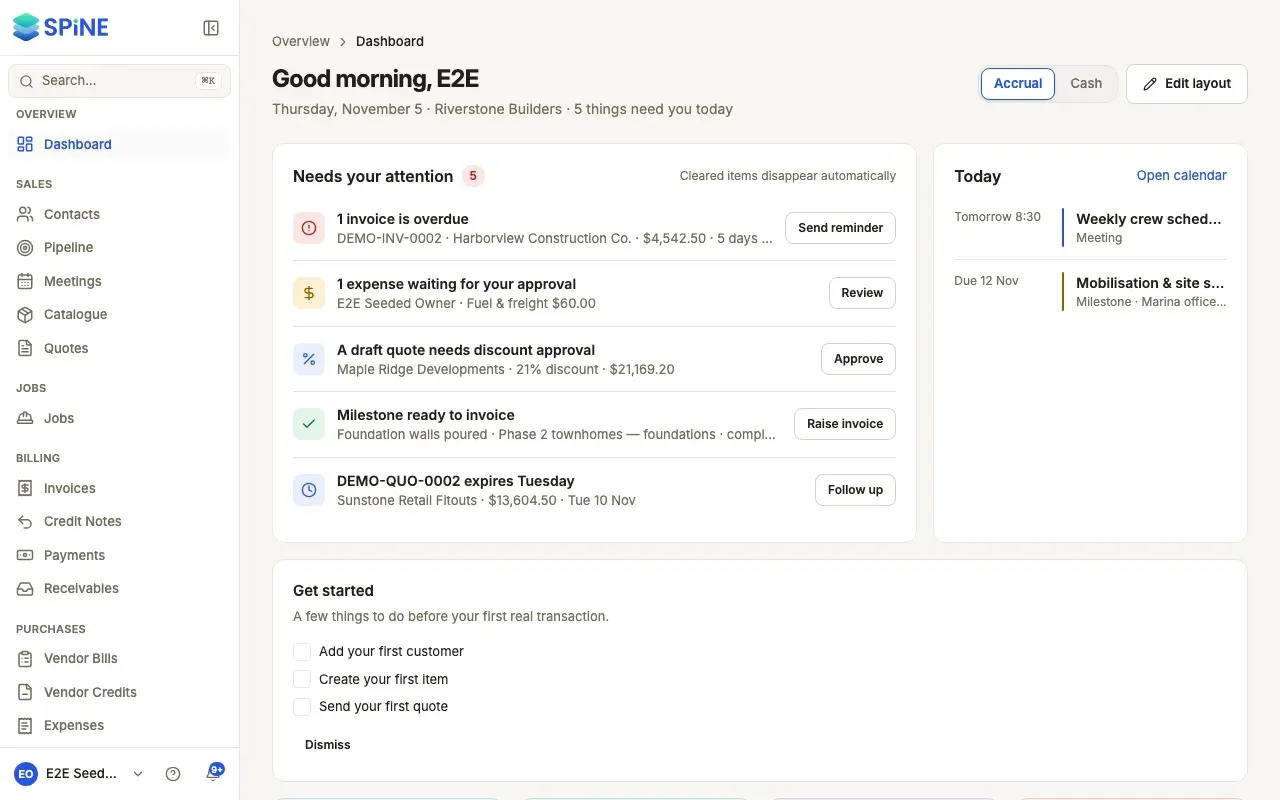
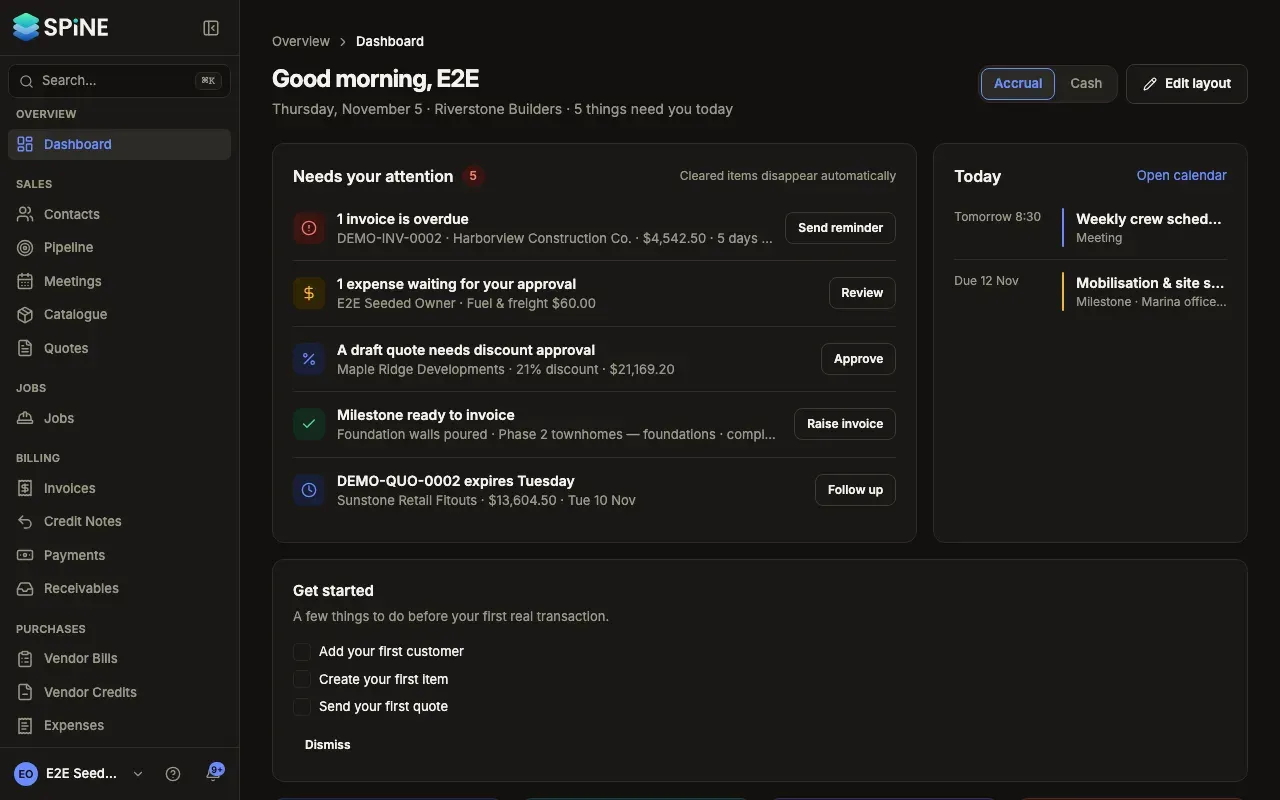
Needs your attention sits at the top of your dashboard. It gathers everything waiting on you, such as overdue invoices, expenses to approve and bills about to fall due, and gives each one the button that deals with it. You don’t dismiss anything: once an item is handled anywhere in Spine, its row is gone the next time you open the dashboard.
- Read the header — It greets you (“Good morning”, “Good afternoon” or “Good evening”) and says how many things need you today.
- Scan the rows — One row per kind of item, with a count chip beside the heading. Each row has a title with the count, such as “1 invoice is overdue”, and a line naming the first record, its amount and how late it is.
- Press the row’s button — It opens the right place to deal with it (see the list below).
- Come back — When you return, cleared rows have gone. The note under the heading says “Cleared items disappear automatically”.
The rows and their buttons
Section titled “The rows and their buttons”For an Owner, rows appear in this order:
- Overdue invoices — Send reminder. With one overdue invoice, it opens with its reminder email ready to check and send. With several, the Invoices list opens filtered to overdue with those invoices selected. Nothing is emailed until you confirm.
- Expenses waiting for your approval — Review opens the expenses waiting for approval.
- Quotes needing discount approval — Approve opens the quote.
- Milestones ready to invoice — Raise invoice opens the milestone’s job.
- Quotes expiring within 7 days — Follow up opens the quote.
- Vendor bills due within 3 days — Pay bill opens the bill’s payment dialog.
- Jobs over budget — Review opens the job.
- Emails that failed in the last 7 days — Review opens the email log filtered to failed emails. Only Owners see this row.
If you can see a row but don’t have the right to take its action, such as sending reminders, the button reads Open instead.
When you’re all caught up
Section titled “When you’re all caught up”With nothing open, the card reads “You’re all caught up” and “Overdue invoices, approvals, expiring quotes and bills due will show up here when they need you.”
Last updated with Spine 1.0.0-beta.2