

Manage expense categories
An expense category is a kind of spending — fuel, materials, site meals. It decides which account an approved expense posts to, and it can fill in the usual tax rate. A short “What it’s for” line helps people pick the right one when they submit.
See your categories
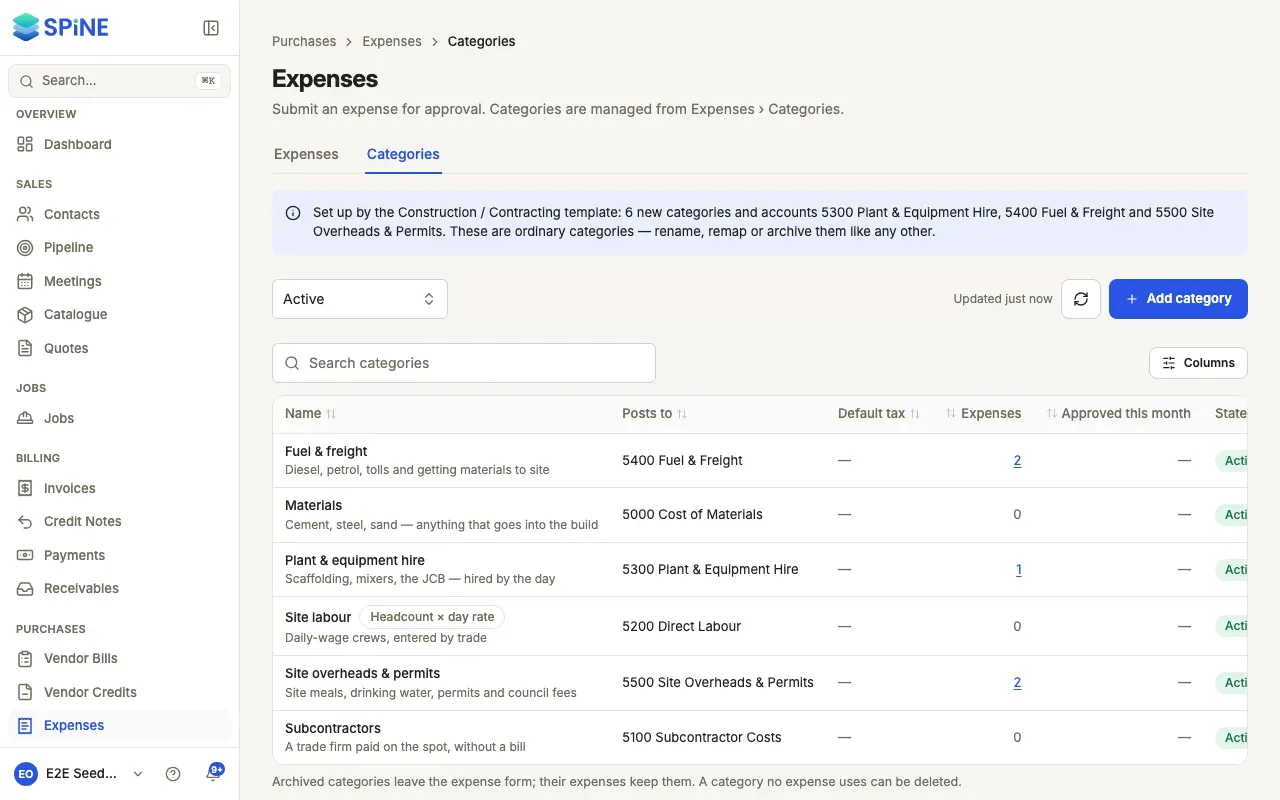
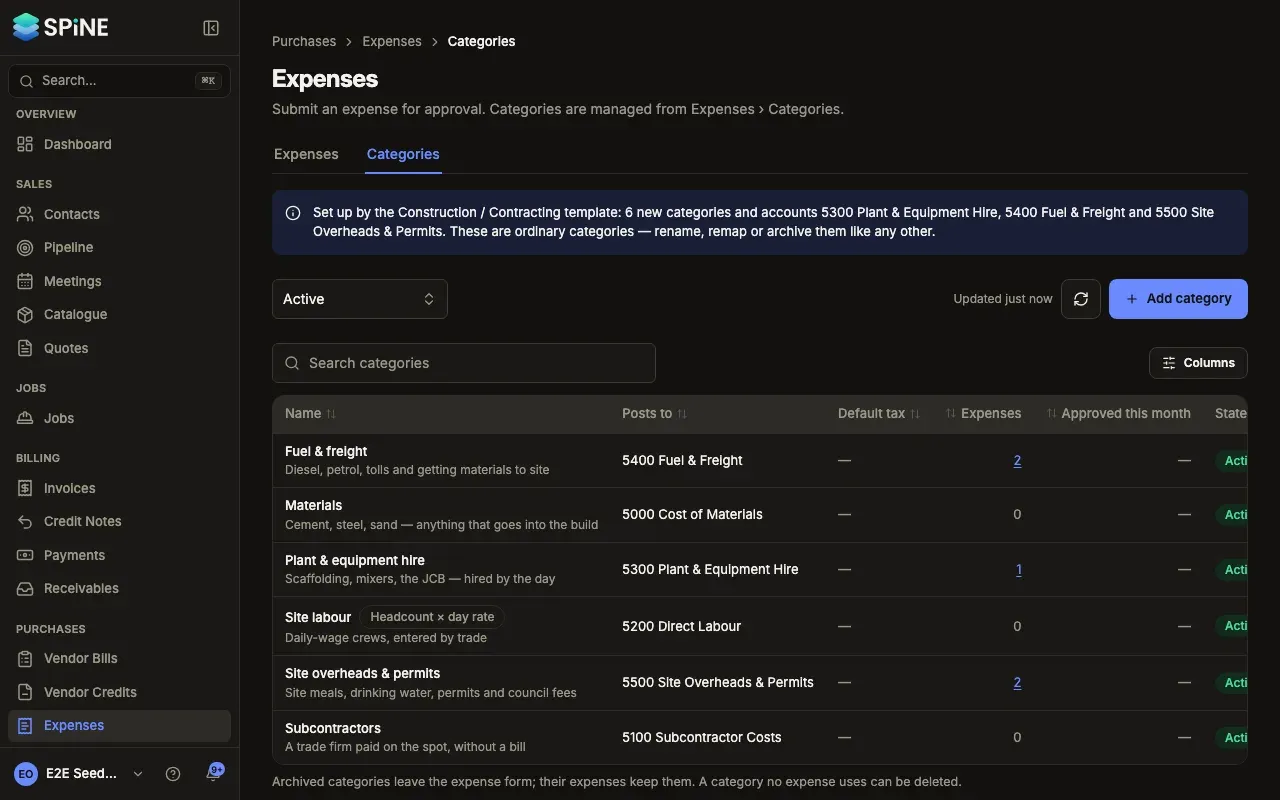
Section titled “See your categories”Go to Expenses and choose the Categories tab. Each row shows the name over its “What it’s for” line, the account it posts to (“6900 Other Expenses · default” when none is set), its Default tax (“—” when none), how many expenses use it, what was approved in it this month, and its state: Active or Archived. A category posting to 5200 Direct Labour is tagged Headcount × day rate.
The state filter shows Active by default; choose Archived or All to see the rest. Press a category’s expense count to open the Expenses list filtered to it.
Add or change a category
Section titled “Add or change a category”-
Open the form — Press Add category, or open a row’s menu and choose Edit.
-
Name it — Enter the Name, for example “Fuel & freight”.
-
Say what it’s for — What it’s for is optional, up to 120 characters. It shows under the name when people pick a category.
-
Choose where it posts — Posts to lists your expense accounts. Leave it empty to post to 6900 Other Expenses.
-
Set the usual tax — Default tax rate is filled in on the expense form when this category is chosen. People can still change it.
-
Save — Press Add category, or Save changes when editing.
A toast confirms it, and a new category is on the expense form straight away.
If another category already has the name (ignoring case and spaces, archived ones included), you see “Fuel & freight is already a category.” If that one is archived, press Restore it instead.
Archive, restore or delete
Section titled “Archive, restore or delete”Open a row’s menu:
- Archive — “Archive Fuel & freight?” It leaves the expense form, so no new expense can use it. Its expenses keep it. Press Archive category.
- Restore — on an archived category, puts it back on the expense form.
- Delete — only for a category no expense uses. “Delete Client entertainment?” Press Delete category. For a category in use, the menu says “In use — archive it instead”.
- View history — who changed it and when.
Last updated with Spine 1.0.0-beta.2