

Add and remove people on a Team
Staff get what their Teams allow, so putting someone on a Team is how you give them access. Changes apply at their next request — they don’t need to sign out.
Add people from the Team’s page
Section titled “Add people from the Team’s page”-
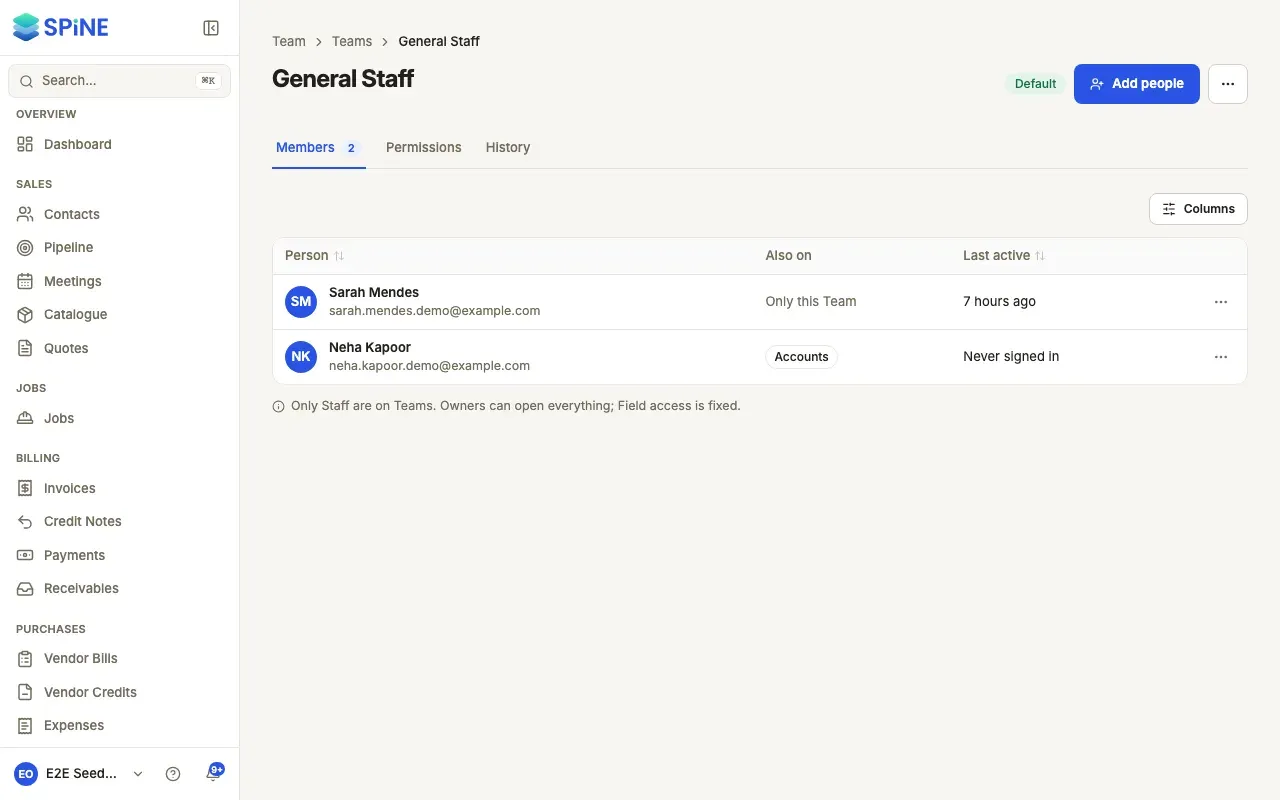
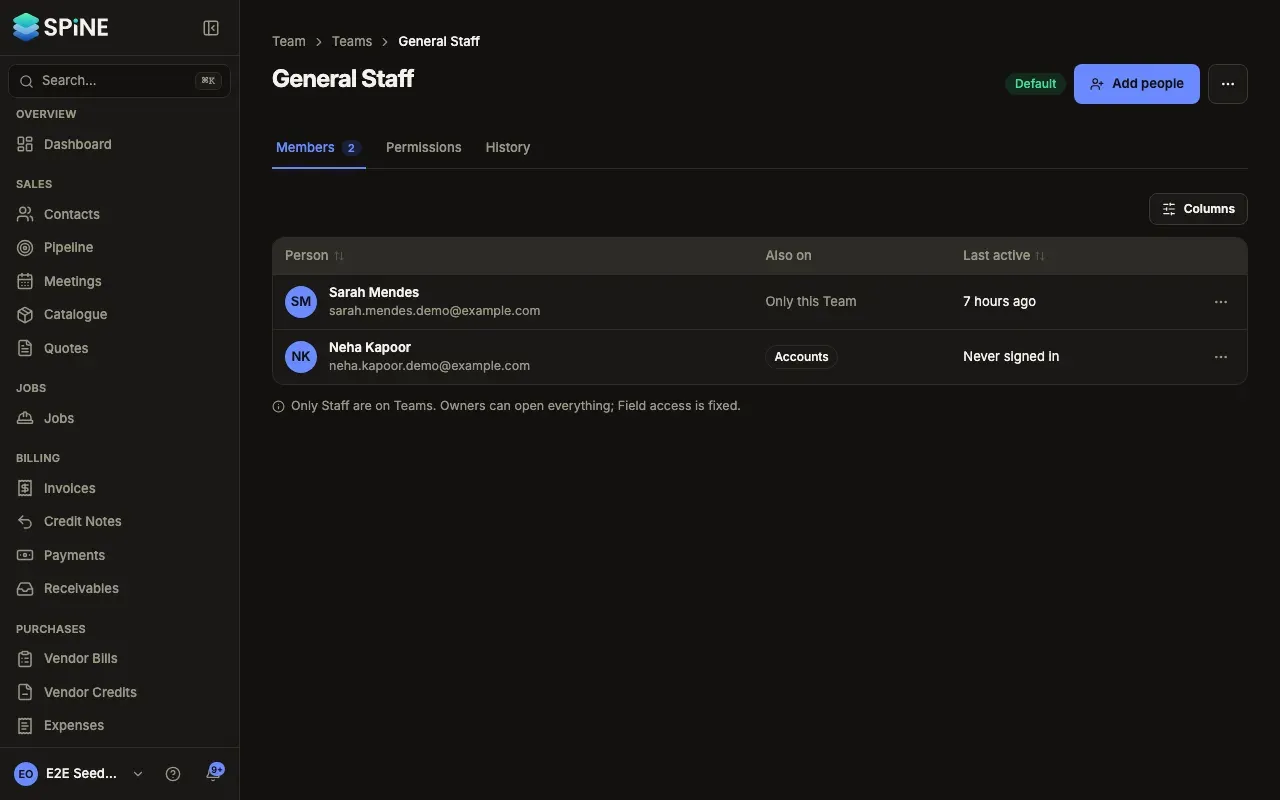
Open the Team — Go to Team › Teams and open the Team. The Members tab lists who’s on it, their other Teams and when they were last active.
-
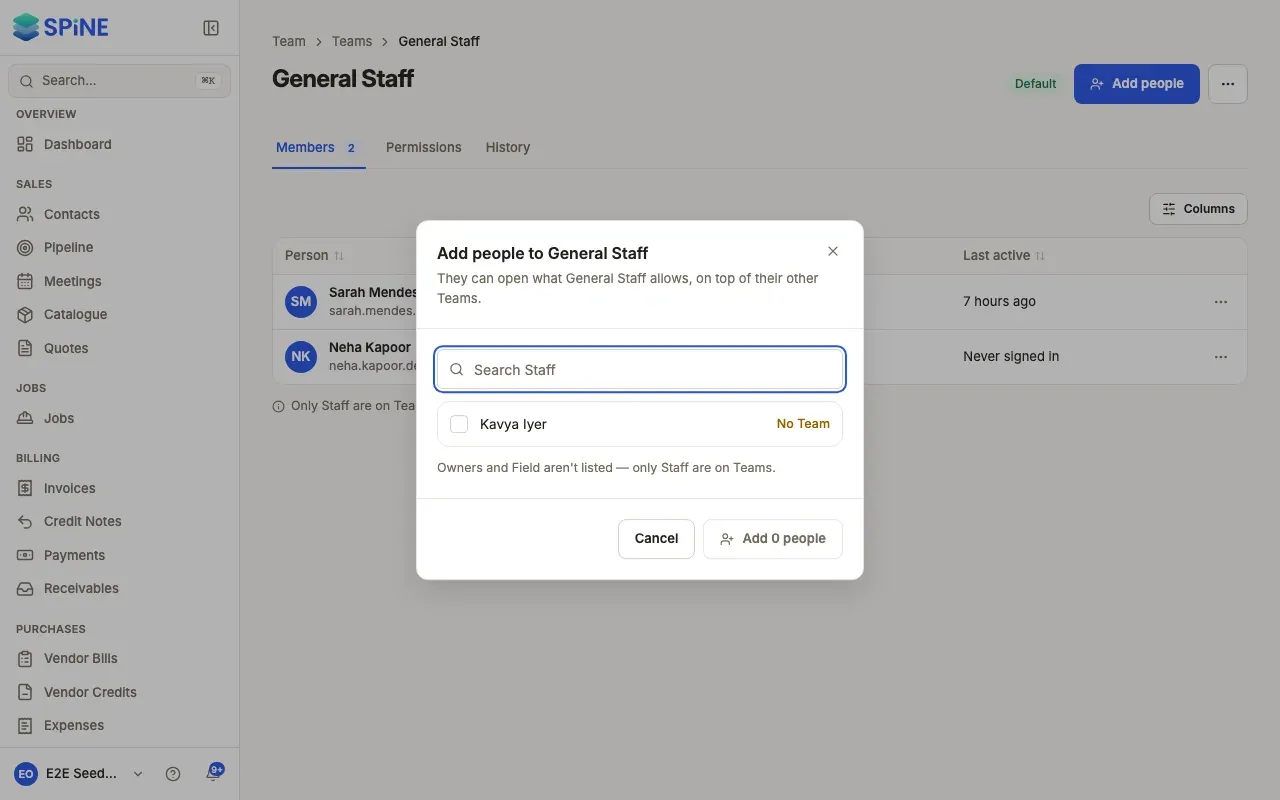
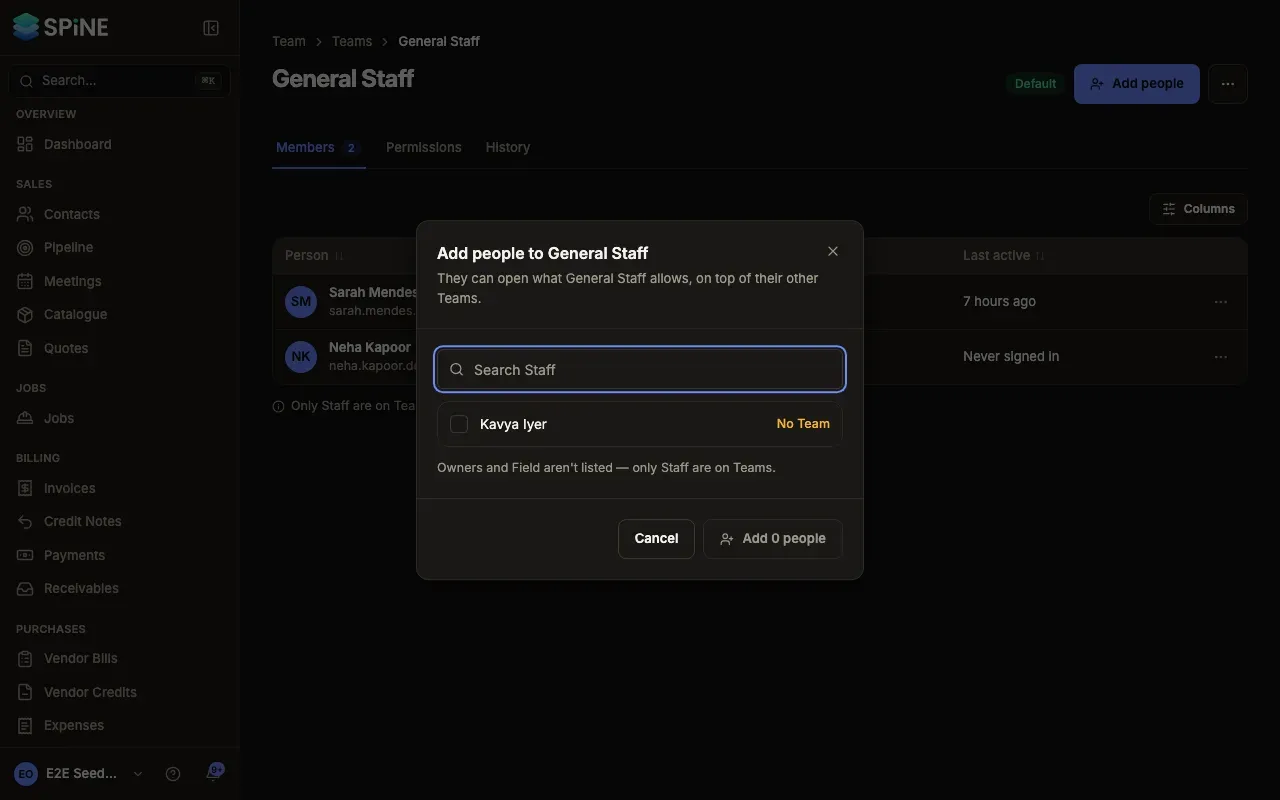
Press Add people — Tick the Staff to add. Each shows the Teams they’re already on, or “No Team”. Owners and Field aren’t listed.
-
Add them — Press Add 2 people (the count matches your ticks). The toast names who was added.
Remove someone from a Team
Section titled “Remove someone from a Team”On the Members tab, open the person’s menu and choose Remove from Team. Spine asks first: they lose what this Team allowed at their next request. If it’s their only Team, it warns that they’ll be on no Team and can’t open anything. Press Remove to confirm.
Change one person’s Teams from Users
Section titled “Change one person’s Teams from Users”-
Find the person — Go to Team › Users and open the Staff member’s row menu.
-
Choose Manage Teams — The dialog lists every Team with a tick for the ones they’re on and how many people each has.
-
Save — Tick or untick Teams and press Save Teams. The toast says where they are now, for example “Sarah Mendes is on General Staff and Accounts”.
What happens next
Section titled “What happens next”The person’s sidebar and buttons change the next time they use Spine. To check the result, choose What they can open from their menu. See Check what someone can open.
Last updated with Spine 1.0.0-beta.2