

Change your industry template
The industry template you picked during setup isn’t permanent. Choosing another one changes the defaults Spine uses for new work — for example whether jobs show milestones and retention — and adds the cost categories and expense accounts that kind of business uses.
-
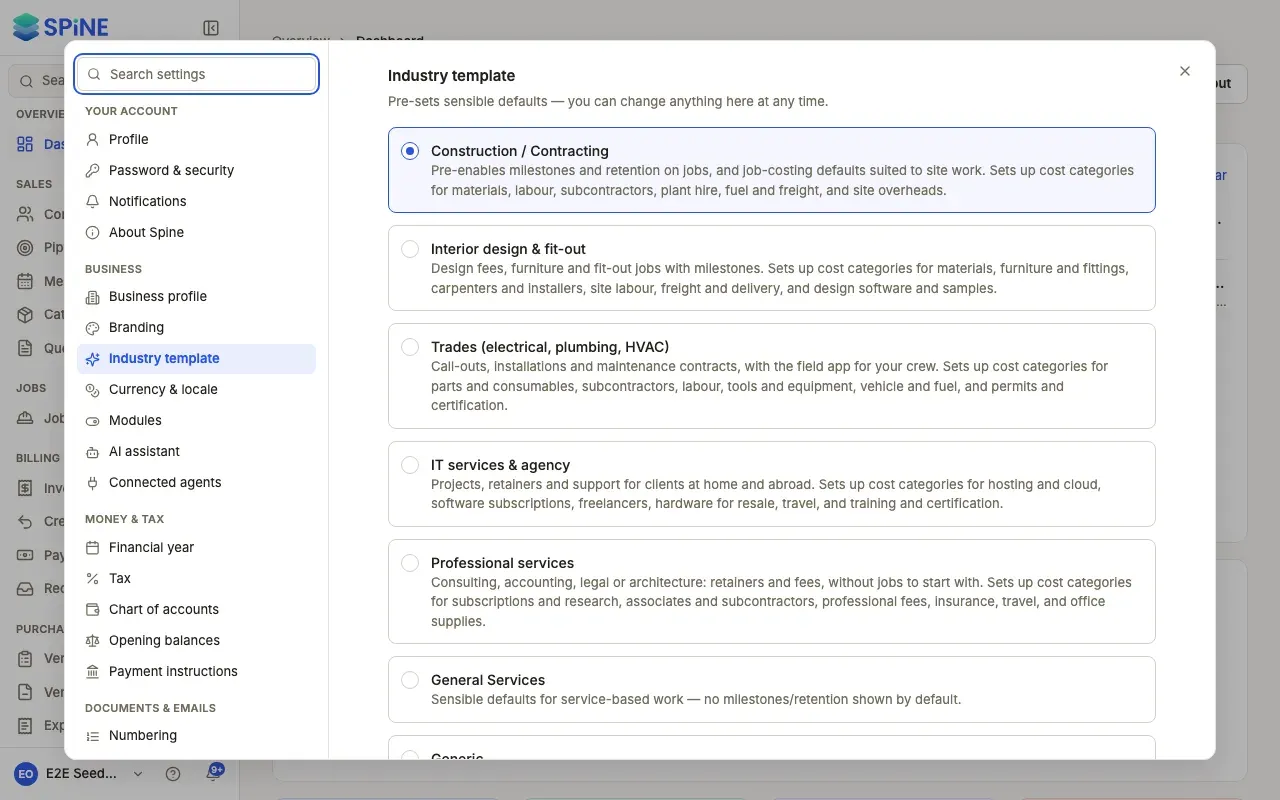
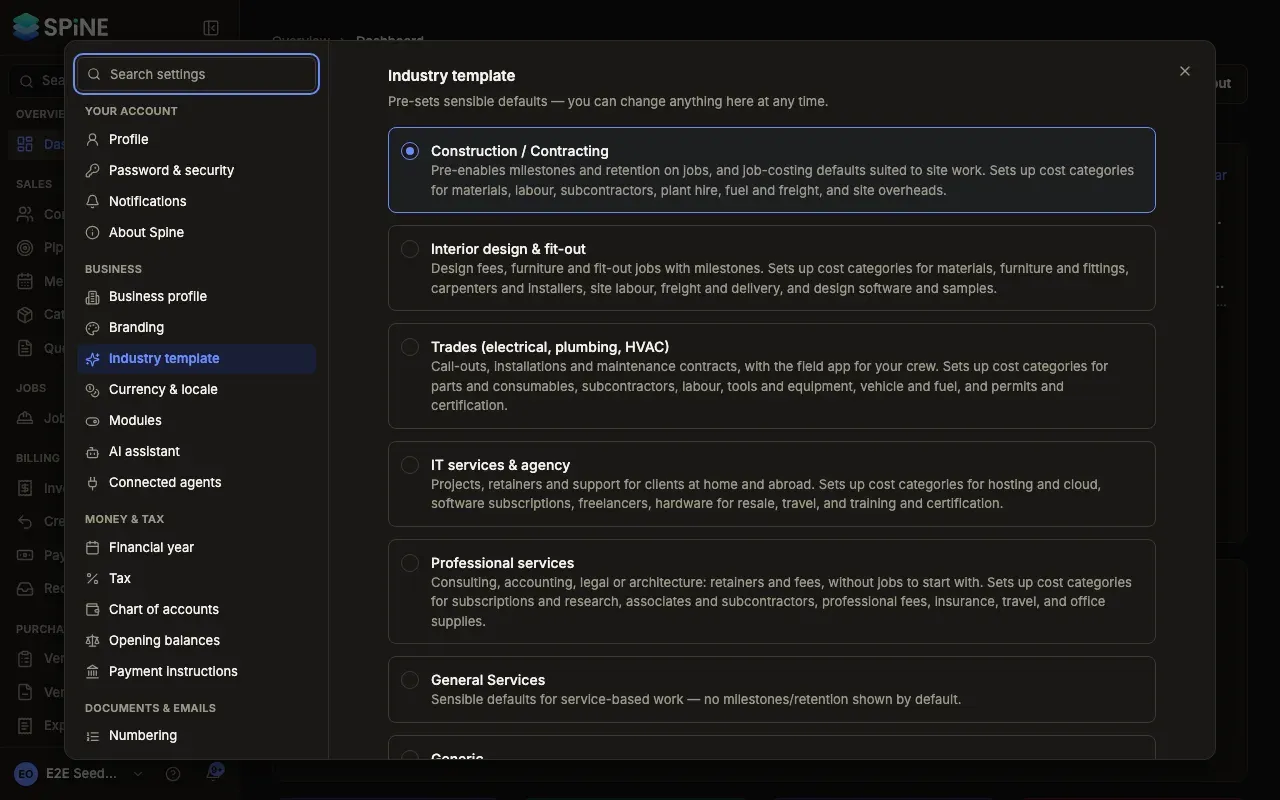
Open Settings › Industry template — Open your user menu, choose Settings, and pick Industry template under Business. It says “Pre-sets sensible defaults — you can change anything here at any time.”
-
Choose a template — Pick Construction / Contracting, Interior design & fit-out, Trades (electrical, plumbing, HVAC), IT services & agency, Professional services, General Services or Generic. Each card says what it sets up.
-
Press Save — A “Saved” message appears.
What changes
Section titled “What changes”- New jobs follow the new template. Construction / Contracting shows milestones and retention on jobs by default; General Services and Generic start those sections collapsed. Jobs you already have don’t change.
- Cost categories are added, never removed. The first five templates add their cost categories and expense accounts — such as “Plant & equipment hire” (5300) for construction. If a category or account code already exists, Spine keeps yours and doesn’t add a second.
- Nothing is taken away. Switching template never deletes a record, category or account.
For what each template sets up during first-time setup, see Start setting up your business.
Last updated with Spine 1.0.0-beta.2