

Start from your country's tax rates
You don’t need to type in rates you’re not sure of. When you tell Spine where your business is registered for tax, it creates that country’s standard rates and groups for you, and sets the title your invoices use. You can add your own rates afterwards.
During setup
Section titled “During setup”The setup wizard’s Tax step asks “Where is your business registered for tax?”. Choose one of:
- India (GST): GST rates at 0, 0.25, 3, 5, 12, 18, 28 and 40%, each made of CGST and SGST halves (and UTGST), grouped as “GST 5%”, “GST 18%” and so on, with inter-state groups “IGST 5%”, “IGST 18%” and so on, plus a cess tax type. Groups the law no longer uses start archived. The GST settings open next.
- United Kingdom (VAT): “VAT 20%”, “VAT 5%”, “VAT 0%” (zero-rated) and “Exempt”. Invoices are titled “VAT invoice”.
- Australia (GST), New Zealand (GST), United Arab Emirates (VAT) or Saudi Arabia (VAT): the standard rate (10%, 15%, 5% or 15%), a zero rate and an exempt rate. Invoices are titled “Tax invoice”.
- Another country — I’ll add my own rates: you enter a default tax rate yourself.
Change the country later
Section titled “Change the country later”- Open Settings › Tax — Open your account menu, choose Settings, then Tax.
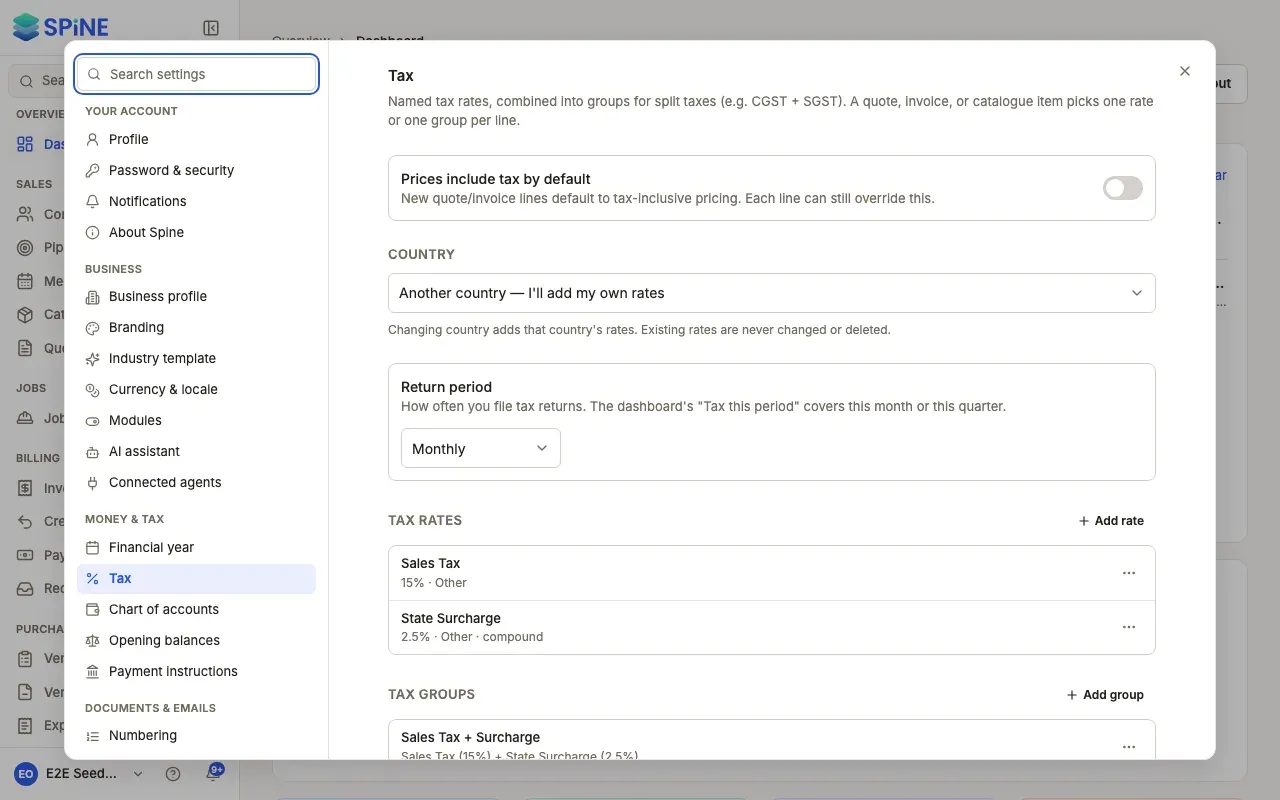
- Pick the country — Choose it under Country. Spine adds that country’s rates straight away.
- Check the message — You see “Added n rates. Your existing rates are unchanged — archive the ones you no longer use.”
Set your return period
Section titled “Set your return period”Under Return period, choose Monthly or Quarterly: how often you file tax returns. The dashboard’s Tax this period card covers this month or this quarter to match.
Your tax country also decides which tax types a rate can have, and whether the GST settings appear. Spine follows the tax law that applied when these presets were built, so check the rates against your own registration.
Last updated with Spine 1.0.0-beta.2