

Import contacts from a CSV file
Moving off a spreadsheet or another system? Save your contact list as a CSV file and import it. You match your file’s columns to Spine’s fields, check each row, and Spine tells you which rows look like duplicates and which failed.
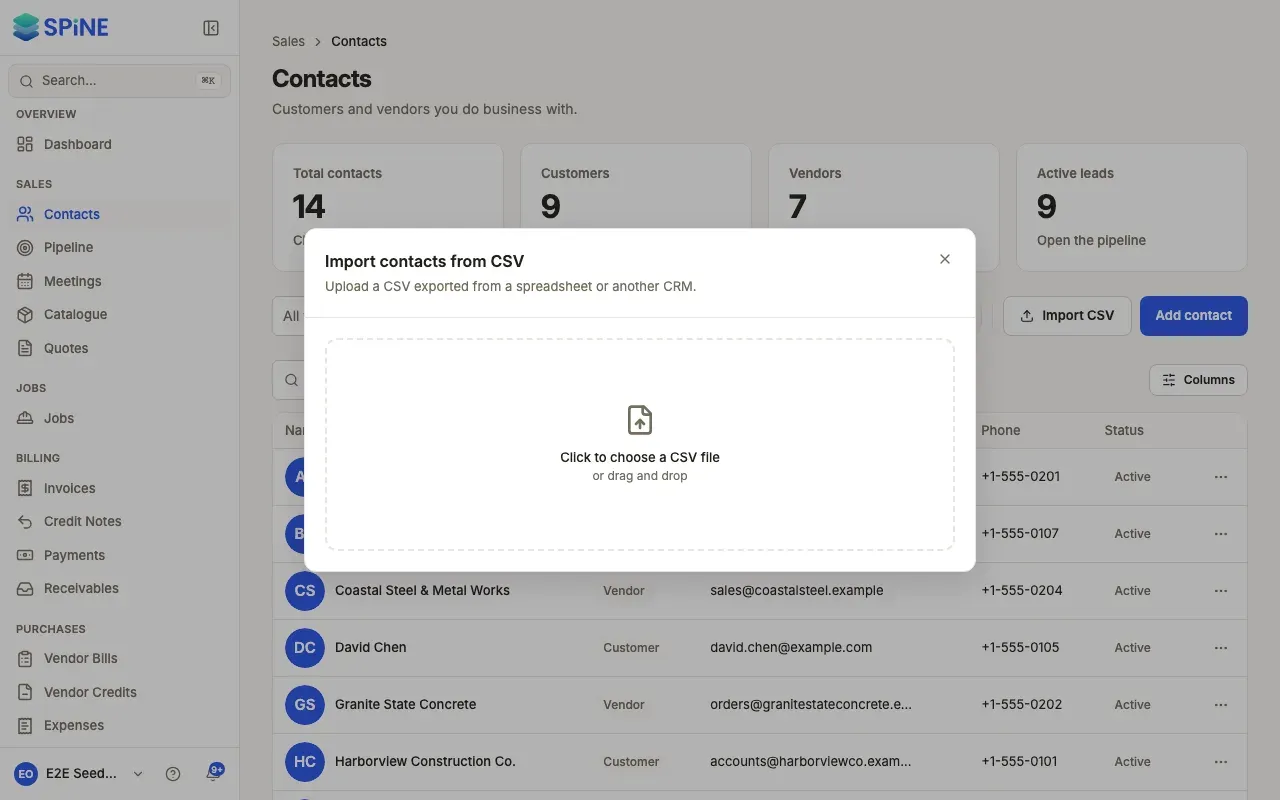
- Open the import — Go to Contacts and press Import CSV. The Import contacts from CSV dialog opens.
- Choose your file — Press Click to choose a CSV file, or drag the file onto the dialog. Spine says how many rows it found.
- Match the columns — For each column in your file, choose the Spine field it holds: Name, Type (customer/vendor/both), Is company, Email, Phone, Notes, Tax ID, GSTIN, State or Website. Columns are pre-matched by their heading. Choose Don’t import for a column you don’t want. Name and type must be matched before you can go on. Press Continue.
- Check the rows — A preview lists each row with its name, type, email, phone and status. Ready rows will be imported; rows with errors are flagged, and possible duplicates say which contact they look like. Untick any row you want to skip; rows with errors are skipped for you.
- Import — Press Import … contacts. You see “Importing…”, then “Import complete.”.
- Finish — Press Done. The new contacts are in the list, and a toast says how many were added.
What can go wrong in a row
Section titled “What can go wrong in a row”- A missing name or type, or a type that isn’t customer, vendor or both.
- An email that isn’t a valid address.
- A state Spine doesn’t know, or a GSTIN with a problem.
After the import
Section titled “After the import”- Possible duplicates. Rows that match an existing contact’s email or phone are still created. They’re listed under “Created, but possible duplicates — worth reviewing:” so you can check them and archive or delete the extra ones.
- Failed rows. Under “Rows that failed:” each row number is listed with its reason. Fix those rows in your file and import just them again.
- An import that stopped part-way. You see “Import failed — some rows may have already been created. Review the list below before retrying.” Check the list before you run the same file again.
If the file has no columns you see “No columns found — the file may be empty or not a CSV.” Save it from your spreadsheet as CSV and try again.
Last updated with Spine 1.0.0-beta.2