

Check the emails Spine has sent
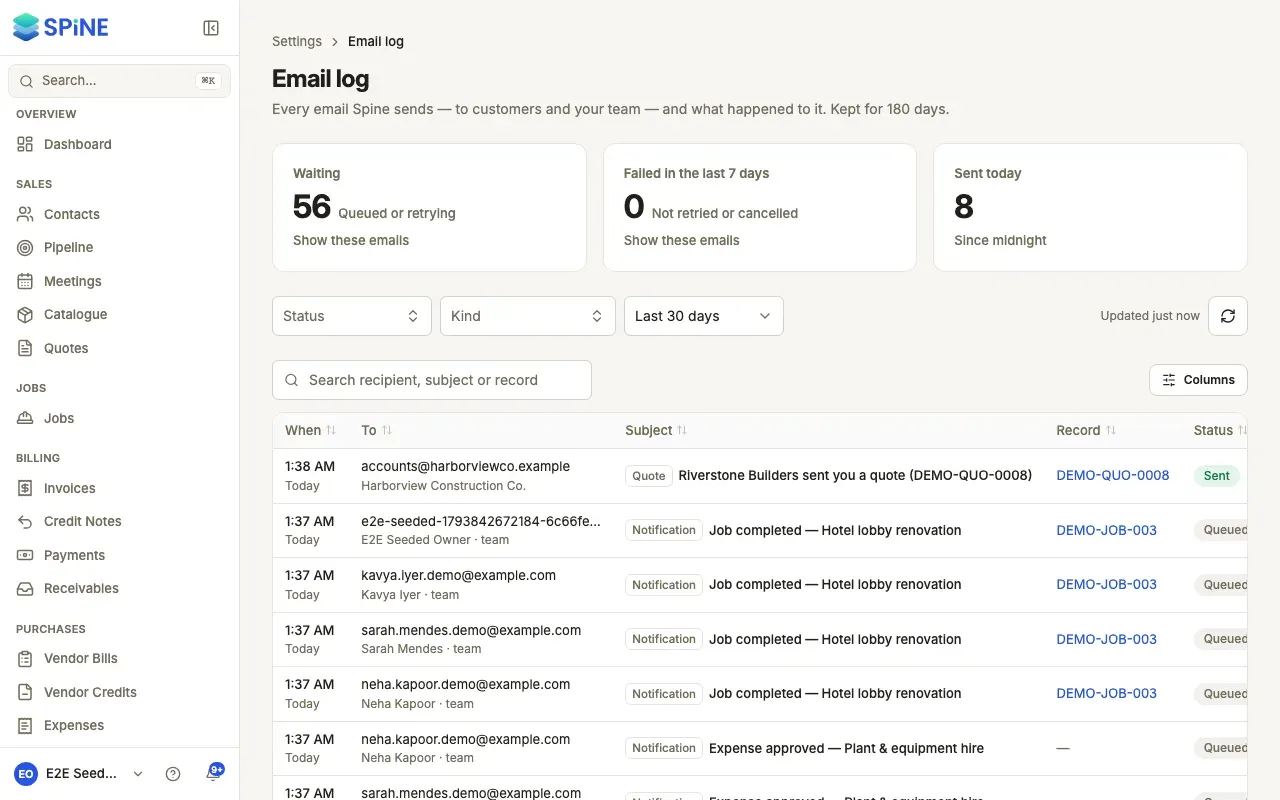
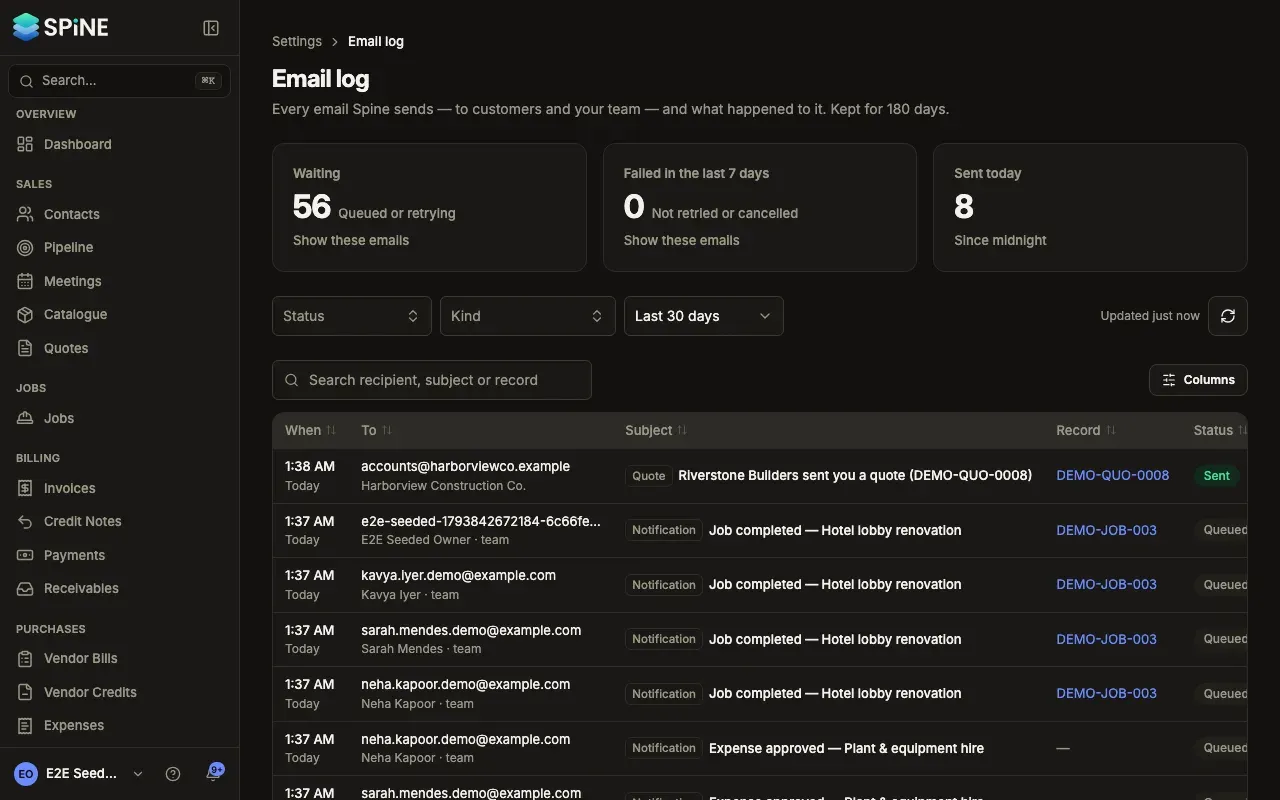
The email log lists “Every email Spine sends — to customers and your team — and what happened to it. Kept for 180 days.” Use it to check that a customer got their invoice, or to find out why they didn’t.
-
Open the email log — In Settings, pick Email log under Team, or press Email log in Settings › Emails. From a quote’s or invoice’s “Email failed” message, See it in the email log opens it showing only that record’s emails.
-
Read the cards — Waiting (queued or retrying), Failed in the last 7 days and Sent today. Press Waiting or Failed in the last 7 days to show only those emails; press it again to clear.
-
Find an email — Search the recipient, subject or record number, or filter by Status, Kind and Show emails from (last 7, 30, 90 or 180 days).
-
Read the row — Each email shows When, To, Subject, its kind, the Record it’s about (a link), the Status — Queued, Retrying, Sending, Sent, Failed or Cancelled — the Attempts (“2 of 4”) and, if it failed, the last error.
Retry or cancel an email
Section titled “Retry or cancel an email”Open an email’s row menu.
- Retry now — for a failed or retrying quote, invoice, reminder or notification email. “Retry this email?” says who it goes to; Retry email queues it again with its attempts starting over.
- Open the record — for emails that were sent straight away (credit notes, receipts, refunds, statements, invitations, password resets, tests, digests, data exports). Send it again from the record.
- Cancel — for an email that’s still waiting. “Cancel this email?” says it won’t be sent; Cancel email stops it and the row shows who cancelled it.
An email that’s sending or already sent can’t be cancelled.
Last updated with Spine 1.0.0-beta.2