

Assign crew to a job
The crew on a job are the people working on it. Field crew see only the jobs they’re assigned to, on their phone and on the web, so assigning crew decides whose field app shows the job.
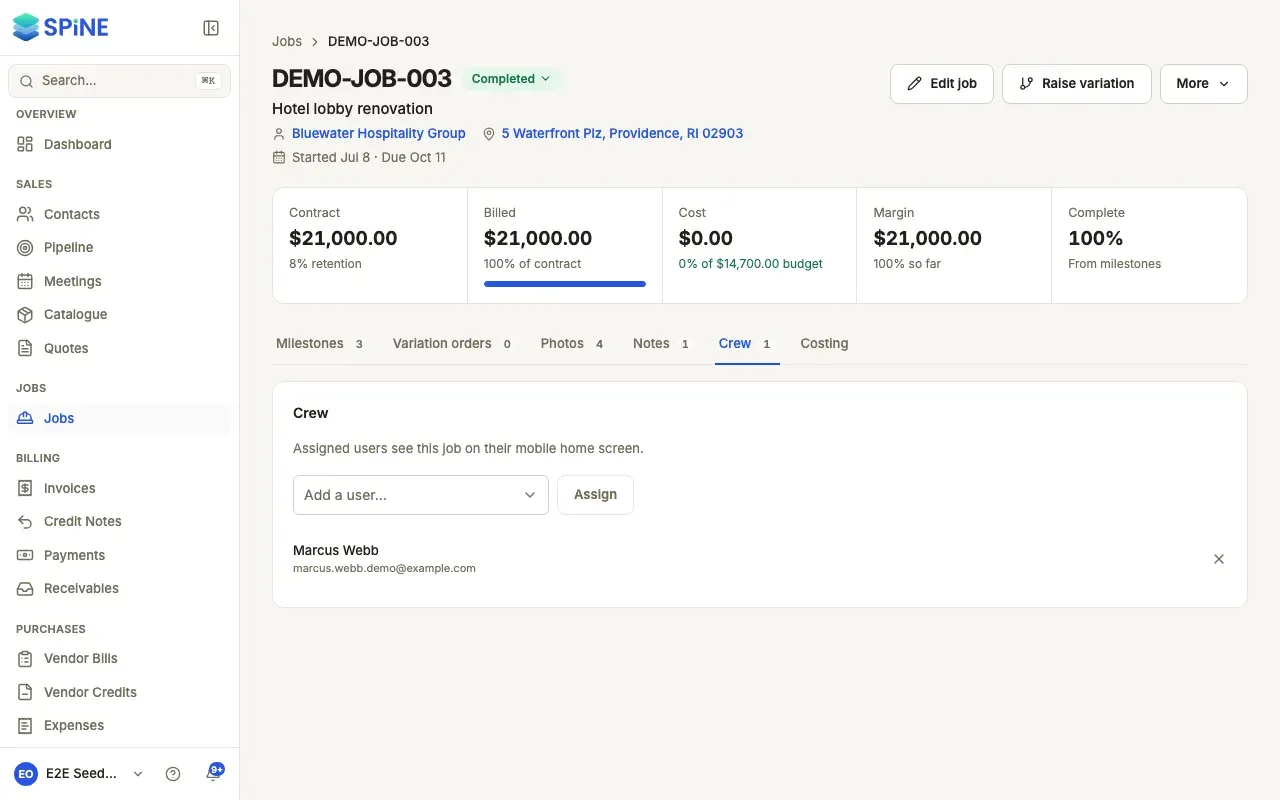
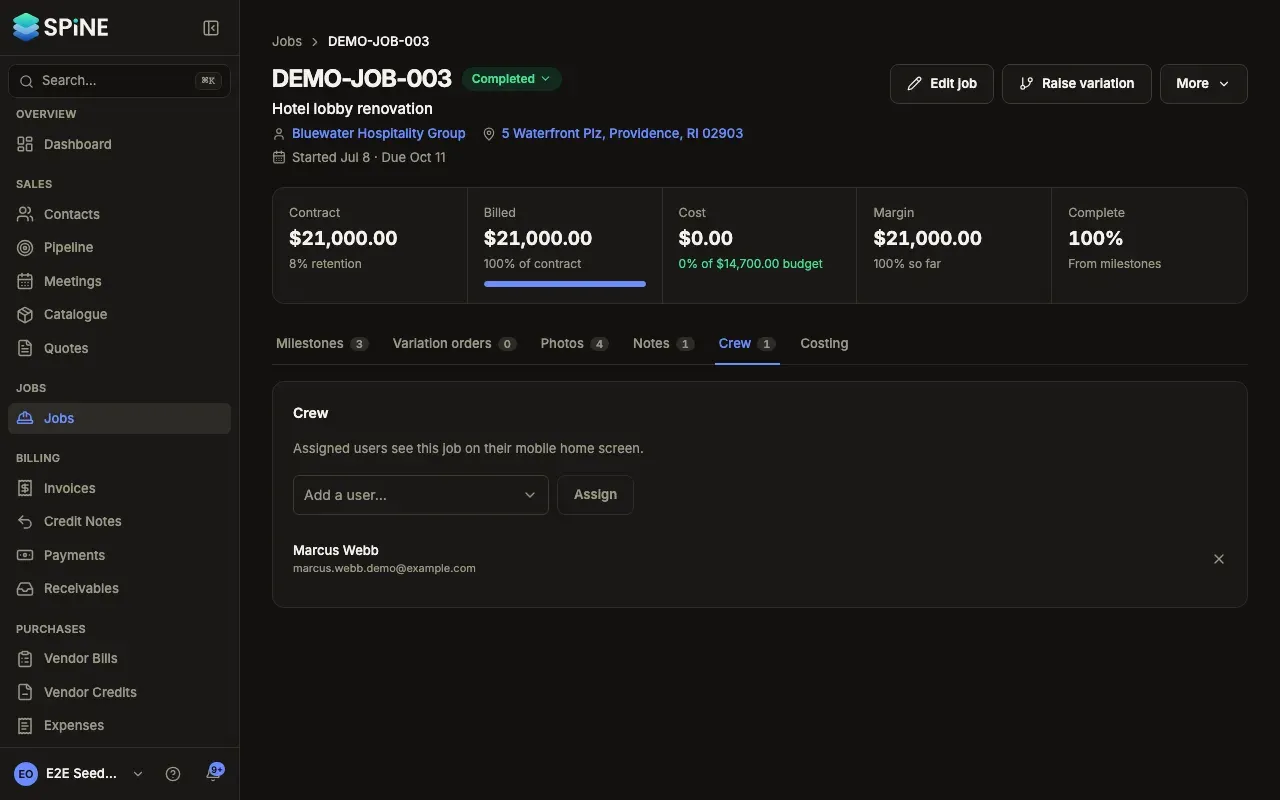
- Open the job — Go to Jobs, open the job and choose the Crew tab.
- Pick a person — Choose someone in Add a user….
- Assign them — Press Assign. They’re listed on the crew, and they get a notification.
With no one assigned, the tab says “No one is assigned to this job yet.”
Take someone off a job
Section titled “Take someone off a job”- On the Crew tab, press the remove button beside their name.
- Spine asks “Remove name from this job?” and explains they’ll stop seeing the job on the web and in the field app, and won’t be notified about it any more.
- Press Remove from job. A toast says they’ve been removed.
You can add them back later. They get a notification that they’ve been taken off, with no link to the job.
What crew see
Section titled “What crew see”- Field crew see only their assigned jobs, in the field app’s Jobs tab and on Today. Their list says “Only jobs your office has put you on the crew for.” With none, they see “No jobs assigned to you yet”.
- When someone is taken off a job, it leaves their list the next time the app refreshes, and the copy saved on their phone is cleared. If they had the job open, they see “This job isn’t on your list”.
- Field crew never see money on a job: no contract value, retention, milestone amounts, cost budget or costing. They do see the milestones, photos, notes and percent complete, and they can mark milestones complete and add photos and notes.
Last updated with Spine 1.0.0-beta.2