

Settings and data export
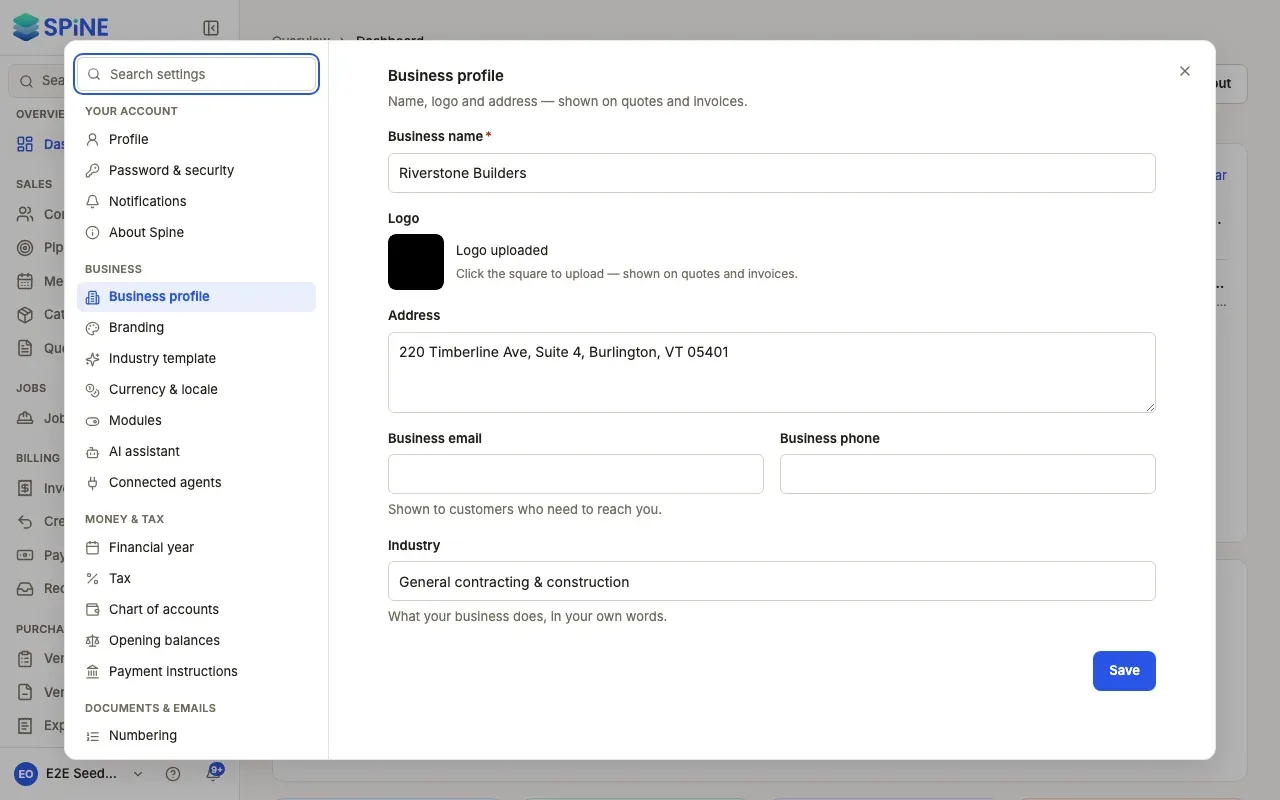
Settings holds your own account and, for Owners, everything about how the business runs: its profile and branding, money and tax, documents and emails, sales and meetings, and your data. Open it from your user menu (your name in the sidebar) and choose Settings.
Finding your way around
Section titled “Finding your way around”- Groups. The list is grouped: Your account, Business, Money & tax, Documents & emails, Sales & meetings, Data and Team. The Team group’s Users, Teams, Audit log and Email log close Settings and open that page.
- Search settings. Type what you’re after — “prefix”, “logo”, “signature”, “SMTP”. Spine finds panes by what’s inside them and shows the matching phrase (“Matches: invoice prefix”). Press Enter to open the first result. If nothing matches you see “No matching settings.” with Clear search.
- Come back to the same place. The address keeps the open pane, so refreshing or sharing the link opens it again.
- Unsaved changes. A pane you’ve changed but not saved shows a dot. Leaving it asks “Discard unsaved changes to …?” with Keep editing and Discard.
- On a phone, Settings fills the screen and shows the list first; Back to settings returns to it.
- Switched-off modules take their panes with them, so you only see settings for what you use.
Business
Section titled “Business”- Change your business profile · Choose your theme and document colour · Change your industry template · Change your currency and locale · Switch modules on or off
- AI assistant and Connected agents have their own panes here: see The AI assistant and Connected agents.
Money & tax
Section titled “Money & tax”- Set your financial year · Tell customers how to pay
- Tax and GST (India only): see Tax.
- Chart of accounts and Opening balances: see Review your chart of accounts and Enter your opening balances.
Documents & emails
Section titled “Documents & emails”- Set your document numbers · Choose what your documents show · Write the emails customers get · Check the emails Spine has sent · Send payment reminders automatically
Sales & meetings
Section titled “Sales & meetings”- Change your pipeline stages · Choose what happens when a quote is converted again · Set meeting defaults for the business
- Export all your data
- Demo data: see Explore Spine with a demo business and Delete the demo data.
Your account
Section titled “Your account”- Change your profile and sign-in email · Change your password and sign out other devices · Choose how Spine notifies you
- Connected agents under Your account lists the AI agents you’ve connected yourself — see Connected agents.
- About Spine shows which version of Spine your business runs.
Users, Teams and Audit log open their own pages — see Team and permissions. Email log opens the list of emails Spine has sent — see Check the emails Spine has sent.
Last updated with Spine 1.0.0-beta.2