

Delete a payment recorded by mistake
If you recorded a payment that never happened — the wrong customer, or the same money twice — you can delete it, as long as none of it is applied to an invoice or refunded. Spine posts a reversing entry, so your books go back to how they were.
-
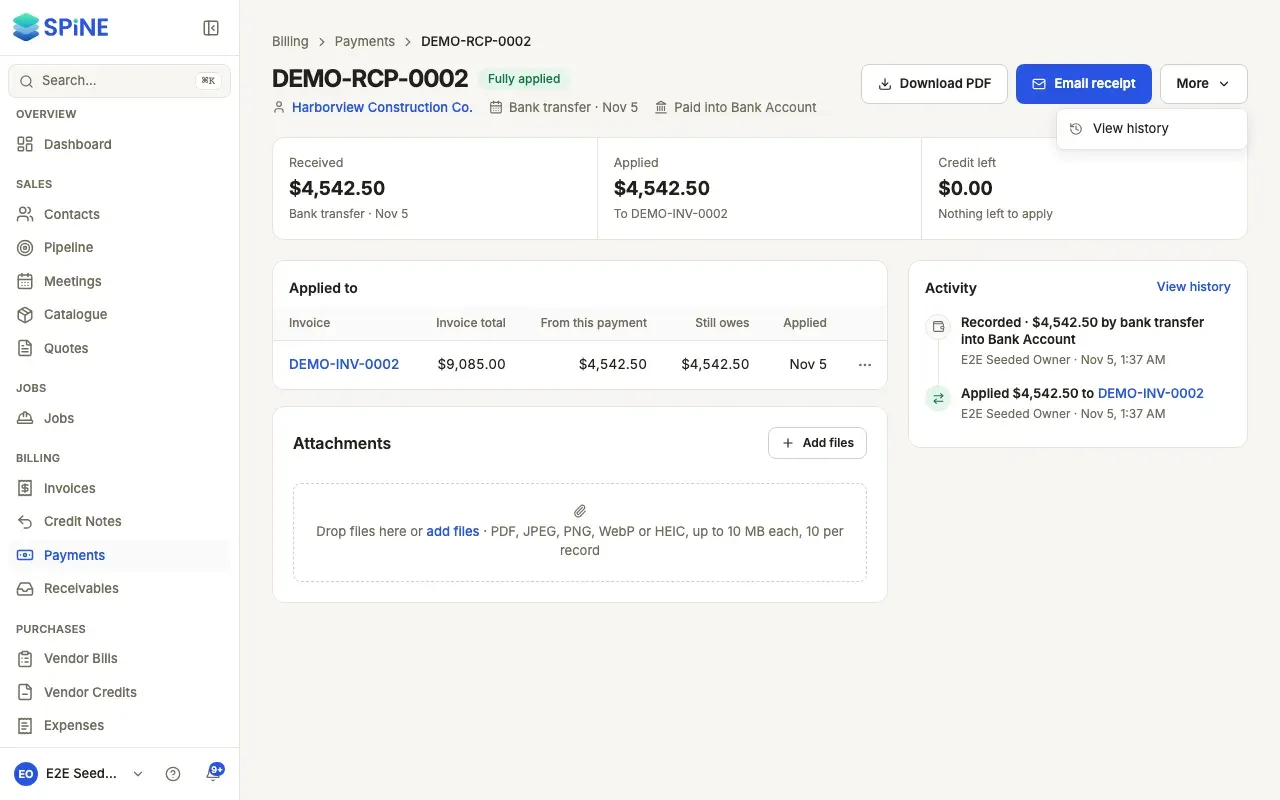
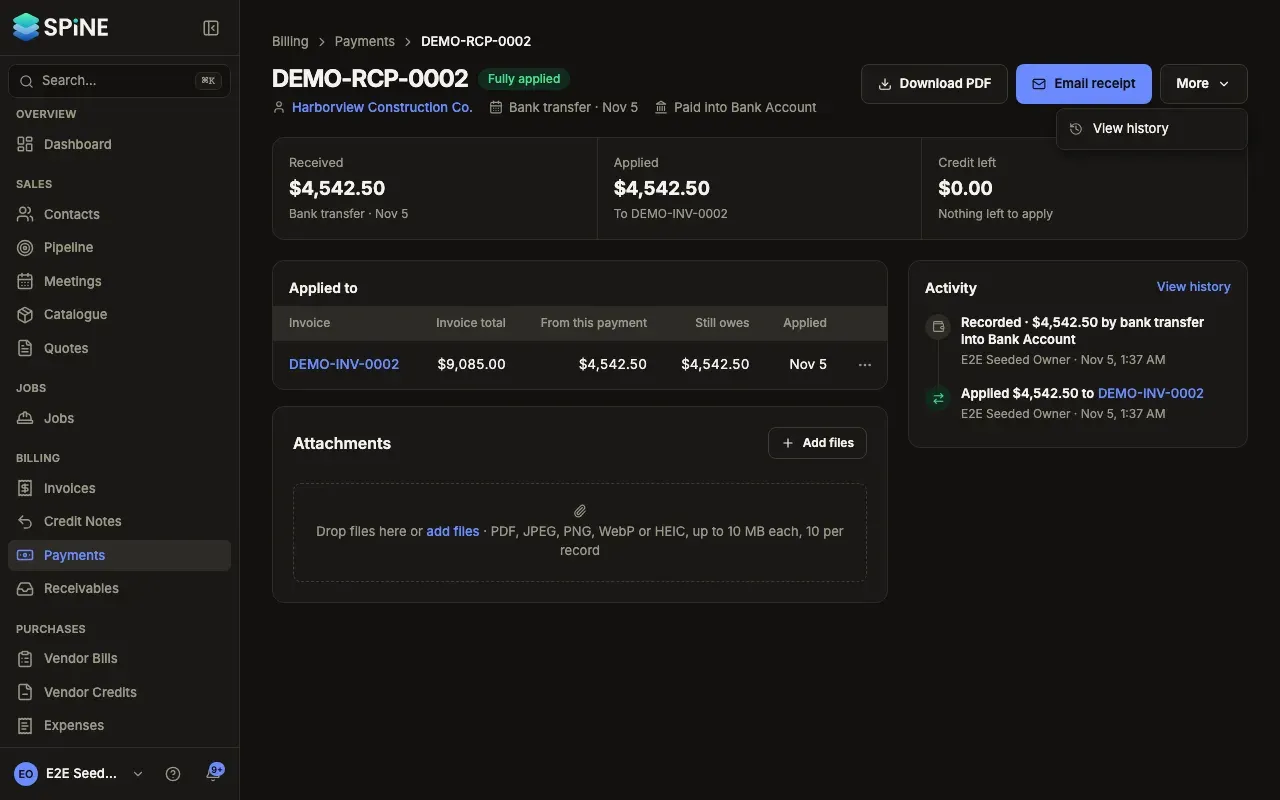
Open the payment — Go to Payments and open it. If it was applied to invoices, first move it off each invoice so nothing is applied.
-
Choose Delete payment — Open More next to the main button and choose Delete payment. It’s also in the payment’s row menu on the list, where it opens the payment’s page with the confirmation.
-
Confirm — “Delete this payment?” says Spine posts a reversing journal entry and permanently removes the payment. Press Delete payment to go ahead.
What happens next
Section titled “What happens next”The toast reads Payment deleted. The payment’s journal entry is reversed and the payment no longer appears in the list. Owners aren’t sent another “payment received” notice.
When you can’t delete a payment
Section titled “When you can’t delete a payment”- Delete payment isn’t offered while any of the payment is applied to an invoice or has been refunded. A customer payment that’s been applied stays in your records; correct it by moving it off the invoice instead.
- A payment that’s part of a finished bank reconciliation can’t be deleted until that reconciliation is undone. See Banking.
Last updated with Spine 1.0.0-beta.2