

Import and export catalogue items
Moving from another system, or keeping your price list in a spreadsheet? Import it as a CSV file instead of typing each item. You can also export the catalogue, change it in a spreadsheet, and import the new items back.
Import items
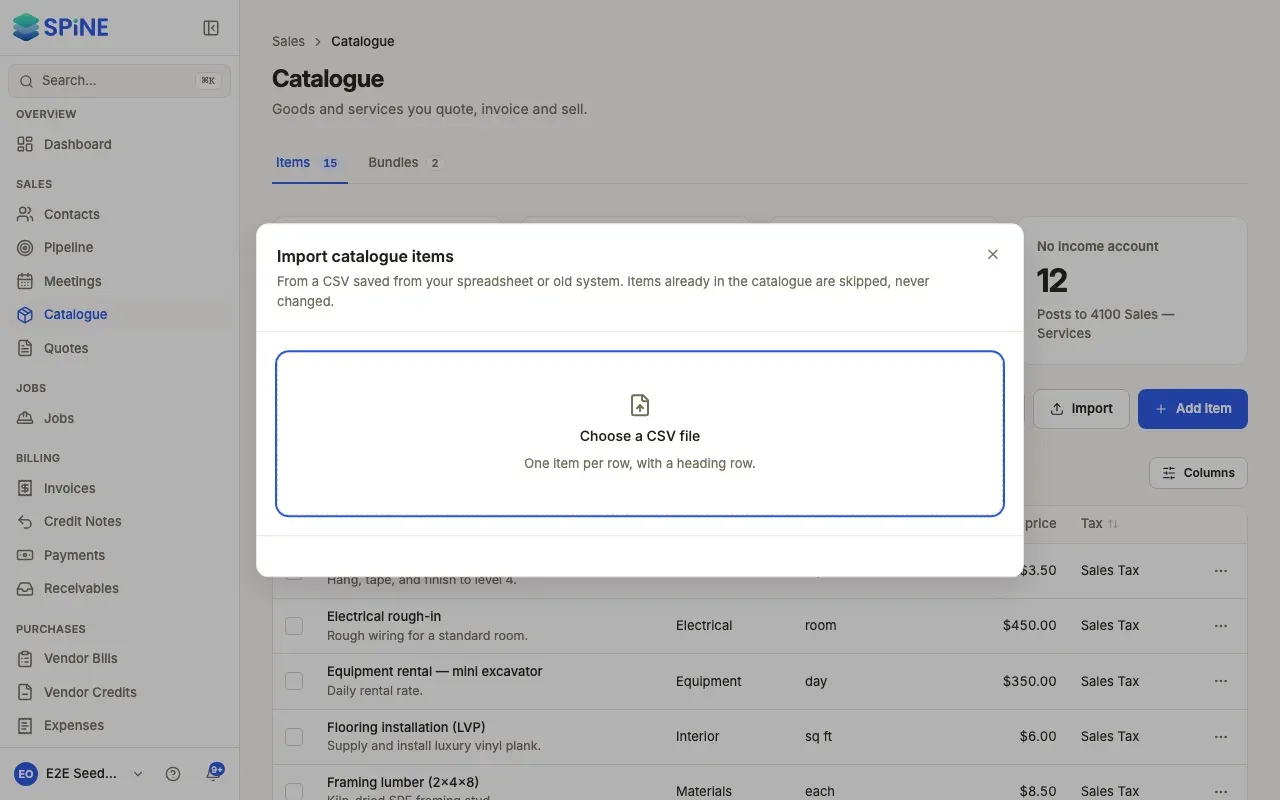
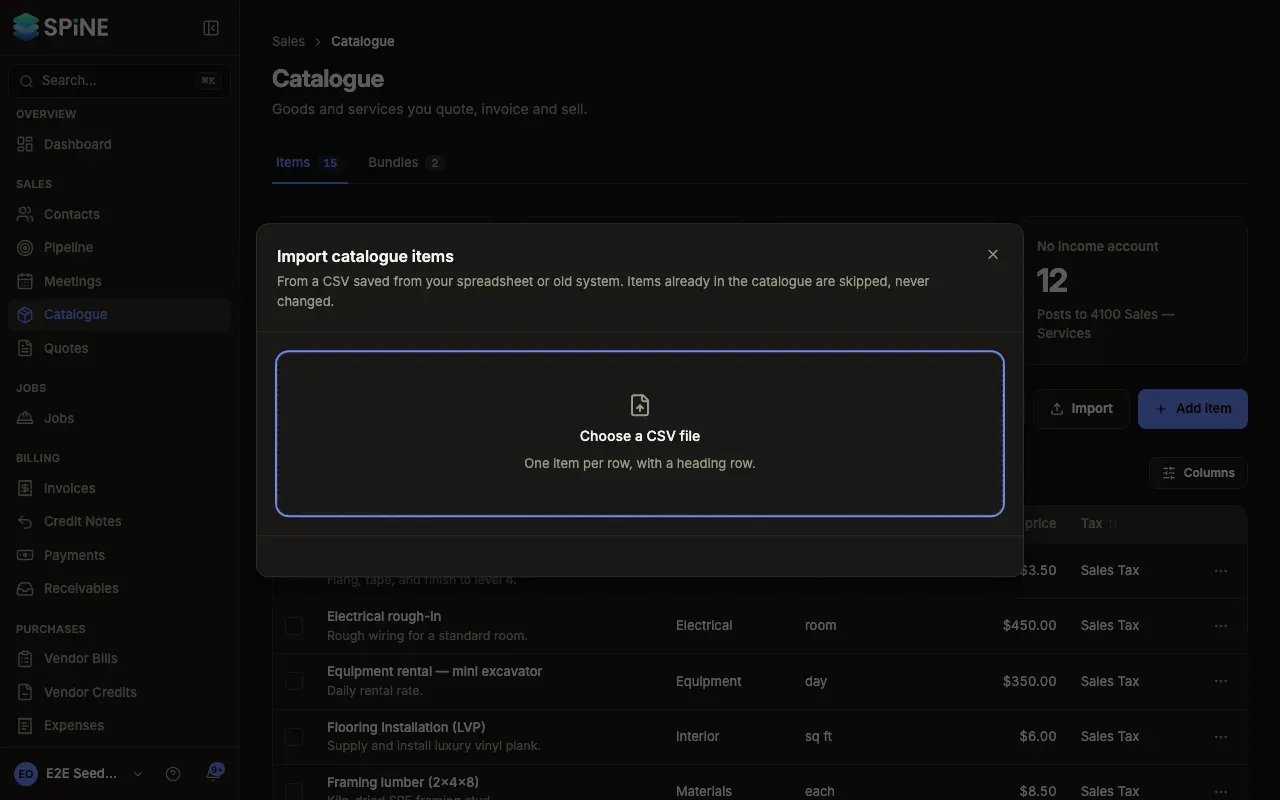
Section titled “Import items”- Open the import — Go to Catalogue and press Import. The Import catalogue items dialog opens.
- Choose your file — Press Choose a CSV file. Use one item per row, with a heading row.
- Match the columns — For each field (Name, Description, Unit, Category, Price, Tax, HSN/SAC code, Income account and Expense account), choose the column in your file that holds it, or Not in the file. Only Name is required. Press Preview.
- Check the preview — Spine shows how many rows are ready to import, how many are duplicates to skip, and how many have problems. Each row shows Ready, Duplicate — skipped, or what’s wrong.
- Import — Press Import … items. The summary reads, for example, “Imported 48 items · skipped 2 duplicates · 1 row failed”.
- Finish — Press Done.
How rows are read
Section titled “How rows are read”- Tax is matched to a tax rate or group by its name. Income account and Expense account are matched by code or name. Unit defaults to “each”.
- A tax or account Spine doesn’t have flags the row, such as “Unknown tax VAT 5%” or “Unknown account 4999”. An HSN/SAC code must be 4, 6 or 8 digits.
- An item whose name is already in the catalogue is skipped as a duplicate. Existing items are never changed.
- Rows with problems are skipped. Press Download failed rows to get them in a file, fix them and import that file.
- You can import up to 2,000 rows at a time. Split a bigger file.
If the file can’t be read, you see “That file couldn’t be read. Save it from your spreadsheet as CSV.” Press Choose another file to try again.
Export the catalogue
Section titled “Export the catalogue”- Filter the list — Go to Catalogue and set any search or filters. The export holds the items in the list as filtered.
- Export — Press Export. A file named
catalogue-and today’s date downloads, and a “Catalogue exported” toast says how many items it holds.
The file has the columns Import reads (Name, Description, Unit, Price, Tax, HSN/SAC code, Income account and Expense account) plus Category, so an exported file imports back.
Last updated with Spine 1.0.0-beta.2