

Set up your pipeline stages
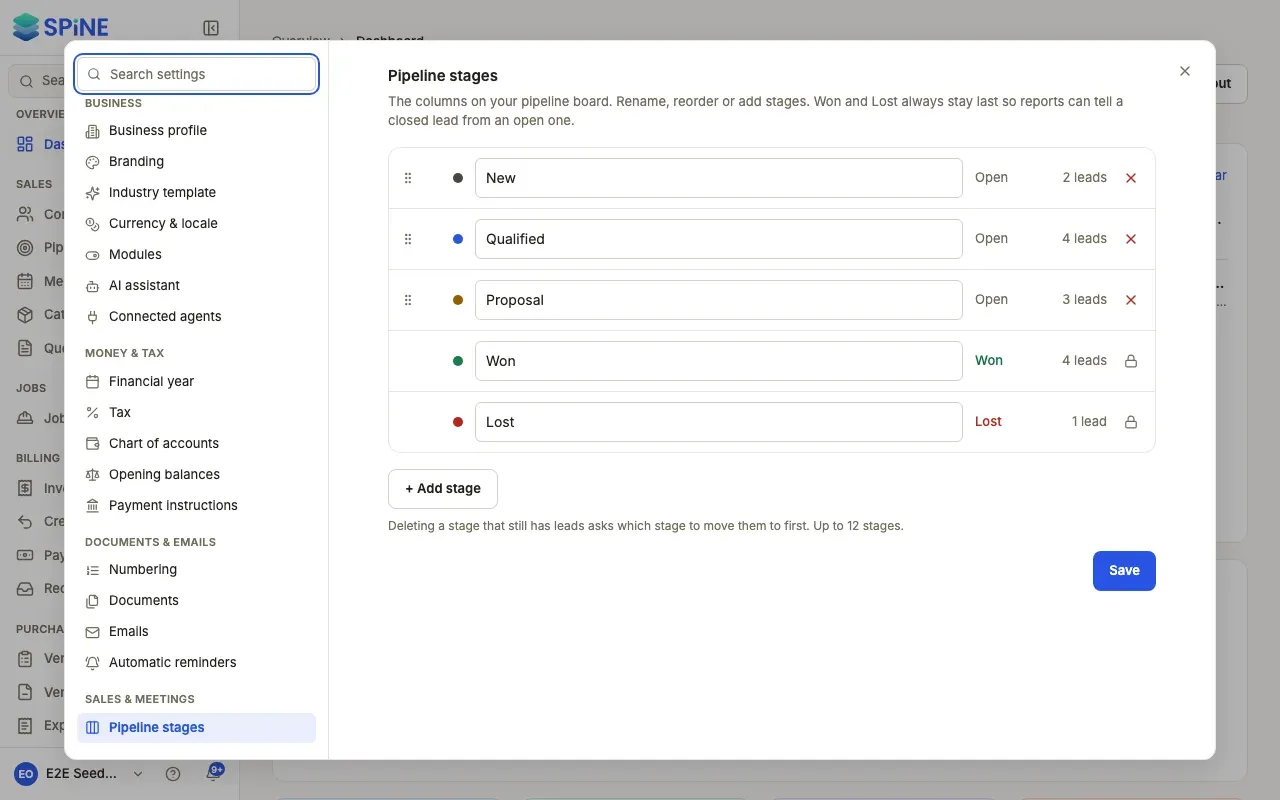
Your pipeline’s stages are the columns on the board. Make them match how your business sells, such as “Site visit booked” before “Quote sent”. Won and Lost always stay last, so reports can tell a closed lead from an open one.
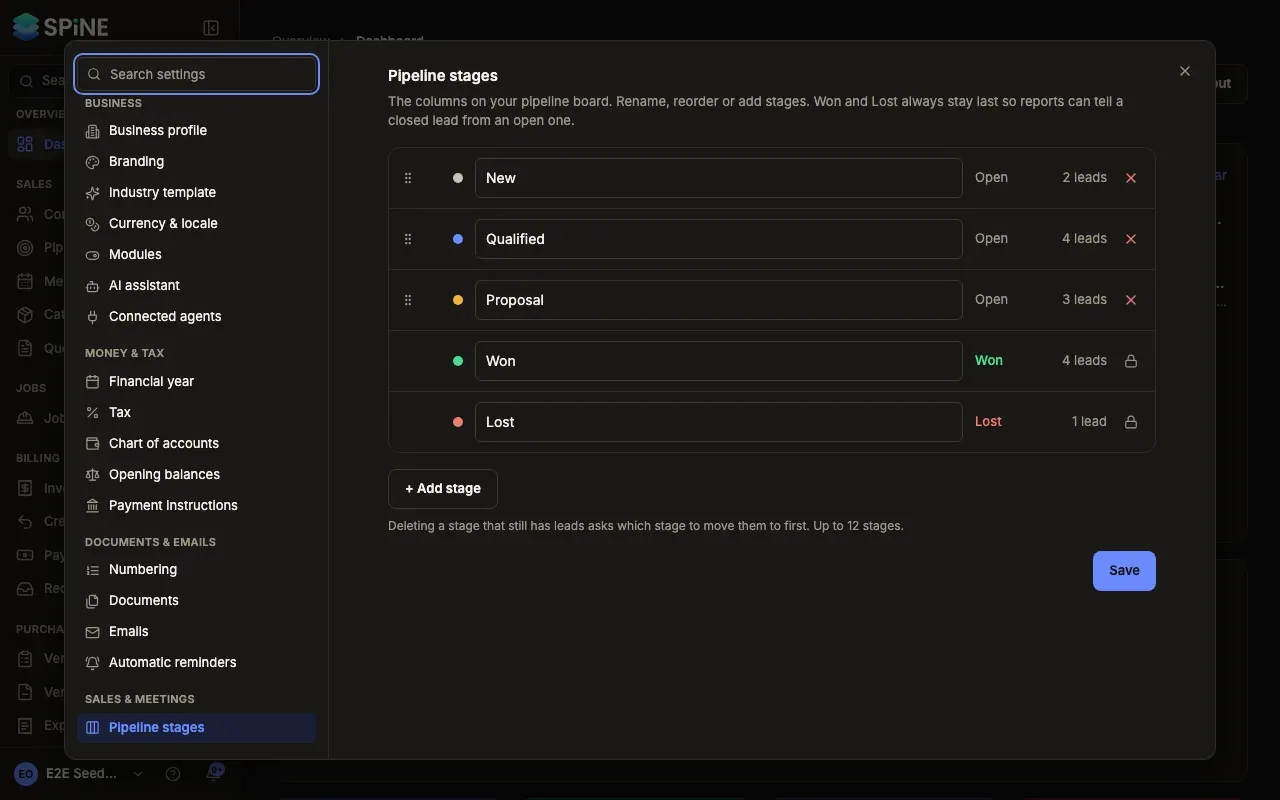
- Open the stages — Open Settings and choose Pipeline stages under Sales & meetings. Each stage is a row with its name, its kind (Open, Won or Lost) and how many leads it holds.
- Rename a stage — Type the new name in its row. Leads stay in the stage.
- Add a stage — Press + Add stage. A “New stage” row is added after your open stages; type its name.
- Reorder — Drag a row, or use its move up and move down buttons, to put the open stages in the order leads move through them.
- Save — Press Save. The board shows the new names and order.
Delete a stage
Section titled “Delete a stage”- Press delete — Press the delete button on the stage’s row.
- Choose where its leads go — If the stage has leads, Spine asks “Delete “…”?” and “Move 3 leads to:”. Choose a stage, then press Delete stage. A stage with no leads leaves the list straight away.
- Save — Press Save. The leads are now in the stage you chose.
Leads are never deleted with a stage: they move when you save the stages.
Limits
Section titled “Limits”- You can have up to 12 stages. At 12, + Add stage is greyed out with “Up to 12 stages.”
- Won and Lost can be renamed, but not moved or deleted. They show a lock.
- Renaming Won or Lost doesn’t affect reports. Spine knows a closed lead by the stage’s kind, not its name.
Last updated with Spine 1.0.0-beta.2