

Import a bank statement
To reconcile an account, Spine needs the bank’s side of the story. Download a statement from your online banking as a CSV file and import it. Spine remembers how your bank’s columns map, so next time it’s one step.
-
Export the statement from your bank — In your online banking, download the account’s statement as CSV.
-
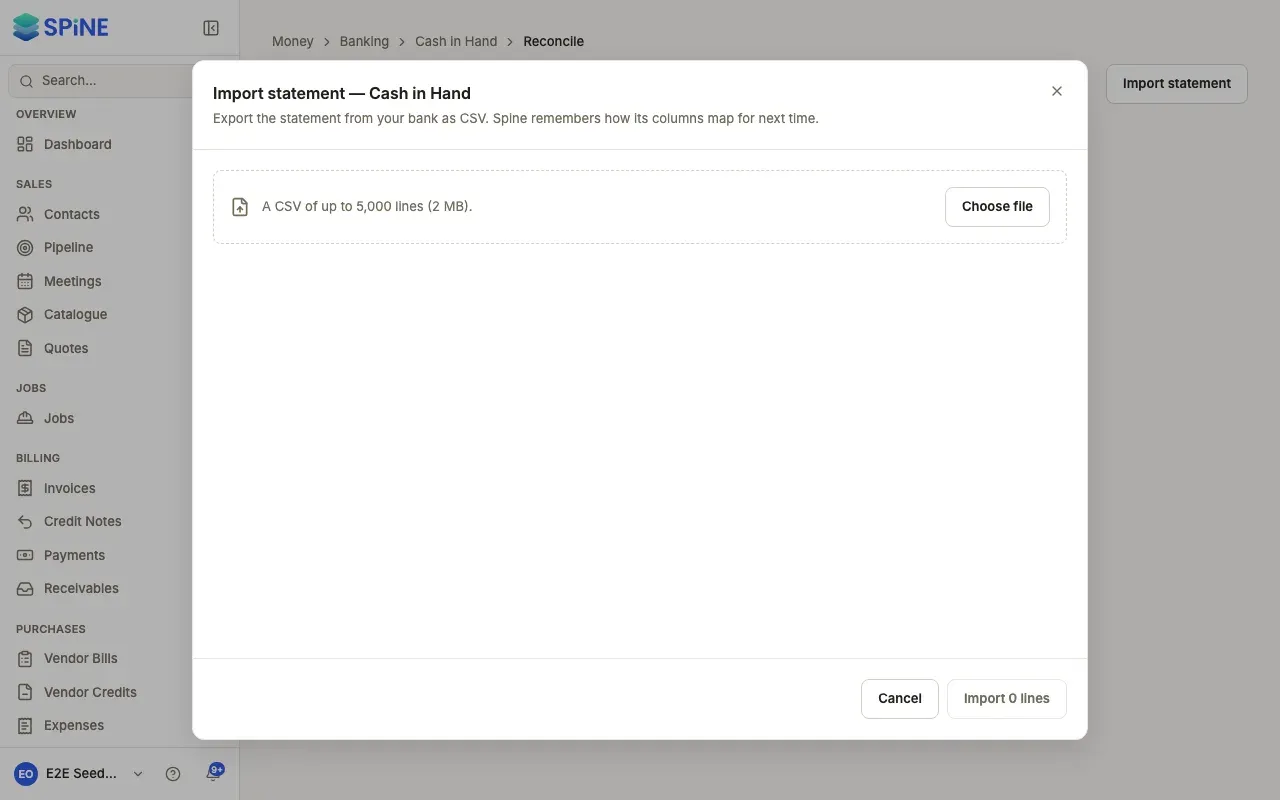
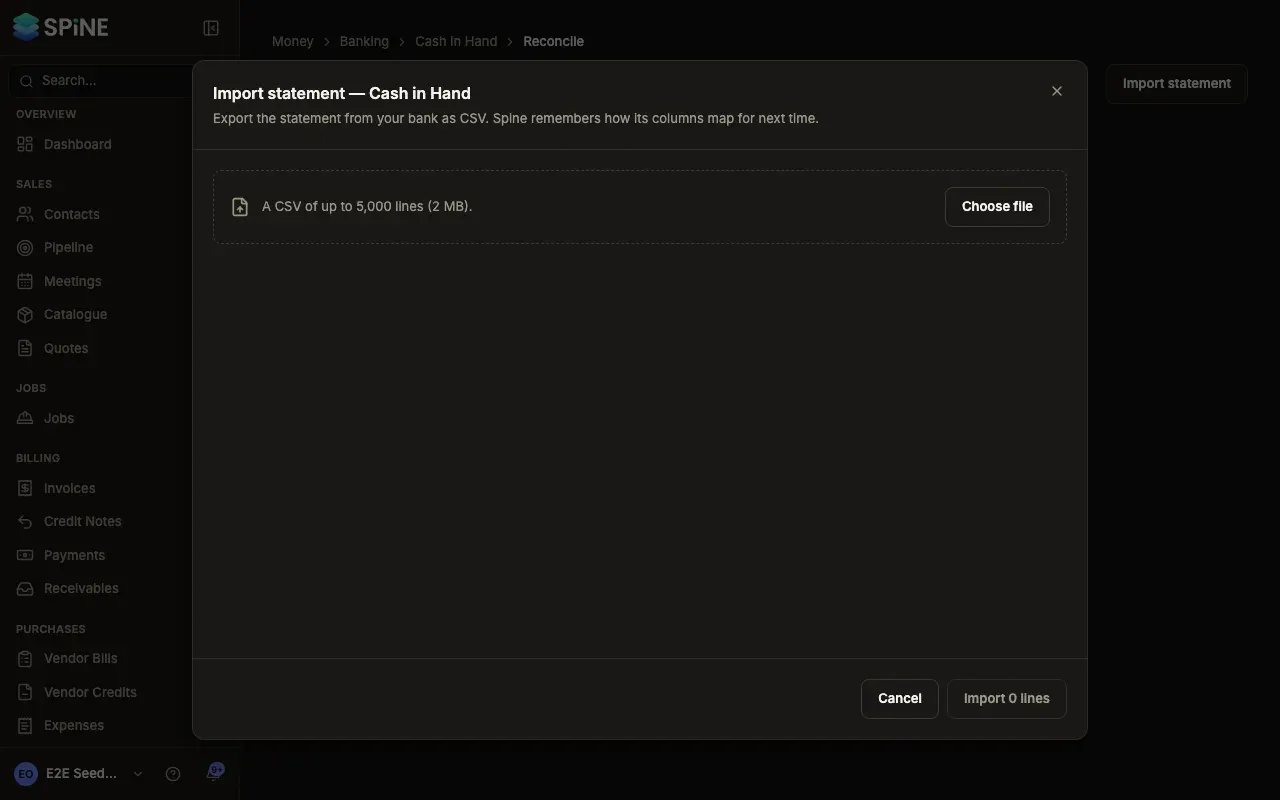
Open the import — On Banking, open the account’s row menu and choose Import statement. You can also find it under More in the account’s register, or on the reconcile page. The Import statement dialog opens with the account’s name.
-
Choose the file — Press Choose file and pick the CSV. Spine shows how many rows it has and the First rows of the file.
-
Map the columns — The first time, choose which column holds the Date (and its Date format), the Description and the Reference. Under Amount columns, choose One amount column (money in positive) or Separate money in and money out columns, and pick them. Balance is optional but helps later. Next time, the saved mapping is used and you can change it.
-
Import — Press Import 58 lines (the button shows your file’s line count). Spine shows a summary, such as “Imported 58 lines · skipped 2 already imported · 0 rows couldn’t be read”. Press Done.
What happens next
Section titled “What happens next”The lines are ready to match on the reconcile page. See Reconcile an account. If the file had a balance column, Spine fills in the statement end date and closing balance for you when you start reconciling.
If the import has problems
Section titled “If the import has problems”- Some rows couldn’t be read. Rows with an unreadable date or amount are listed under Rows that couldn’t be read with the reason. The rest import.
- The file is too big. A file can have up to 5,000 lines (2 MB). Spine says “Split the statement into smaller files (up to 5,000 lines).”
- It isn’t a CSV. Spine says “Export the statement from your bank as CSV, then import it here.”
Last updated with Spine 1.0.0-beta.2