

See what happened on a job
Every job keeps its own story: when it was created, who changed its status, which milestones were completed and invoiced, what was added and who was put on the crew. Use it to catch up on a job you haven’t looked at for a while, or to find out who changed something.
- Open the job — Go to Jobs and open the job.
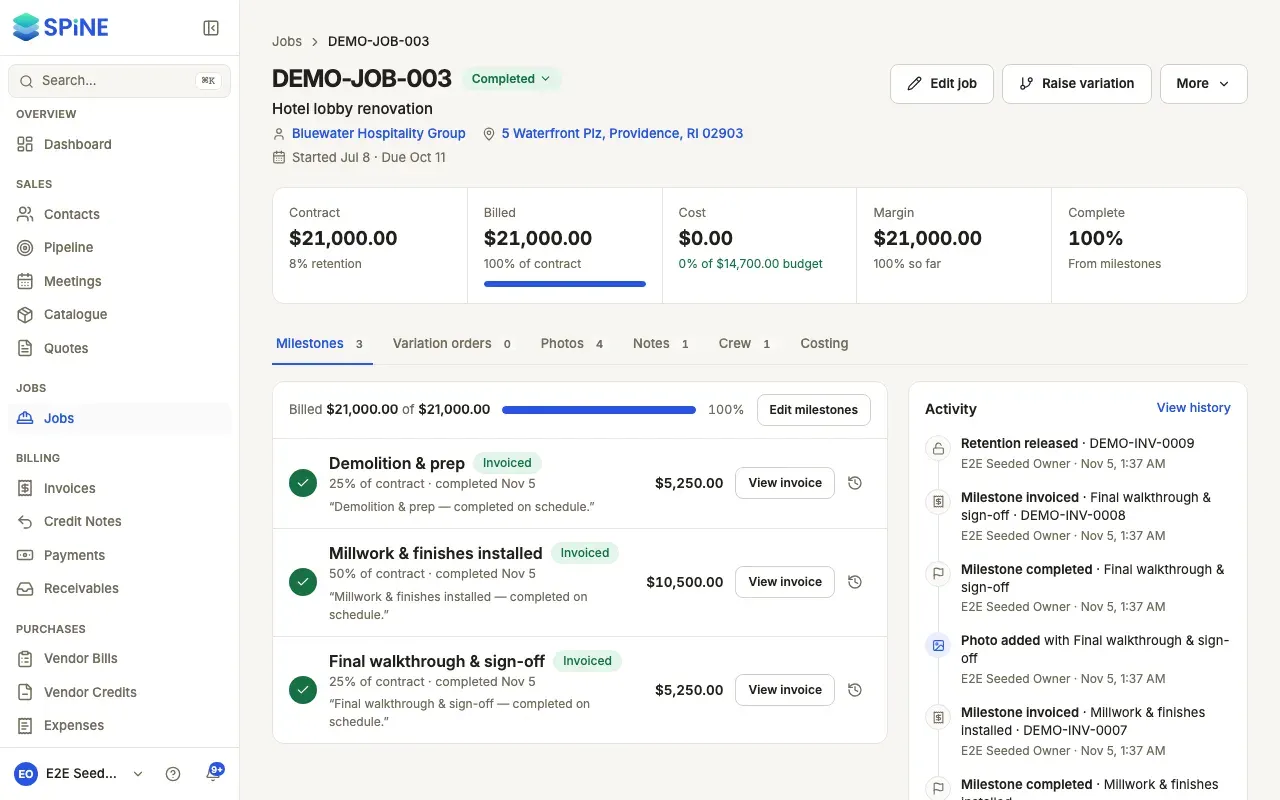
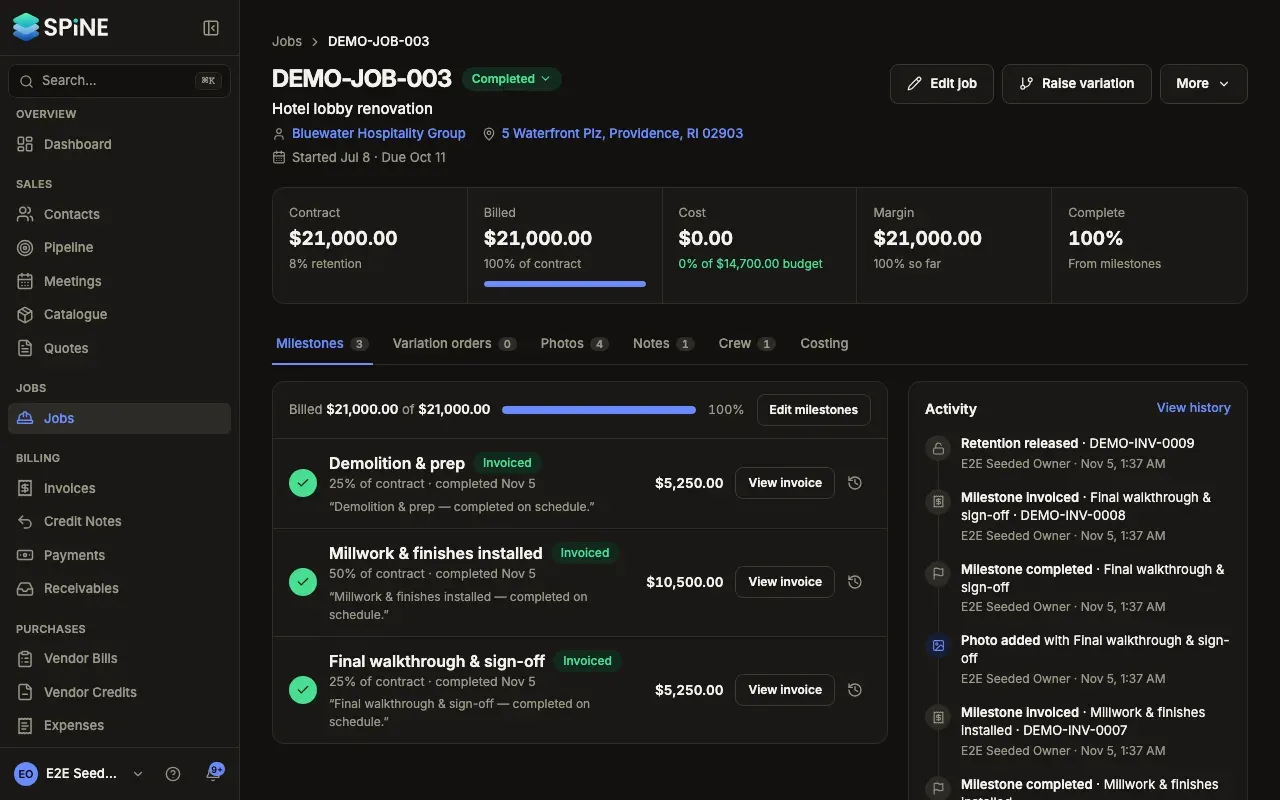
- Read the Activity panel — On the Milestones tab, the Activity panel sits beside the milestones, newest first.
- See older entries — With more than eight entries, press Show N earlier.
- Open the full history — Press View history in the panel, or choose More › View history at the top of the job.
What the panel lists
Section titled “What the panel lists”Each entry shows who did it and when:
- Created, and the quote it came from.
- Status changed, and the new status.
- Job details edited.
- Milestones set, with how many milestones.
- Milestone completed and Milestone invoiced, with the invoice number.
- Variation raised and Variation applied.
- Photo added (photos added together by one person count as one entry, such as “3 photos added”) and Note added.
- Crew assigned and Removed from crew.
- Retention released.
A new job’s panel says “Nothing has happened on this job yet.”
The full history
Section titled “The full history”View history opens every recorded change to the job’s own fields, with the old and new values, who made the change and when. For example, setting a cost budget for the first time shows the change from “—” to the new amount. Each milestone and each note also has its own history, opened from the history button on its row.
Last updated with Spine 1.0.0-beta.2