

Find invoices and see what's overdue
The Invoices list shows what you’re owed, what’s late and what’s come in, and lets you act on an invoice without opening it. Each invoice’s own page tells its whole story: what was billed, what’s been paid, and everything that happened to it.
-
Open Invoices — Go to Billing › Invoices. The list is newest first.
-
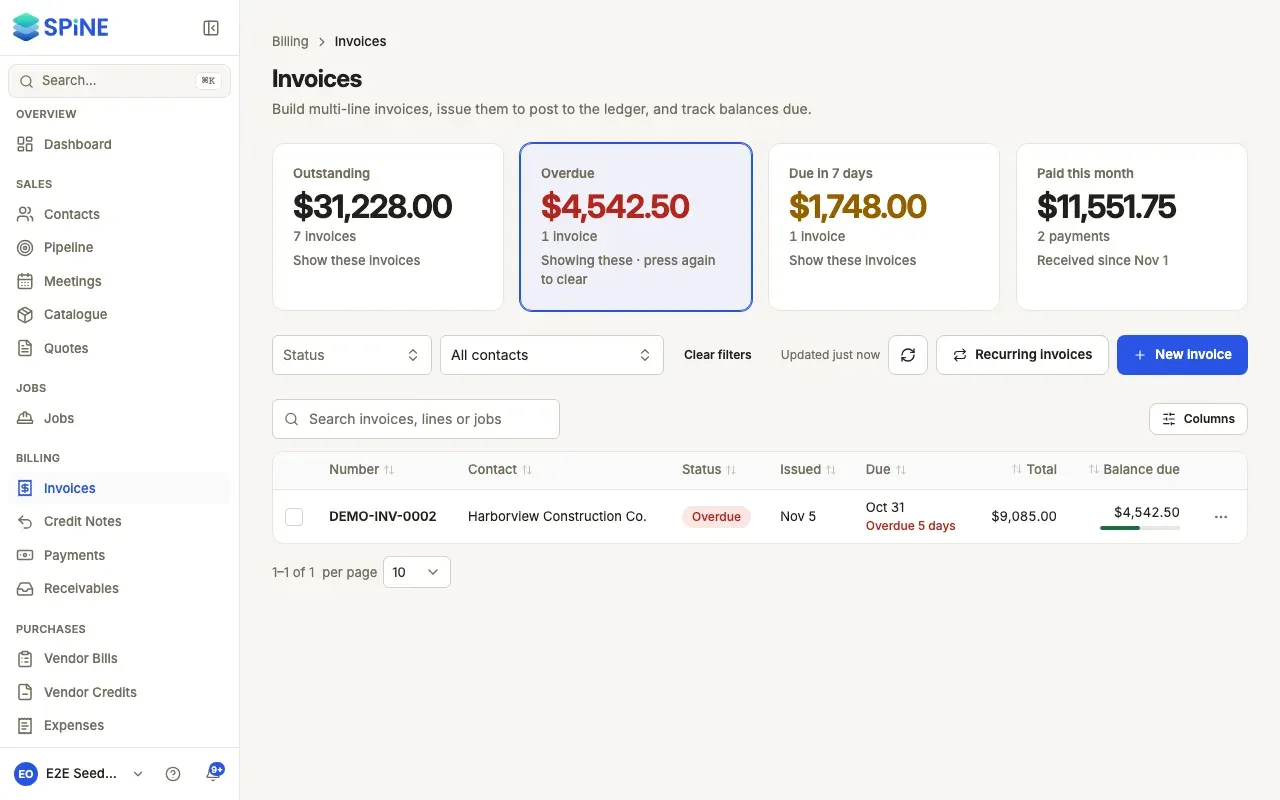
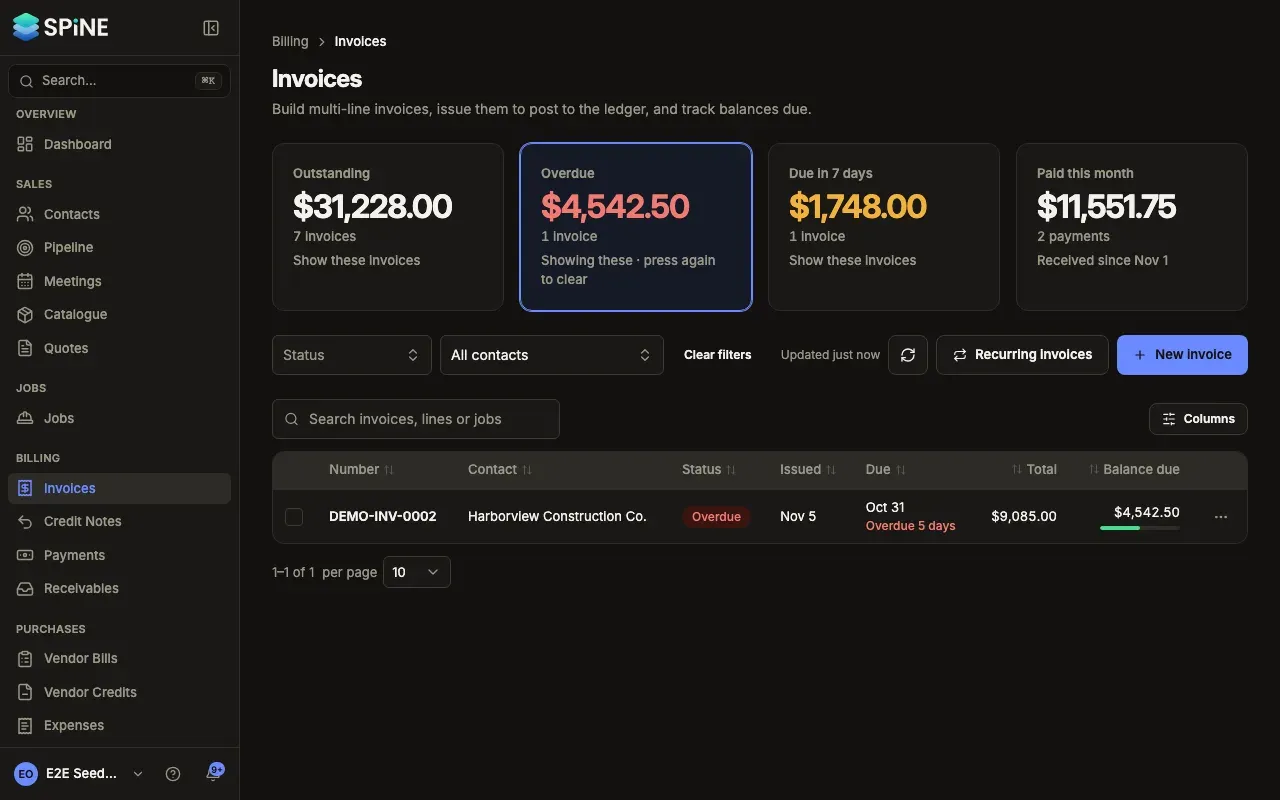
Read the cards — Outstanding is everything still owed on issued invoices. Overdue is what’s past its due date. Due in 7 days is what falls due this week. Paid this month is what payments this month paid against invoices.
-
Narrow the list — Press Outstanding, Overdue or Due in 7 days to show only those invoices; press it again to clear it. Or use Status (Draft, Due, Overdue, Part paid, Paid, Void) and Contact.
-
Search — Type in Search invoices, lines or jobs. It matches the number, the customer, a line’s name, or the job’s number or name.
-
Open an invoice — Click its row.
Reading a row
Section titled “Reading a row”Each row shows one status: Draft, Due, Part paid, Paid, Overdue or Void. The Due column reads “in 5 days”, “today”, “Overdue 6 days” or “Paid 2 Oct”. A part-paid invoice has a small bar showing how much is paid. A progress invoice shows “Progress claim 3” under its number, and a deposit shows “Deposit”.
The row’s menu offers what fits: View, Edit, Issue, Record payment, Email invoice, Send reminder, Download PDF, Duplicate, Void or Delete. Actions you can’t undo open the invoice’s page with that step’s dialog, so nothing happens in one click.
Reading an invoice’s page
Section titled “Reading an invoice’s page”- The header shows the number, status, customer, issue and due dates, and the quote or job it came from.
- One main button offers the next step: Issue invoice for a draft, Send reminder when it’s overdue, Record payment while it has a balance, otherwise Download PDF. Everything else is beside it or under More.
- A strip shows Total, Paid, Credited (when there is any) and Balance due.
- The lines table has the totals under it, then payments, credit notes and attachments.
- Activity lists what happened, newest first: created, issued, emailed, reminded, paid, credited and voided, with who and when. View history shows every field change.
Last updated with Spine 1.0.0-beta.2