

Work through an account's register
Each account’s register lists everything that moved through it, with a running balance — like your bank app, but from your books. Use it to compare Spine with the bank, find a payment, or see what still needs reconciling.
See all your accounts
Section titled “See all your accounts”Banking lists each account with its type, name (with Default), bank and last four digits, Balance in Spine (“owed” on a card), when it was last reconciled (or Never reconciled) and how many entries are unreconciled. The cards show Bank and cash, Owed on cards, Not yet reconciled and Last reconciled. Press Not yet reconciled to see only accounts with unreconciled entries. Filter by type (All types, Bank, Cash, Card) or search.
Open and filter a register
Section titled “Open and filter a register”-
Open the account — On Banking, press the account’s name or choose Open register in its row menu. Pressing the unreconciled count opens it on unreconciled entries only.
-
Read the cards — Balance in Spine is today’s balance. Money in and Money out cover the range (Paid off and Spent on a card). Unreconciled counts entries in the range; press it to show only those.
-
Filter — Choose a range (This month, Last month, This quarter, Last 90 days, This year or Custom range), a type (All entries, Customer payments, Vendor payments, Expenses, Transfers, Money in and out, Journals and other) and Show (All or Unreconciled only). Search matches what, contact or reference.
-
Open an entry — Press a row. A payment, bill or expense opens its own page. A transfer or money in or out entry opens a drawer with its details.
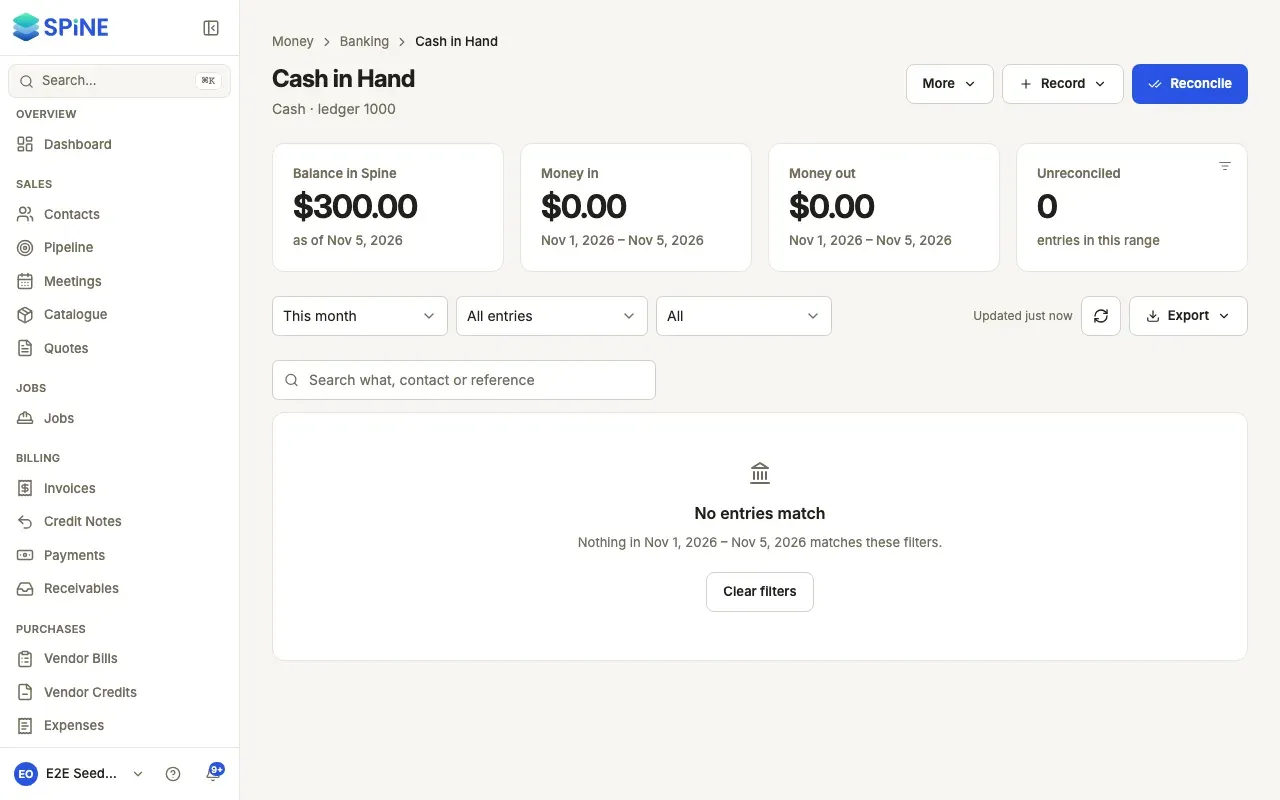
Each row has the date, what it was, the contact, the reference, the amount in or out and the running balance. The running balance always starts from the true balance before your range. A reconciled entry shows Reconciled with a tick; a deleted one says Deleted.
Export the register
Section titled “Export the register”Press Export and choose CSV, Excel (.xlsx) or PDF. The file has the rows on screen with the opening and closing balance.
Delete a transfer or money in or out entry
Section titled “Delete a transfer or money in or out entry”In the entry’s drawer, press Delete entry (or Delete transfer). Spine asks first and posts a reversing entry today; the entry stays in the register, marked deleted.
From the header, Reconcile starts reconciling, Record offers Money in, Money out and Transfer with this account chosen, and More has Import statement, Reconciliations and Edit account.
Last updated with Spine 1.0.0-beta.2