

See sales and purchases
Four analysis reports answer everyday questions: which customers bring in the most, which items sell, which costs are growing, and which vendors you spend the most with. Each is for a date range and lists the largest first.
Sales by customer and by item
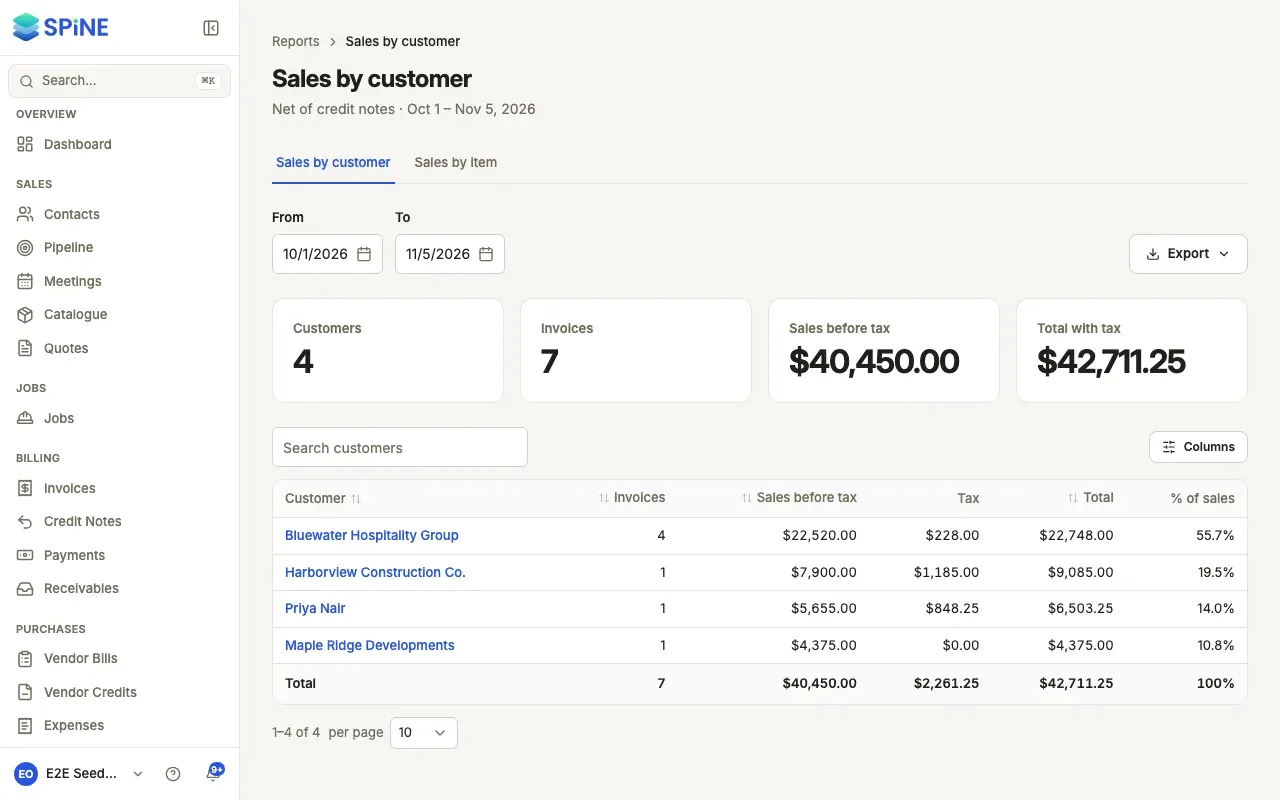
Section titled “Sales by customer and by item”- Open the report — Go to Reports and choose Sales by customer under Sales. Sales by item is the next tab.
- Set the range — Choose From and To.
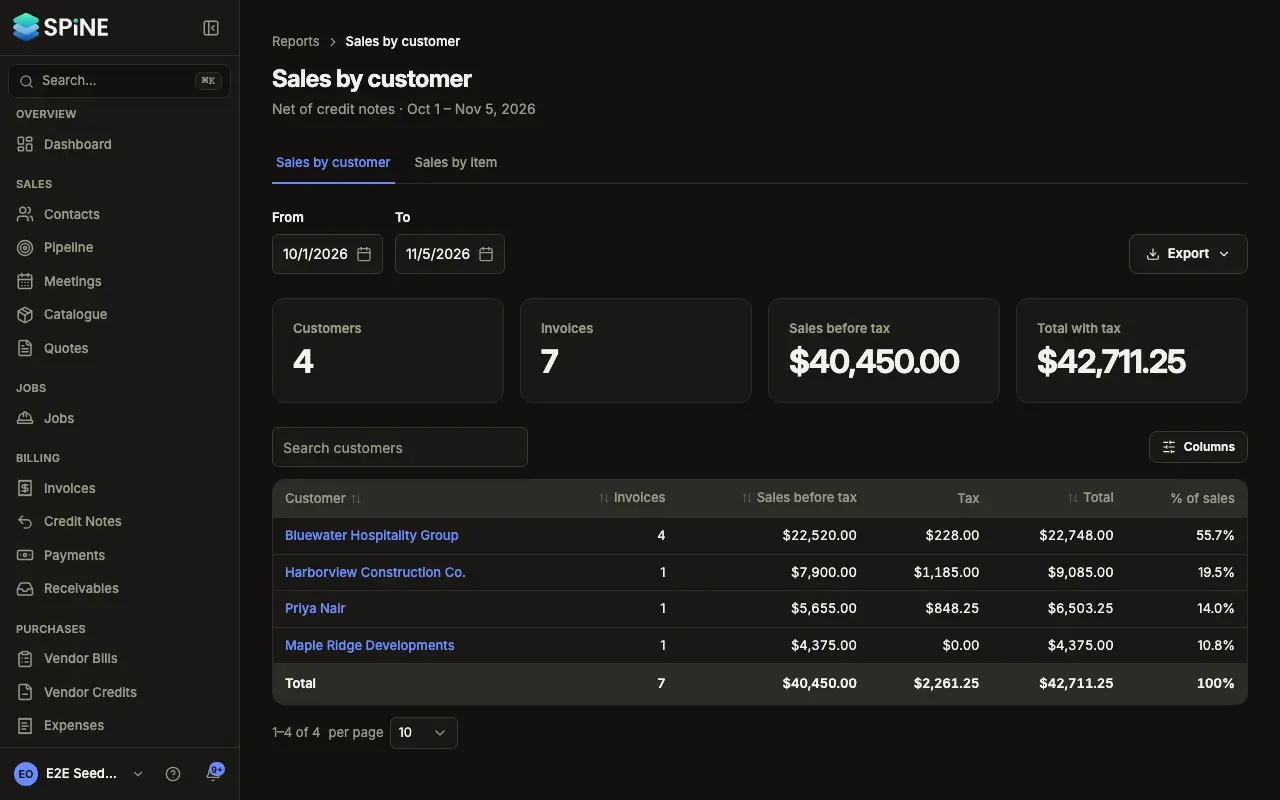
- Read Sales by customer — Each customer shows the number of Invoices, Sales before tax, Tax, Total with tax and % of sales, net of credit notes.
- Read Sales by item — Each catalogue item, and a row for items not from the catalogue, shows Quantity, Sales before tax and Average price.
- Click a row — See the issued invoices in the range for that customer or item, and click a number to open one.
Expenses by category and purchases by vendor
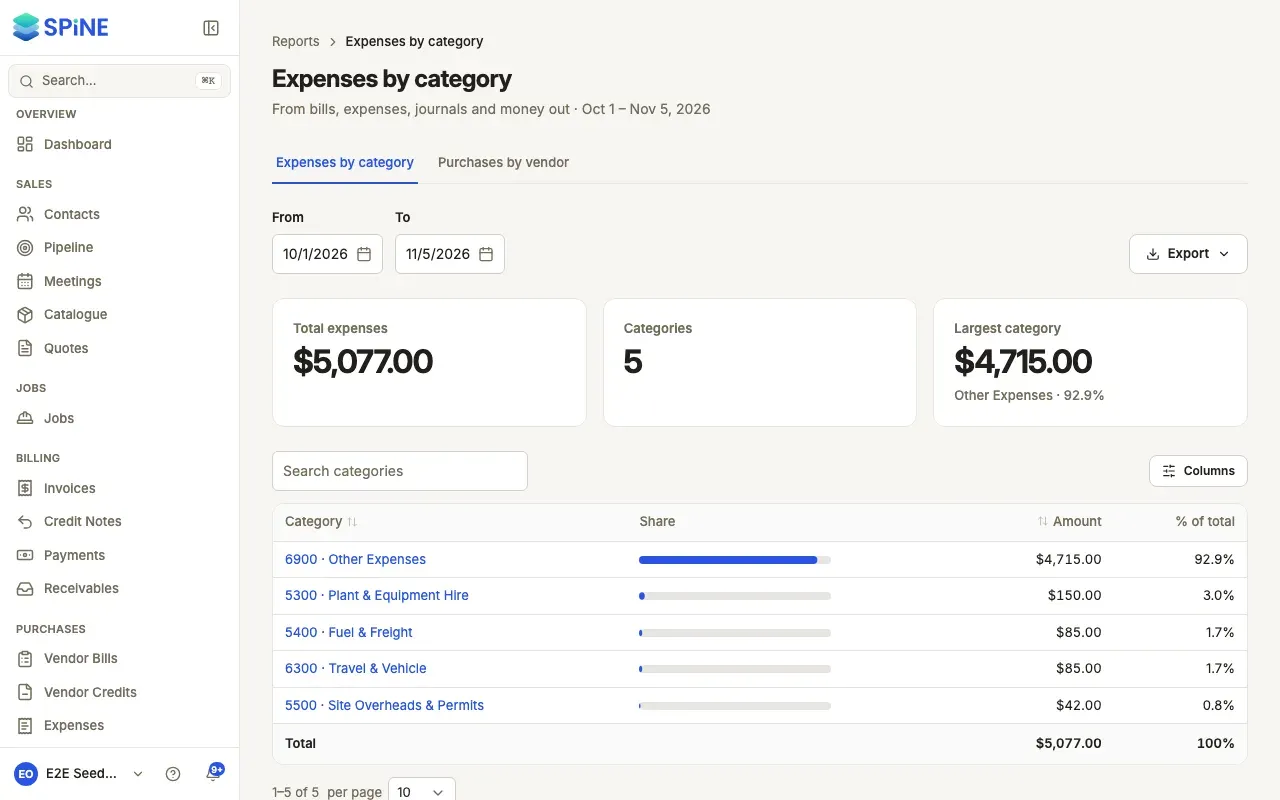
Section titled “Expenses by category and purchases by vendor”- Open the report — Choose Expenses by category under Purchases. Purchases by vendor is the next tab.
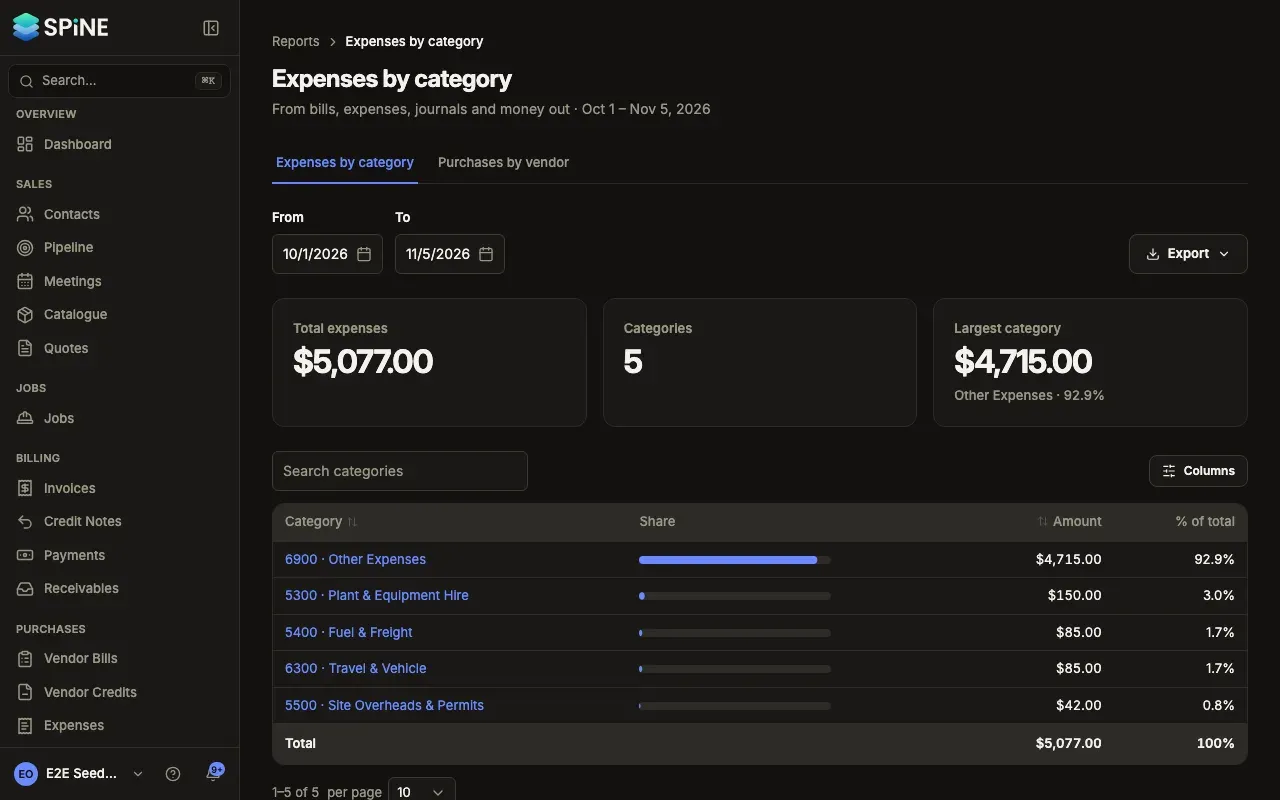
- Read Expenses by category — Each expense account shows its Amount, % of total and a bar, from bills, expenses, journals and money out.
- Read Purchases by vendor — Each vendor shows its number of Bills, Before tax, Tax and the total, net of vendor credits.
- Click a row — A category opens its journal entries. A vendor lists its recorded bills in the range.
With nothing in the range, you see “No sales in this period”, “No expenses in this period” or “No bills in this period”. Pick other dates.
The dashboard’s Top expenses card shows the same categories at a glance; see Dashboard.
Last updated with Spine 1.0.0-beta.2