

Download invoice PDFs
Every issued invoice has a PDF that Spine saved at the moment it was issued. Downloading it, today or years from now, gives you the same file the customer got, even if your logo, address or payment instructions have changed since. A draft has no saved PDF; you see a live preview instead.
One invoice
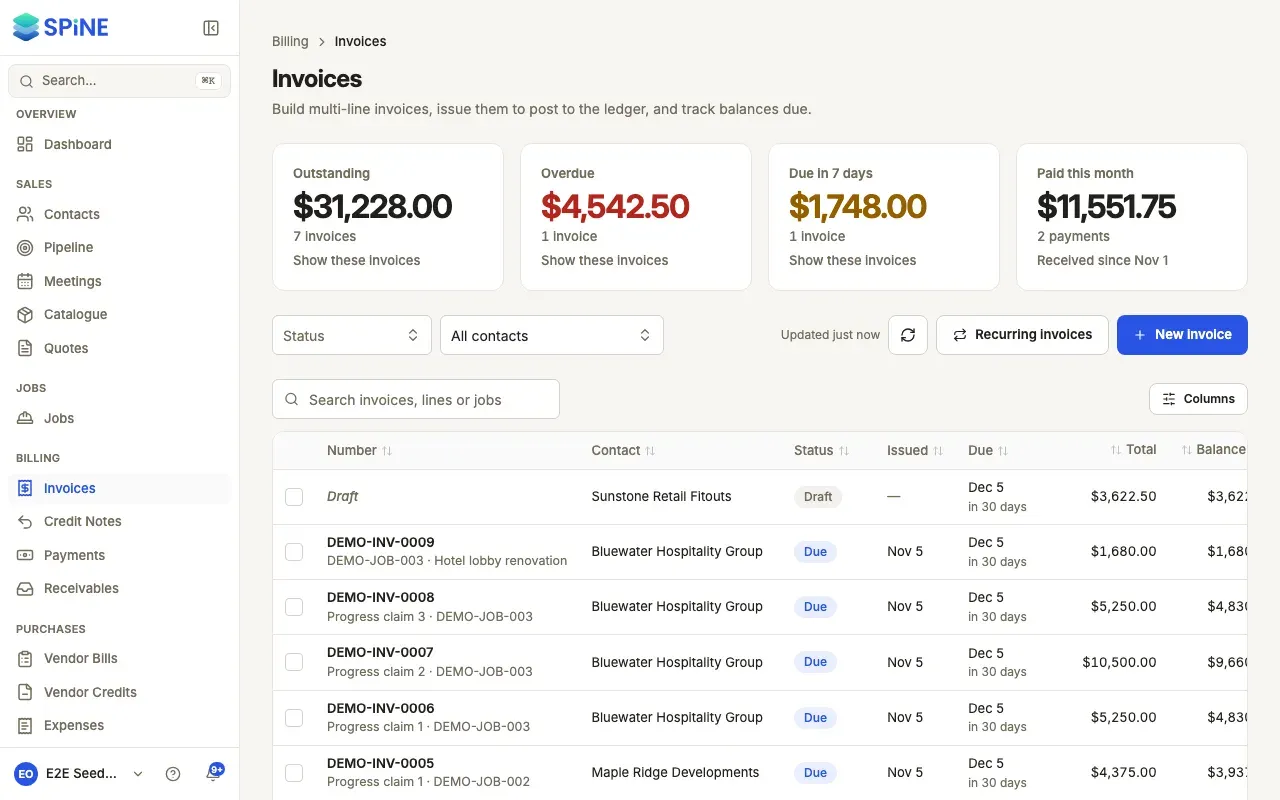
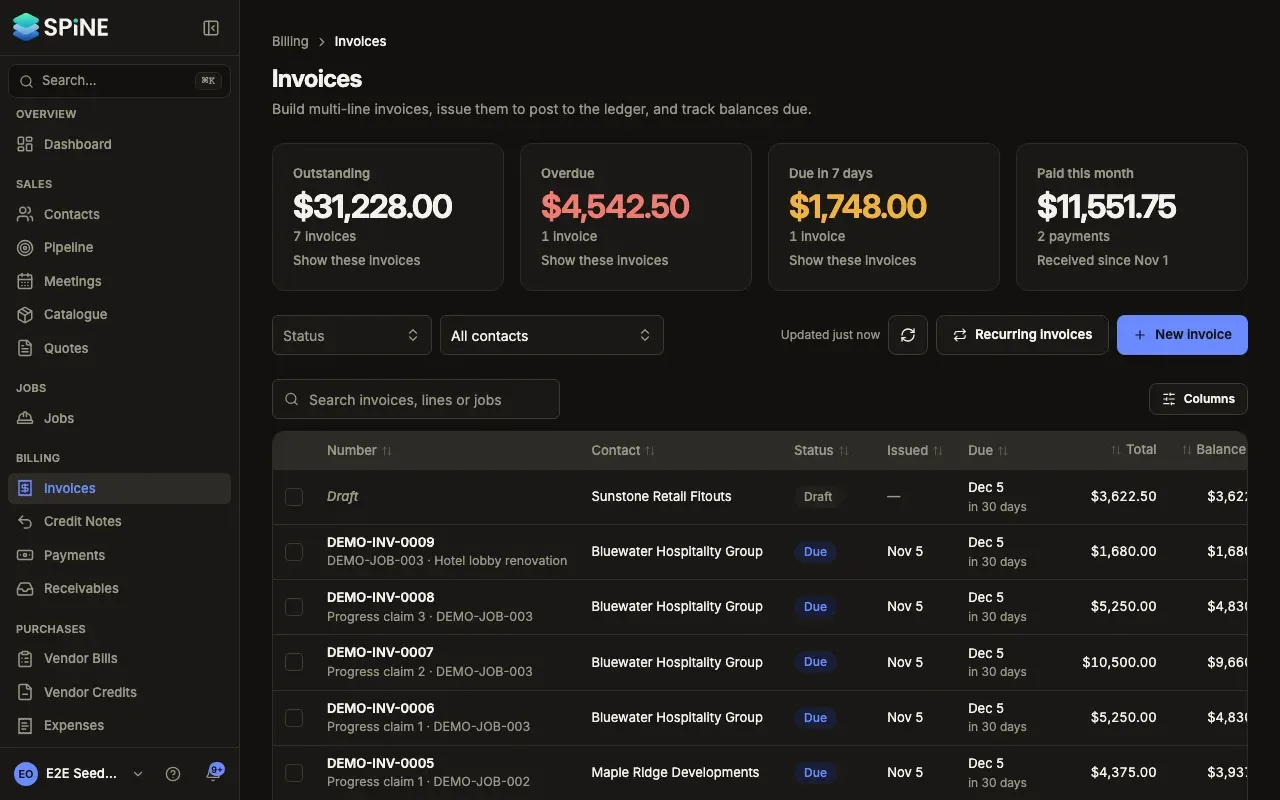
Section titled “One invoice”- An issued invoice — open it and press Download PDF. It’s the main button once nothing is owed; otherwise it’s beside the main button or under More. In the list, choose Download PDF from the row’s menu.
- A draft — open it and press Preview PDF, or press Preview PDF in the builder. The preview shows the invoice as it is on screen, with a faint “DRAFT — Preview only — not a valid invoice” watermark on every page. Nothing is saved.
The PDF shows your business details, “INVOICE”, the number, who it’s billed to, the issue and due dates, the lines, Subtotal, Tax, Total, any credits and Balance due. A progress invoice also shows the retention held. If you’ve set payment instructions, they’re under the totals.
Several invoices at once
Section titled “Several invoices at once”-
Tick the invoices — In the Invoices list, tick the rows you want. A bar shows how many are selected.
-
Press Download PDFs — One ZIP file downloads, named like “invoices-2026-11-05.zip”, with each invoice’s saved PDF.
-
Clear the selection — Press Clear when you’re done.
A toast says, for example, “Downloaded 12 PDFs”. Drafts in the selection are skipped, because they aren’t real invoices yet, and the toast says which were skipped.
An invoice brought in from your old system (an opening balance) has no PDF in Spine. Its page keeps the original as an attachment instead.
Last updated with Spine 1.0.0-beta.2