

Move a payment off the wrong invoice
If a payment went on the wrong invoice, you don’t need to delete it. Move it off that invoice: the invoice owes the amount again, and the money becomes credit for the customer. Then apply the credit to the right invoice, or refund it.
-
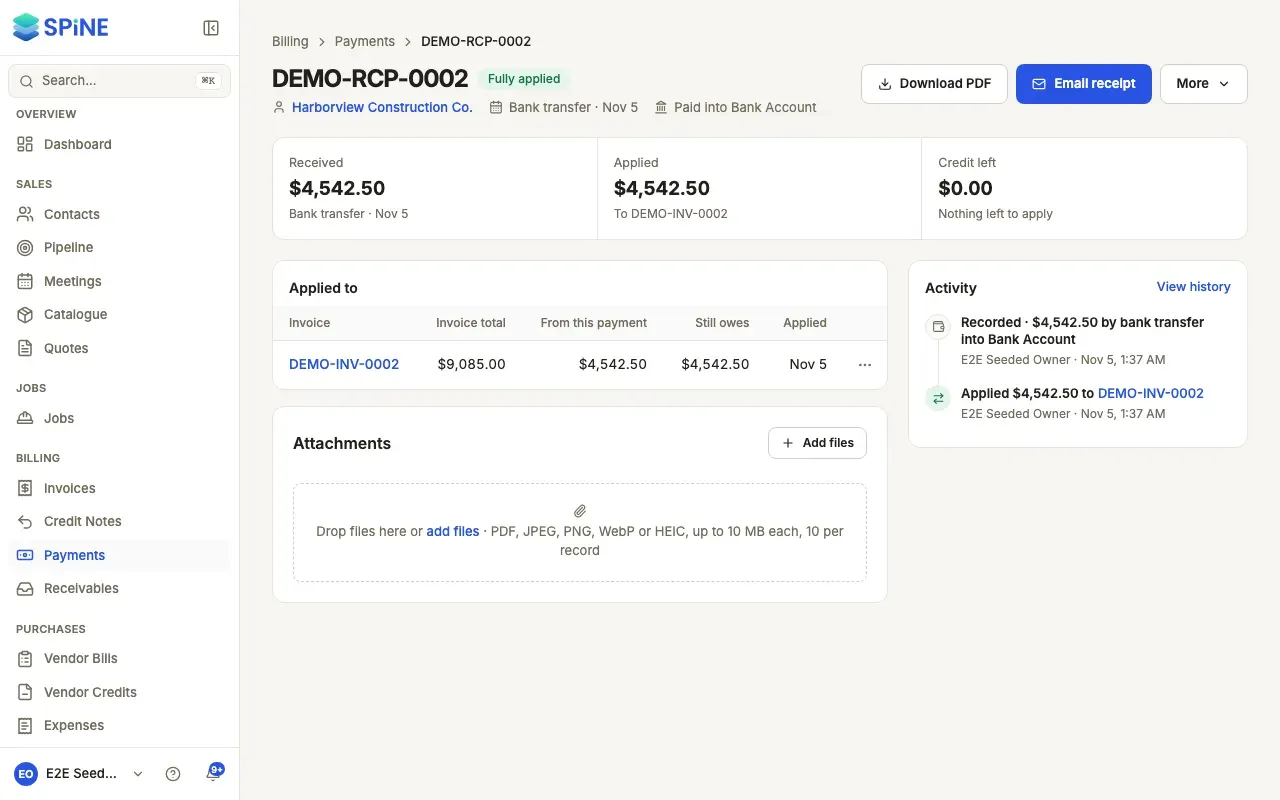
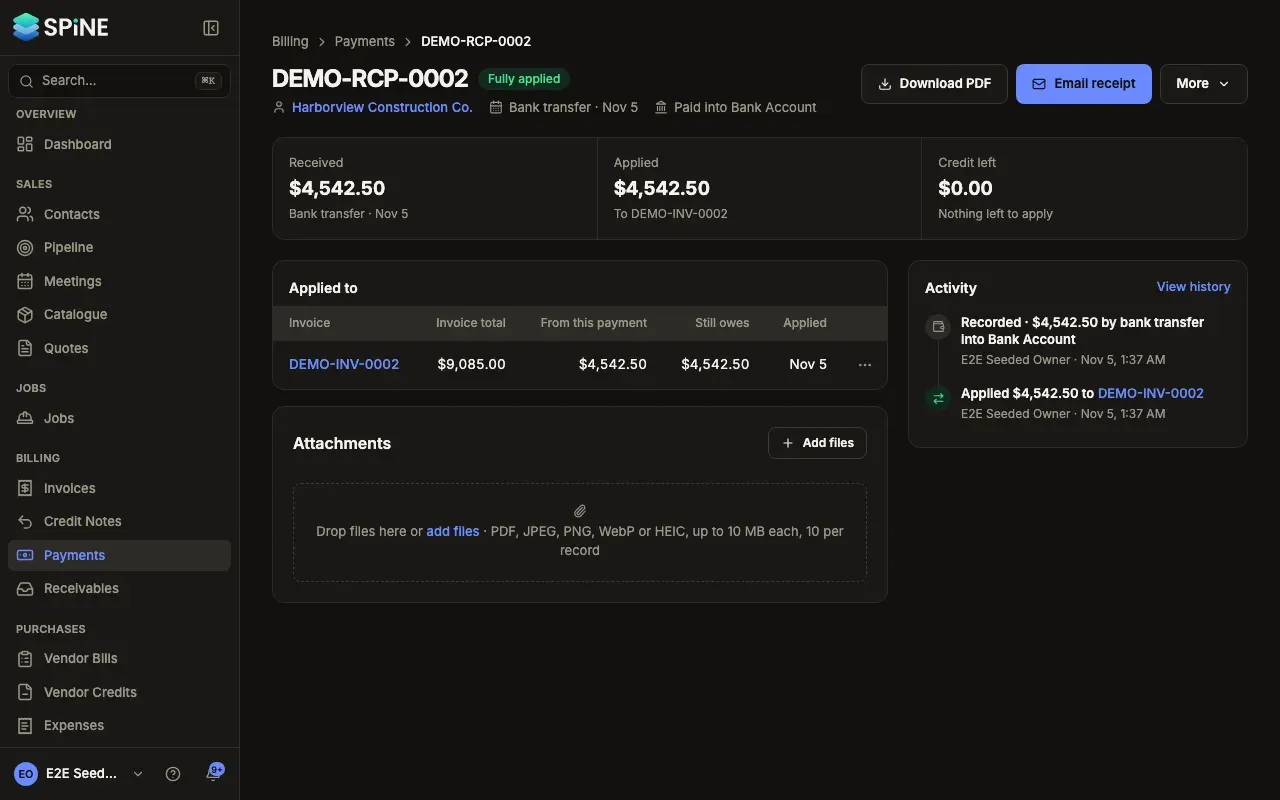
Find the allocation — Open the payment and look under Applied to. Open the actions menu on the invoice’s row and choose Move off INV-0039 (with that invoice’s number). From the invoice instead, open the payment’s row under Payments and choose Move off this invoice.
-
Read what will happen — The confirmation, for example “Move $1,200.00 off INV-0039?”, says the invoice will owe that amount again and the money becomes credit for the customer.
-
Add a reason (optional) — Type a Reason, such as “Belongs on another invoice”. It’s kept in the history.
-
Confirm — Press Move off invoice, or Go back to change nothing.
What happens next
Section titled “What happens next”- The invoice’s paid amount drops and its balance rises by the amount moved.
- The payment’s credit left rises by the same amount, and the toast says it’s now credit for the customer.
- Apply credit is offered on the payment, so you can put the money on the right invoice straight away. See Apply customer credit to an invoice.
- The payment’s Activity keeps both the original “Applied” line and a “Moved … off” line with your reason.
- The change is posted to your books with today’s date.
The receipt PDF lists only what’s still applied. A receipt you already emailed isn’t changed.
Last updated with Spine 1.0.0-beta.2