

Add an item
Add the things you sell and buy most often to the catalogue. When you pick an item on a quote or invoice line, its name, description, price and tax fill in for you, so you quote faster and the same way every time.
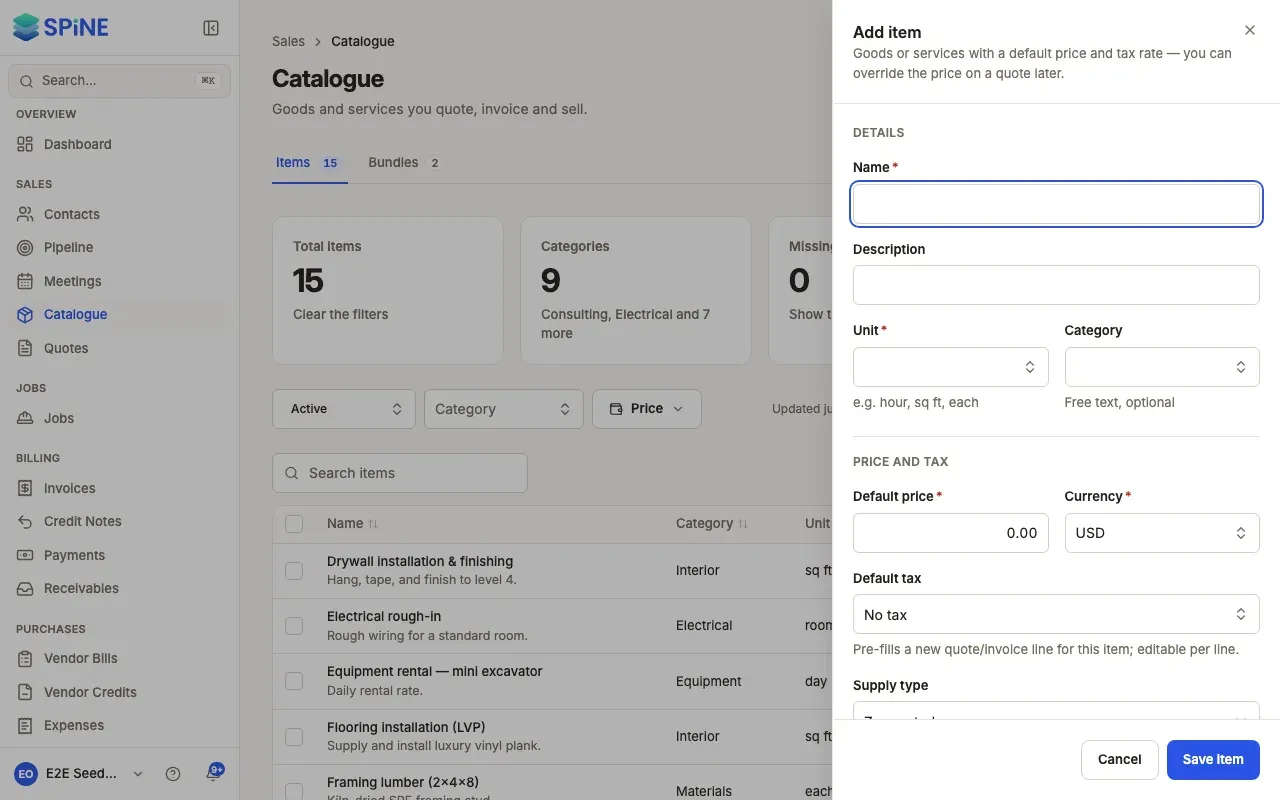
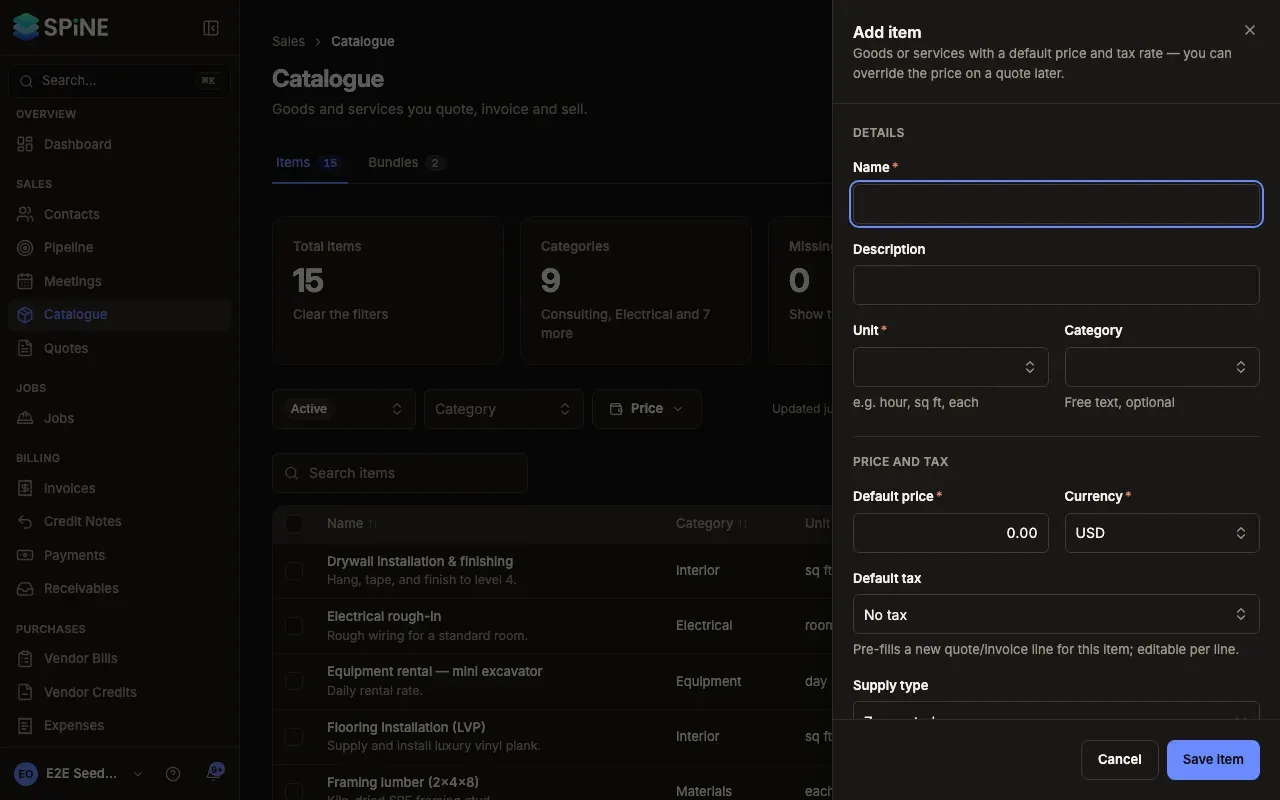
- Open the drawer — Go to Catalogue and press Add item. The Add item drawer opens: “Goods or services with a default price and tax rate — you can override the price on a quote later.”
- Fill in the details — Under Details, fill in Name and, if you like, a Description. In Unit, choose one such as hour, sq ft or each, or type a new one. In Category, pick one or type a new one; it’s optional.
- Set the price — Under Price and tax, fill in Default price and choose the Currency.
- Set the tax — Choose the Default tax, or leave it as No tax. Choose the Supply type if the item isn’t taxable.
- Choose the accounts — Under Accounts, choose the Default income account and Default expense account, or leave them as they are.
- Save — Press Save item. An “Item created” toast shows and the item is listed with its default price.
For what the tax and account fields do, see Set an item’s tax and accounts.
If something goes wrong
Section titled “If something goes wrong”- A price below zero shows an error on Default price, and nothing is saved.
- If saving fails, you see “Could not save item.” and what you typed stays in the drawer.
Add an item while you quote
Section titled “Add an item while you quote”You don’t have to stop building a quote to add an item. Type a name that isn’t in the catalogue on a quote line, tick Also save to catalogue, and choose the one-off line. See Use catalogue items on quotes and invoices.
Add a similar item
Section titled “Add a similar item”To add an item that’s nearly the same as one you have, choose Duplicate from that item’s menu. See Edit, duplicate, archive or delete an item.
Last updated with Spine 1.0.0-beta.2