

Pause, change or stop a recurring invoice
Contracts change. You can pause a schedule while a customer is on hold, change what it bills, or delete it when the contract ends. Invoices a schedule has already created are never changed by any of this.
Read the list
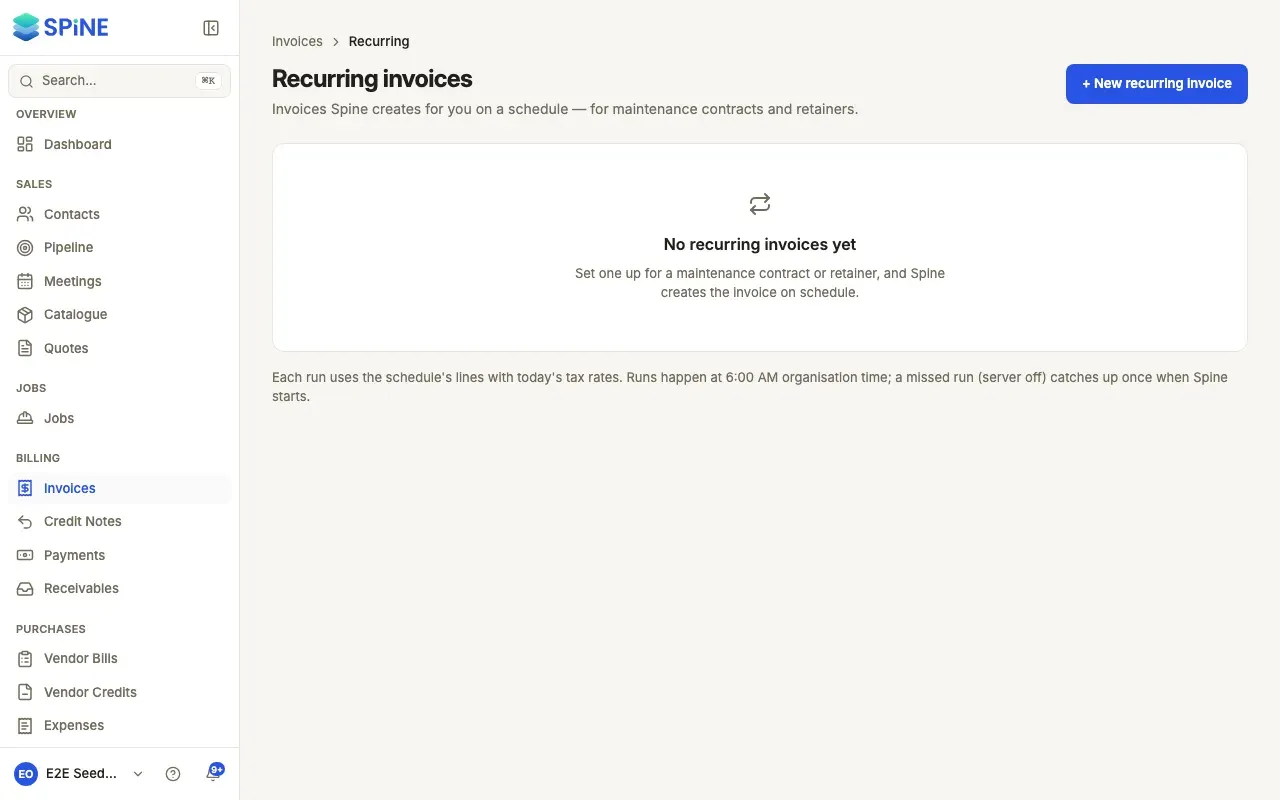
Section titled “Read the list”Go to Invoices and press Recurring invoices. Each schedule shows Name, Customer, Repeats (for example “Monthly · 1st”), Next invoice, Amount, Status (Active, Paused or Finished) and When it runs (“Issue and email” or “Create draft”).
Pause or resume
Section titled “Pause or resume”-
Open the row’s menu — On the schedule’s row, open its menu.
-
Choose Pause — A toast says Schedule paused: it won’t create invoices until you resume it. Its next invoice shows “—”.
-
Choose Resume later — Open the menu again and choose Resume. The toast gives the next invoice date.
When you resume, the next invoice is the next date still to come. Dates missed while it was paused aren’t billed.
Change the schedule or its lines
Section titled “Change the schedule or its lines”Choose Edit in the row’s menu. Edit recurring invoice opens with everything you set. Change the lines, amounts or timing, then press Save schedule. Only invoices created from now on use the changes.
Delete a schedule
Section titled “Delete a schedule”-
Choose Delete — In the row’s menu, choose Delete.
-
Confirm — Delete this schedule? says “Invoices it already created are kept.” Press Delete schedule, or Cancel.
A toast says Schedule deleted.
Last updated with Spine 1.0.0-beta.2