

Add a contact
Add a contact before you quote a customer or record a bill from a vendor. You need only a name and a type to start. You can add the people at a company and its addresses once it’s saved.
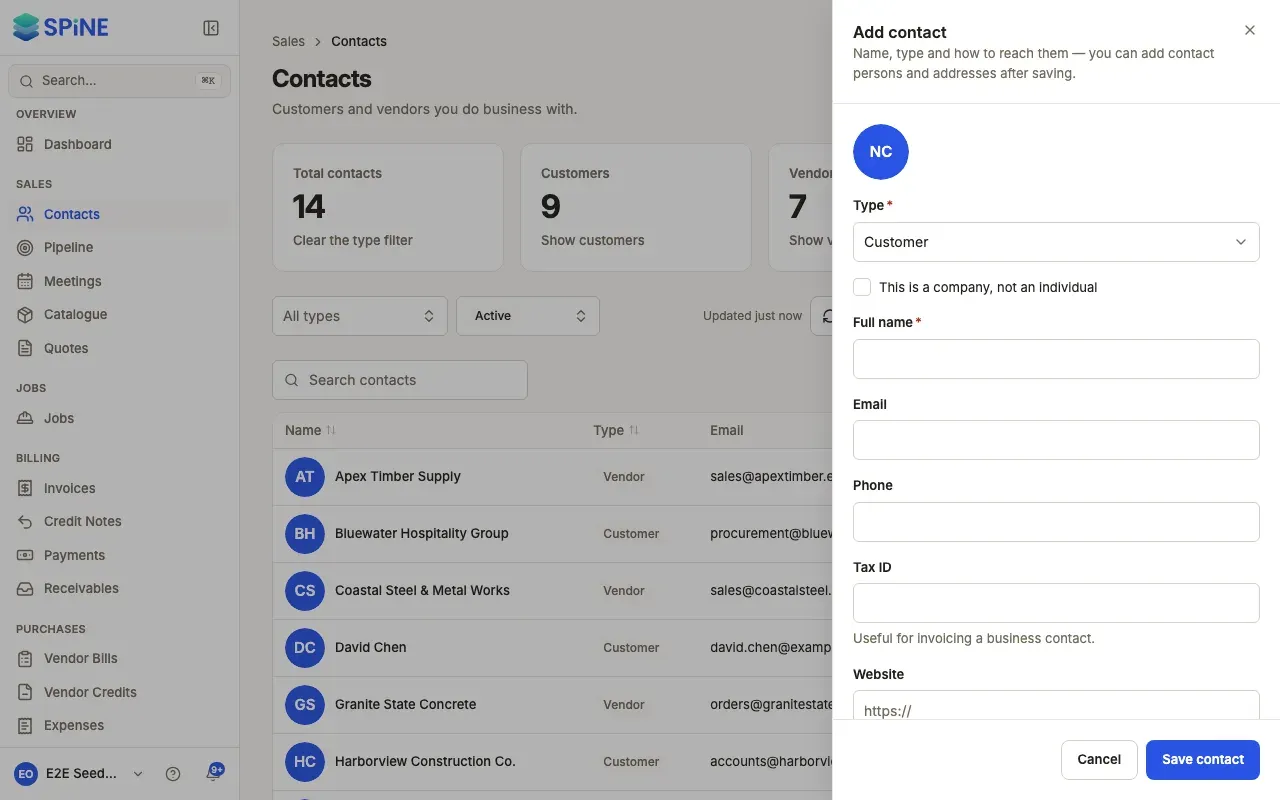
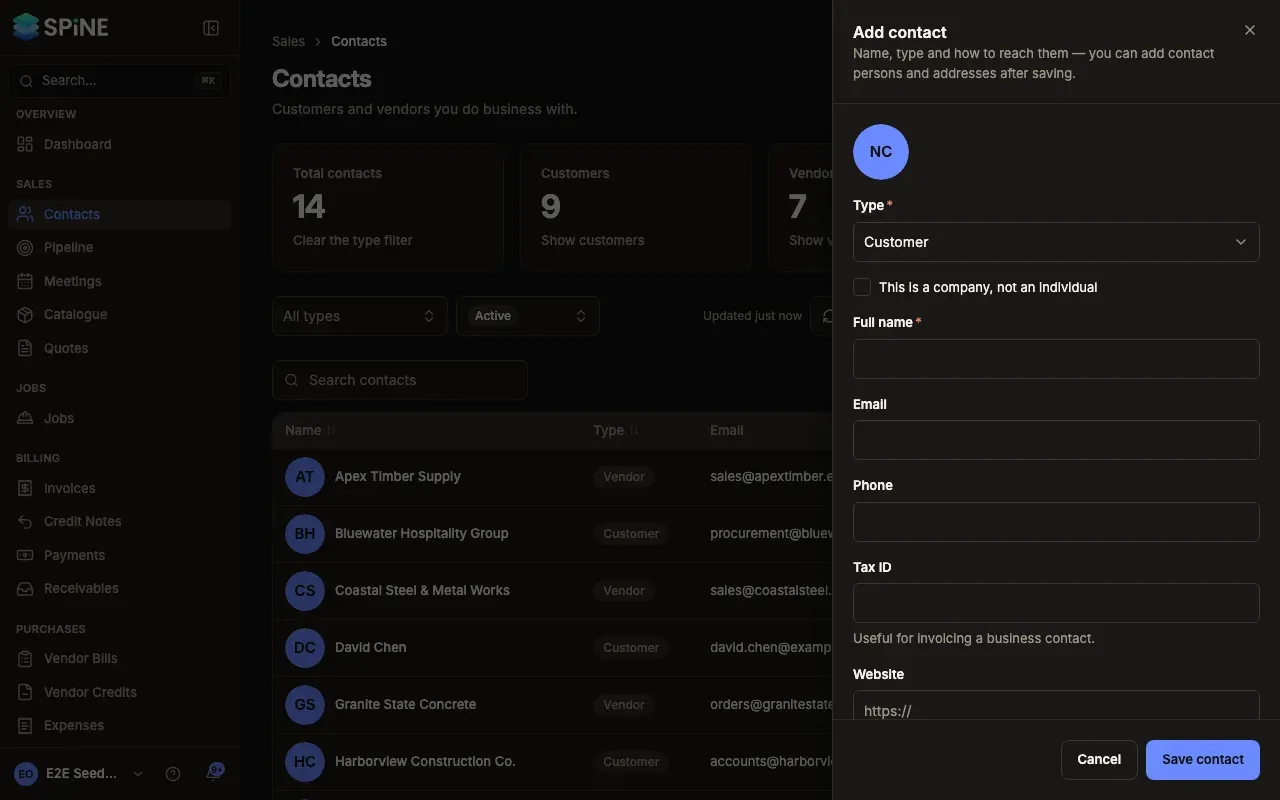
- Open the drawer — Go to Contacts and press Add contact. The Add contact drawer opens.
- Choose the type — In Type, choose Customer (the default), Vendor or Customer & vendor.
- Say whether it’s a company — For a business, turn on This is a company, not an individual and fill in Company name. For a person, leave it off and fill in Full name.
- Add how to reach them — Fill in Email, Phone, Tax ID and Website if you have them. Tax ID is useful for invoicing a business contact.
- Save it — Press Save contact. The drawer closes, a “Contact created” toast shows, and the contact appears in the list.
Customer, vendor or both
Section titled “Customer, vendor or both”Choose Customer & vendor for a business you both sell to and buy from. It then appears in the customer picker on quotes and invoices, and in the vendor picker on vendor bills. When you filter the list by Customer or Vendor, these contacts are included in both.
You can change the type later. You can’t change a Customer & vendor to Customer while it has vendor bills.
For a GST business
Section titled “For a GST business”If your business is set up for GST, the drawer also asks for GST treatment (registered, unregistered, consumer, overseas or special economic zone), the GSTIN and the State. For a registered business or an SEZ you see “Enter the GSTIN — it’s needed for a registered business or SEZ.” until you add one. When you enter a GSTIN, the state is filled from it.
If something goes wrong
Section titled “If something goes wrong”- If the name is empty, the name field shows an error and nothing is saved.
- If saving fails, you see “Could not create contact.” and what you typed stays in the drawer, so you can try again.
What happens next
Section titled “What happens next”Open the contact from the list to add the people you deal with and its addresses: see Add contact persons and addresses. To bring in many contacts at once, see Import contacts from a CSV file.
Last updated with Spine 1.0.0-beta.2