

Enter a vendor bill
When a supplier or subcontractor sends you a bill, enter it in Spine so what you owe is visible. A new bill saves as a draft. A draft posts nothing to your books until you record it, so you can check it first.
-
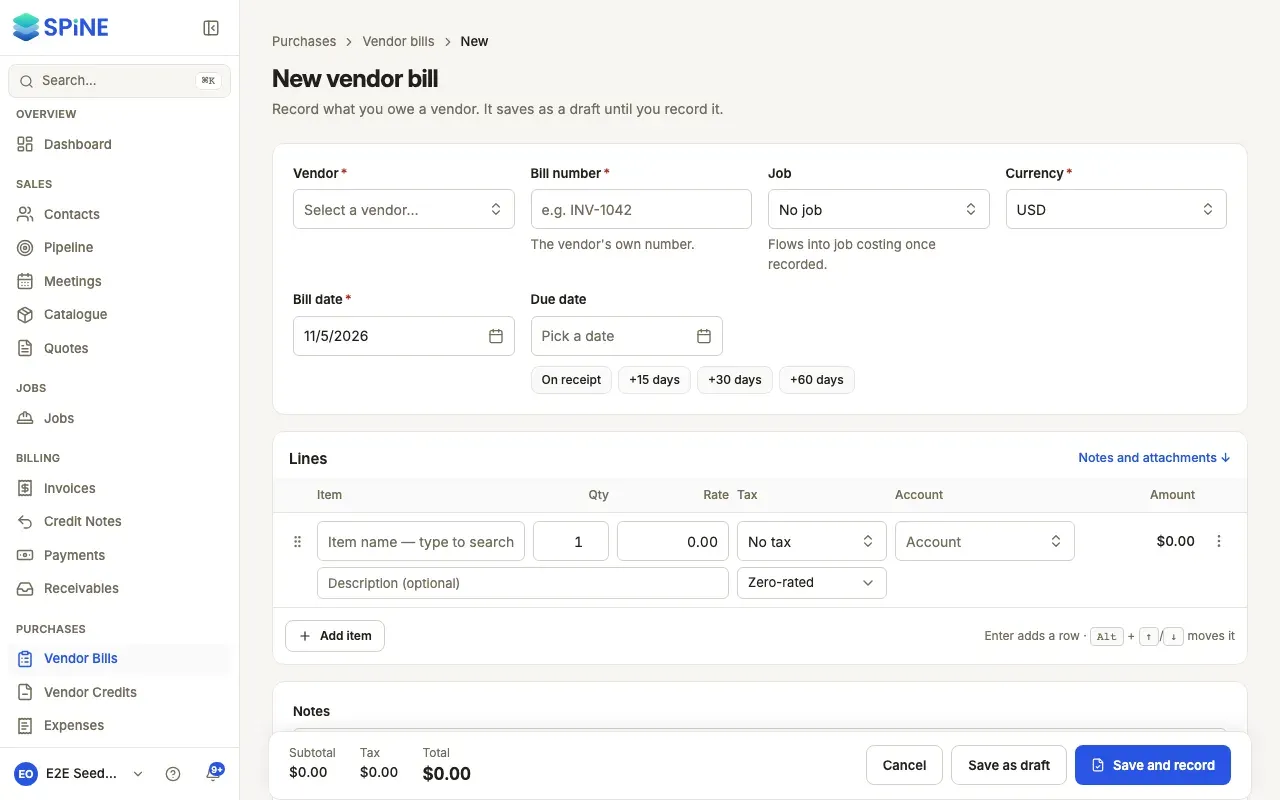
Start a new bill — Go to Vendor Bills and press New vendor bill.
-
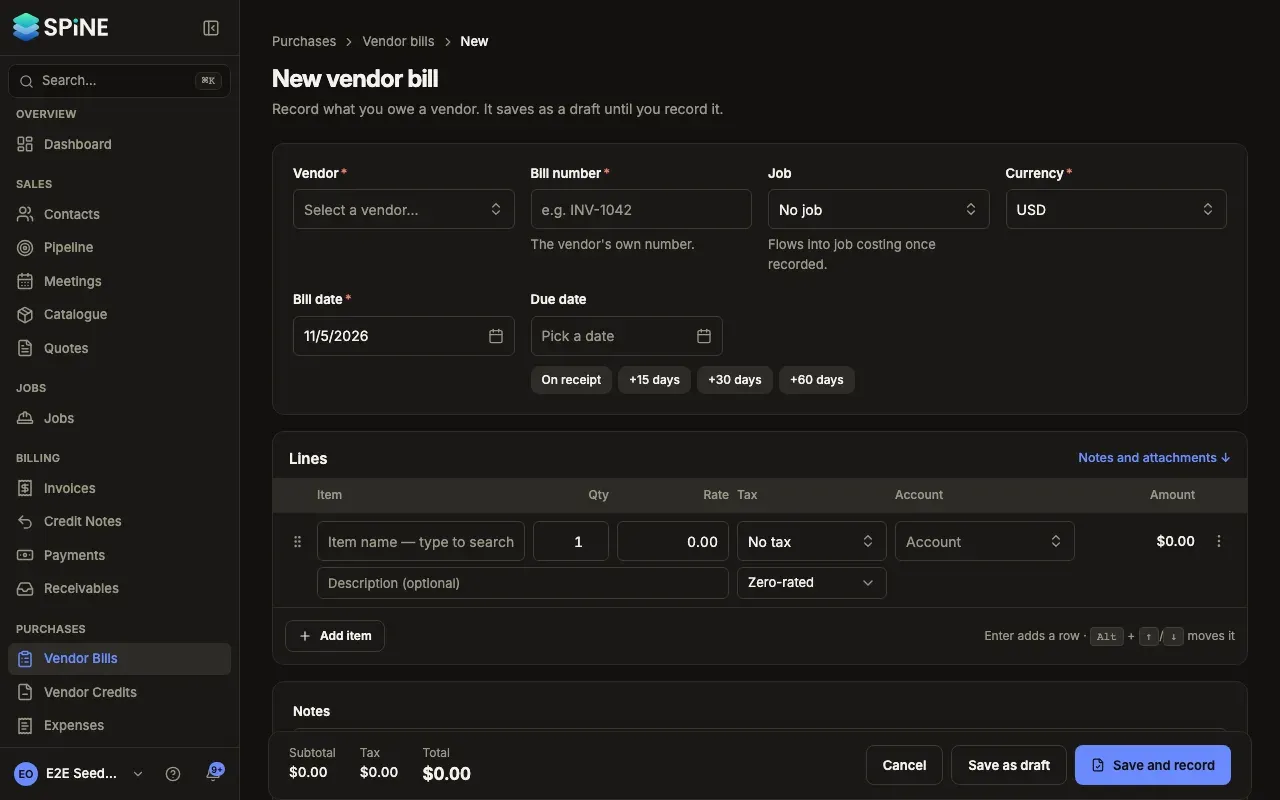
Fill in the header — Choose the Vendor. Enter the Bill number — the vendor’s own number, for example INV-1042. Spine doesn’t number vendor bills. Choose a Job if the bill is for one: it flows into job costing once recorded. Set the Bill date and the Due date, or press On receipt, +15 days, +30 days or +60 days.
-
Add the lines — Each line has an Item, Qty, Rate, Tax and Account (the expense account it posts to), with a description under it. Press Add item for another line. Drag a line, use its menu, or press Alt + ↑ / ↓ to move it.
-
Add notes and files — Notes are for your team; the vendor never sees them. Under Attachments, press Add files or drop the vendor’s PDF or photo, so it stays with the bill.
-
Save — Press Save as draft. To post it straight away, press Save and record instead — see Record a vendor bill.
Help while you type
Section titled “Help while you type”- Due date from the last bill. When you choose a vendor and the due date is empty, Spine suggests one from that vendor’s last bill — “Suggested: 30 days, as on this vendor’s last bill”.
- Duplicate warning. If this vendor already has a bill with the same number (ignoring case and spaces, and not counting void bills), a warning names it with its date and amount, with a link to open it. You can still save if it’s really a different bill.
- Leaving with unsaved changes. Spine asks “Leave without saving?” before you lose your work.
If you save without a vendor, you see “Select a vendor before saving.”. Without a bill number, you see “Enter the vendor’s bill number before saving.”.
Copy a bill
Section titled “Copy a bill”On a bill’s page, open More and choose Duplicate. A new bill opens with the same vendor, job, currency and lines, today’s date and an empty bill number.
Change or delete a draft
Section titled “Change or delete a draft”Open the draft and press Edit, then Save draft. To remove a draft, open More and choose Delete draft. Spine asks “Delete this draft bill?” first.
Last updated with Spine 1.0.0-beta.2