

Change your password and sign out other devices
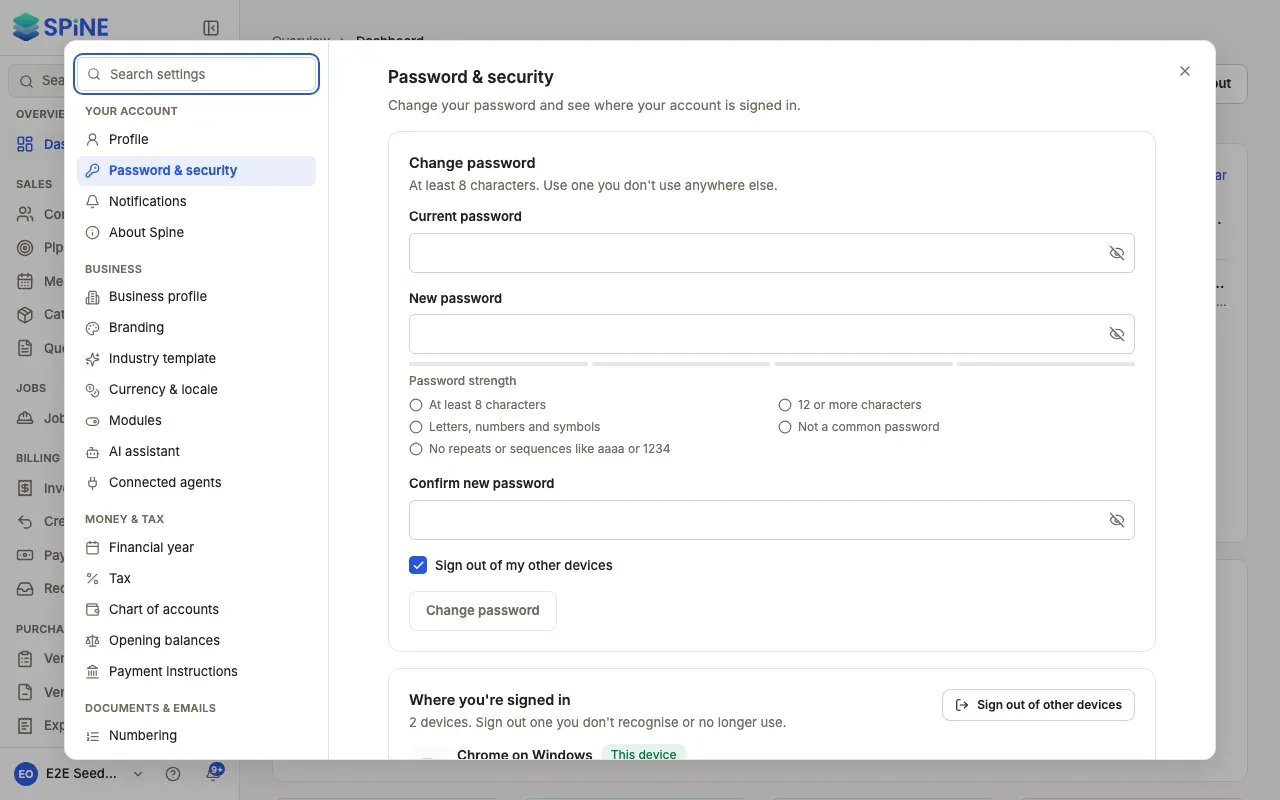
Password & security lets you “Change your password and see where your account is signed in.” If you’ve lost a phone or signed in on someone else’s computer, sign that device out here.
Change your password
Section titled “Change your password”-
Open Settings › Password & security — Open your user menu, choose Settings, and pick Password & security under Your account.
-
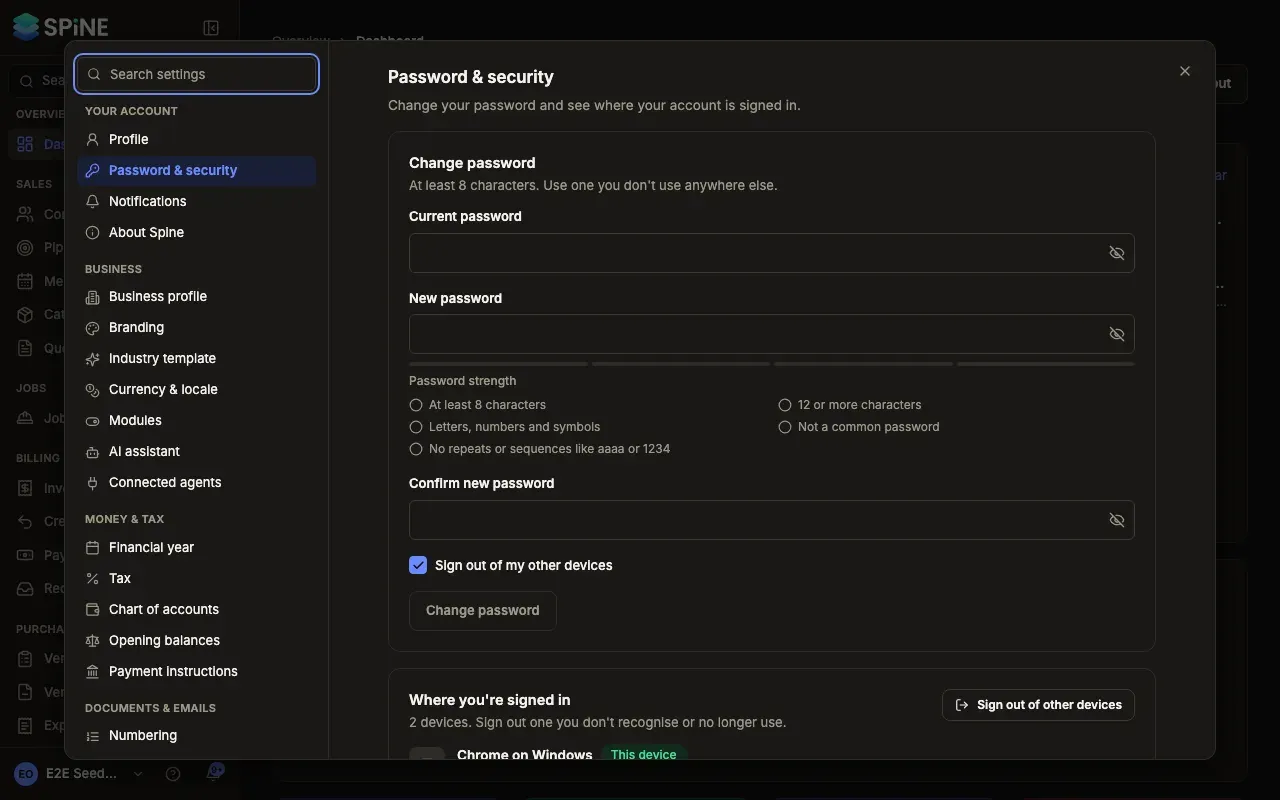
Enter your passwords — Under Change password, fill in Current password, New password and Confirm new password. Use at least 8 characters, and one you don’t use anywhere else.
-
Choose whether to sign out elsewhere — Tick Sign out of my other devices to end every other session.
-
Press Change password — “Password changed.” Use it the next time you sign in.
If your current password is wrong, you see “Couldn’t change your password. Check your current password and try again.”
Sign out a device
Section titled “Sign out a device”Where you’re signed in lists each device with when it was last active; yours is marked This device.
- One device — press Sign out on its row. Spine asks “Sign out …?” first; it’ll need to sign in again.
- Every other device — press Sign out of other devices. Spine asks first and you stay signed in here.
Last updated with Spine 1.0.0-beta.2