

Choose what a Team can do
A Team’s permissions decide what its members can open and do. You change them as a draft: nothing is saved until you review the changes and confirm, so a mis-click never changes anyone’s access.
-
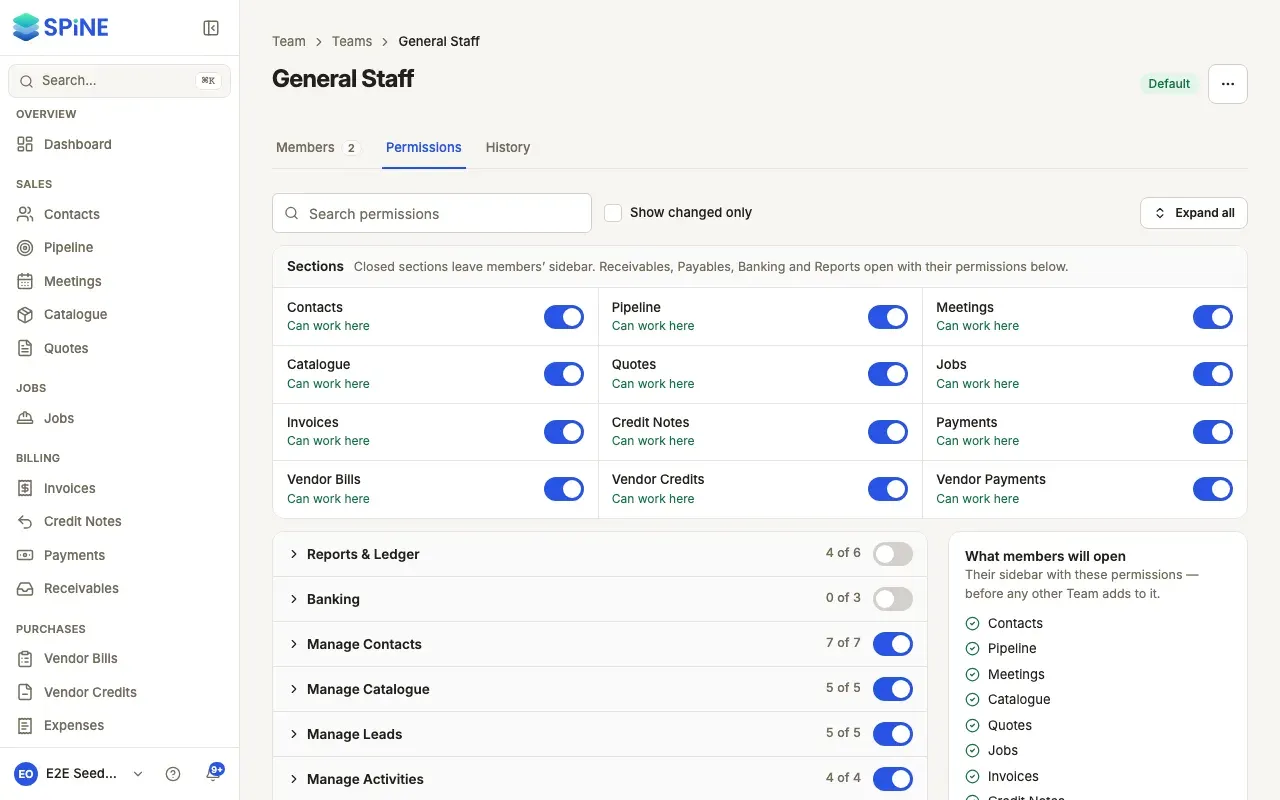
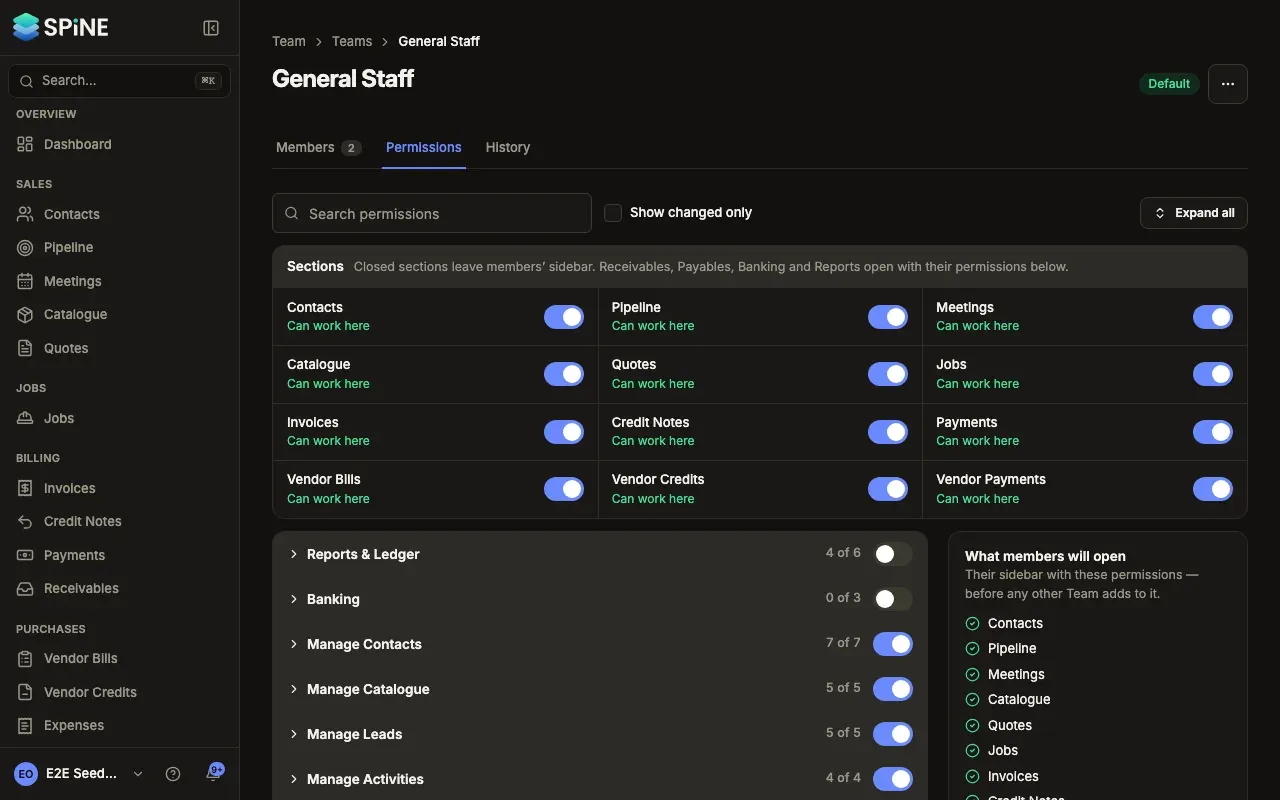
Open the Team’s permissions — Go to Team › Teams, open the Team and choose the Permissions tab.
-
Open or close sections — The Sections card at the top lists every section of Spine with a switch. Off closes the section: it leaves members’ sidebar and its pages say they don’t have access.
-
Switch permissions — Below, permissions are grouped (such as Manage Quotes or Reports & Ledger). Each group shows how many are on, for example “4 of 6”, with a switch for the whole group. Expand a group to see each permission and its description. Use the search, Expand all and Show changed only to find your way.
-
Check what members will open — The What members will open panel shows each section as Can work here, View only or Can’t open, and marks what your changes add or take away.
-
Save — Each switch you change is marked Changed, and a bar at the bottom counts them, with Discard and Save changes. Press Save changes. “Save 5 changes to Team?” lists what turns on and off — including permissions that turn on or off with them — and who gets this at their next request. Press Save changes again to confirm, or Go back. The toast says how many permissions changed.
How permissions work together
Section titled “How permissions work together”- Open comes first. Each group starts with an Open permission, such as Open Quotes. Turning on an action, like Create/edit own quotes, turns its Open permission on too. Turning Open off turns its actions off. Spine tells you when this happens.
- Expenses has See everyone’s expenses instead. With it off, members see and record only their own expenses.
- Own and others’. Many actions come in pairs, such as Create/edit own quotes and Edit others’ quotes.
- Closed doesn’t block work. With Open Contacts off, members can still pick a customer on an invoice; the name shows as plain text, not a link, and closed sections are left out of search.
- Reports, Receivables, Payables and Banking open with their own permissions in the list, not with a section switch.
The AI assistant adds its own permission, Use AI features, when an Owner turns it on.
Last updated with Spine 1.0.0-beta.2