

Check the trial balance
The Trial Balance lists every account with its debit or credit balance on a date. Total debits always equal total credits, which proves your books balance. Accountants start here at year end.
- Open the report — Go to Reports › Trial Balance, or use the tabs from Profit & Loss.
- Choose the date — Set As of.
- Read the table — Code, Account, Debit and Credit for every account with a balance, and a Total row.
- Check the Difference card — It reads “✓ balanced” when debits equal credits, and the footnote says “Balanced — total debits equal total credits.”
- Show every account — Untick Hide accounts with no balance to list zero-balance accounts too.
- Click an account — See every journal entry behind its balance.
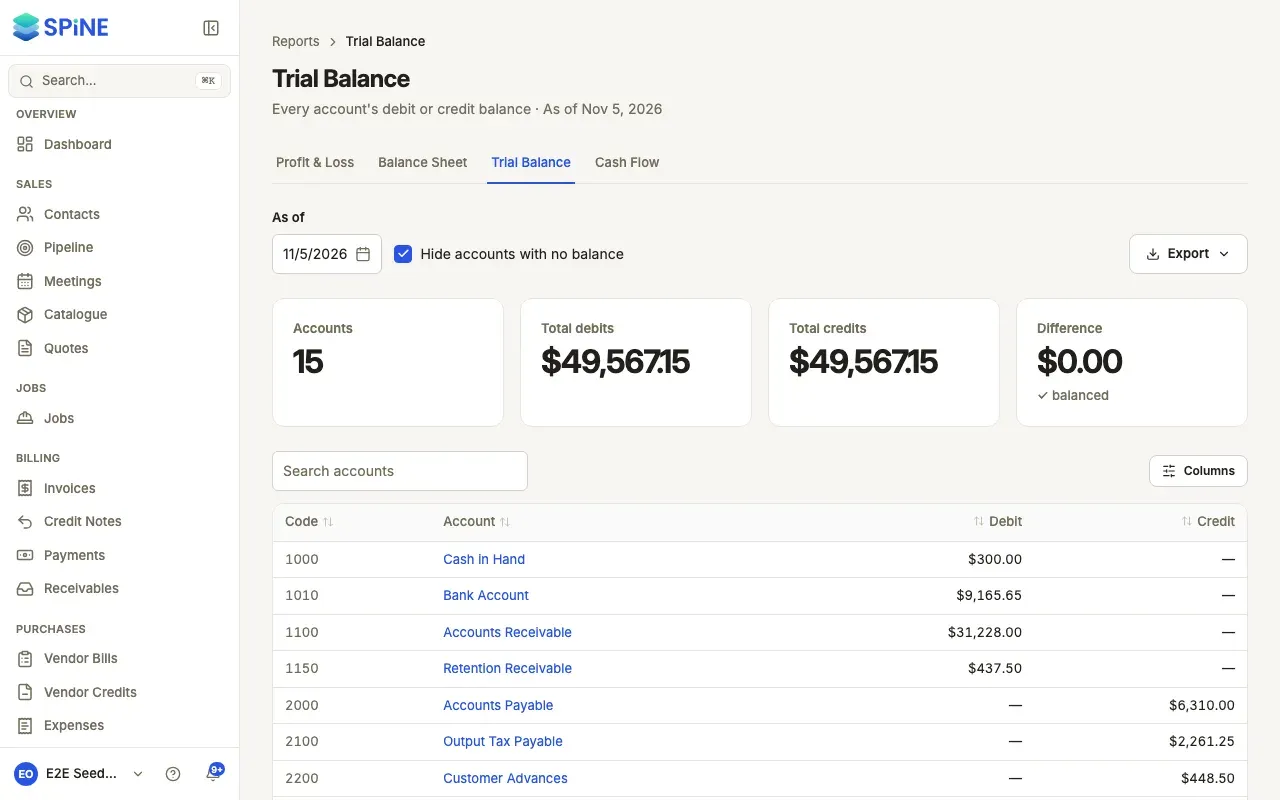
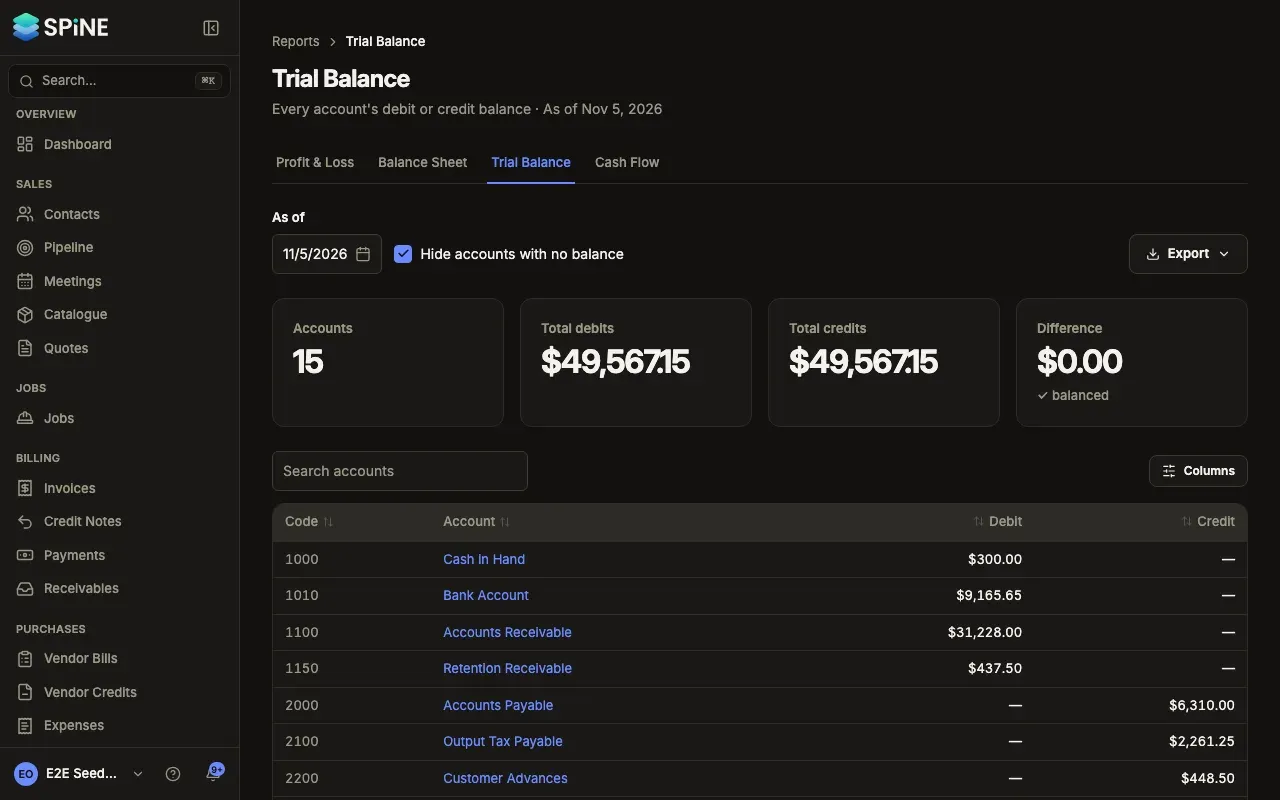
Use Search accounts to find one account in a long list.
If the books ever stop balancing
Section titled “If the books ever stop balancing”Spine won’t post an entry that doesn’t balance, so this should never happen. As a safeguard it checks every night. If total debits and credits ever differ:
- The Trial Balance shows a red alert: “Out of balance by amount. This has been logged; tell your administrator.”
- Owners see a banner on the dashboard, “Your books are out of balance by amount. Contact the person who runs Spine.”, and get a notification.
The banner goes away after the next check passes.
To export, press Export (see Export or print a report).
Last updated with Spine 1.0.0-beta.2