

Find jobs in the jobs list
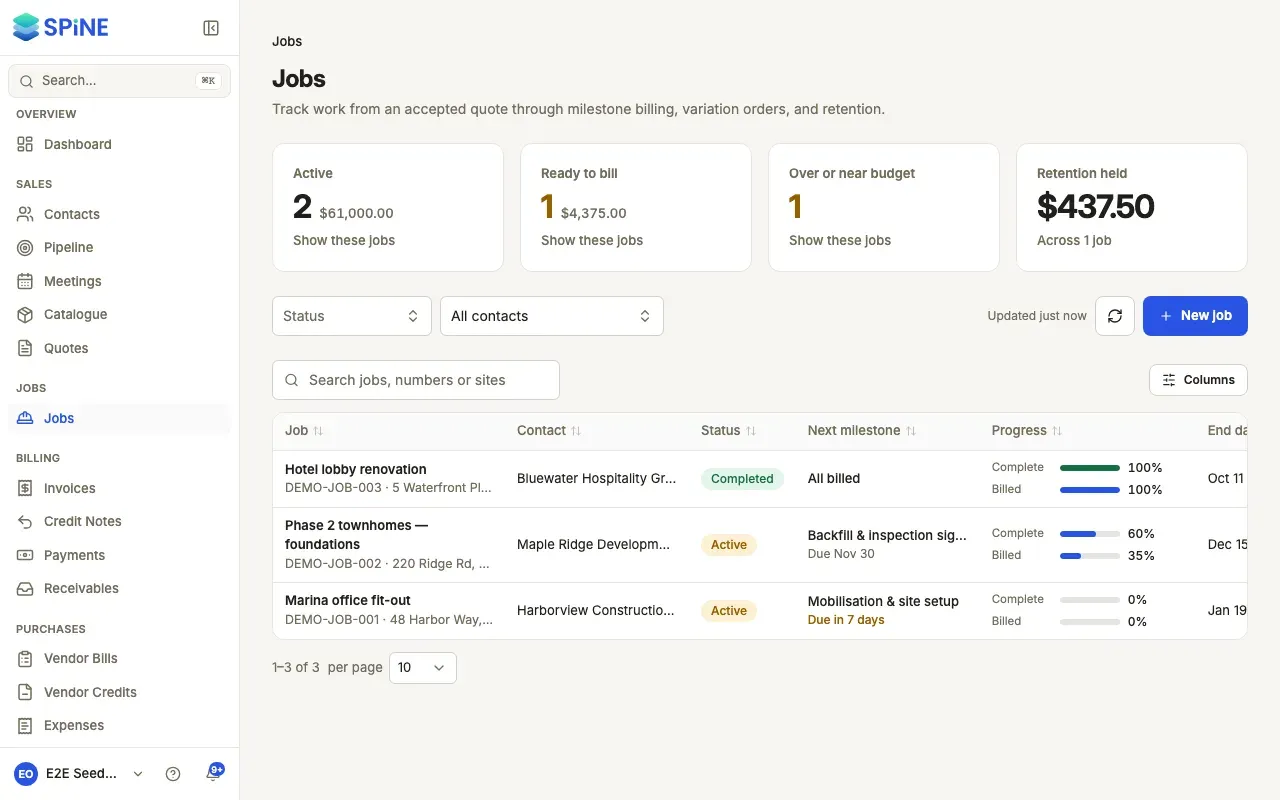
The Jobs page lists every job with what’s next on it and how far along it is. The cards at the top tell you what needs doing: work to bill, jobs going over budget and retention you’re still owed.
- Open Jobs — Choose Jobs in the sidebar.
- Press a card — Active shows running jobs and their contract value. Ready to bill shows jobs with a completed milestone not yet invoiced, and that amount. Over or near budget shows jobs that have used 80% or more of their cost budget. Press a card again to clear it. Retention held shows the total held across your jobs.
- Narrow the list — Use Status and Contact in the toolbar, or type in Search jobs, numbers or sites to search by number, name, contact or site address.
- Choose columns — Press Columns to show or hide columns such as Retention and Budget used.
- Open a job — Click a row to open the job’s page.
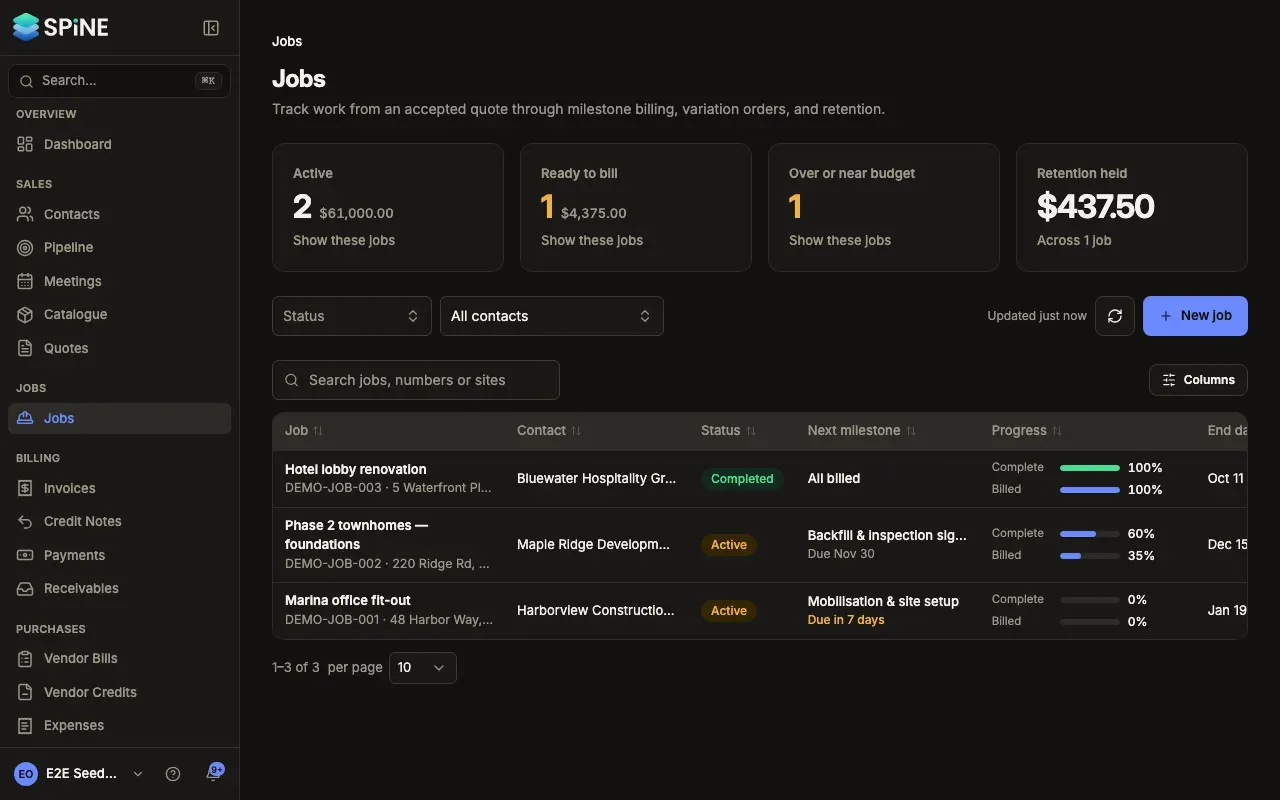
Reading a row
Section titled “Reading a row”Each row shows:
- Job — the name, with the job number and site address under it.
- Contact and Status.
- Next milestone — its name and when it’s due (“Due in 3 days”, “Overdue 2 days”), or “All billed”.
- Progress — two short bars: how complete the work is and how much of the contract is billed. A job billed over its contract shows the billed figure in the overdue colour with a warning icon, and “Billed over the contract” when you point at it.
- End date and Contract.
Budget used reads “78%”, “Nearing · 85%” or “Over · 104%”, or “—” for a job without a budget.
Coming back to the same list
Section titled “Coming back to the same list”Your search, filters, card, sort and page are kept in the page address, so you can bookmark or share a view. Press Clear filters to start again. The list shows when it was last updated. Press Refresh list to reload it, and it also reloads when you come back after 30 seconds.
If nothing matches, you see “No jobs match these filters”. With no jobs at all, you see “No jobs yet” with New job (if you can create jobs) and Go to quotes.
Last updated with Spine 1.0.0-beta.2