

Set up a recurring invoice
A recurring invoice is a schedule plus a set of lines. On each date, Spine creates the invoice from those lines. It can issue and email it for you, or leave a draft for you to check first.
-
Open Recurring invoices — Go to Invoices and press Recurring invoices.
-
Start a schedule — Press + New recurring invoice.
-
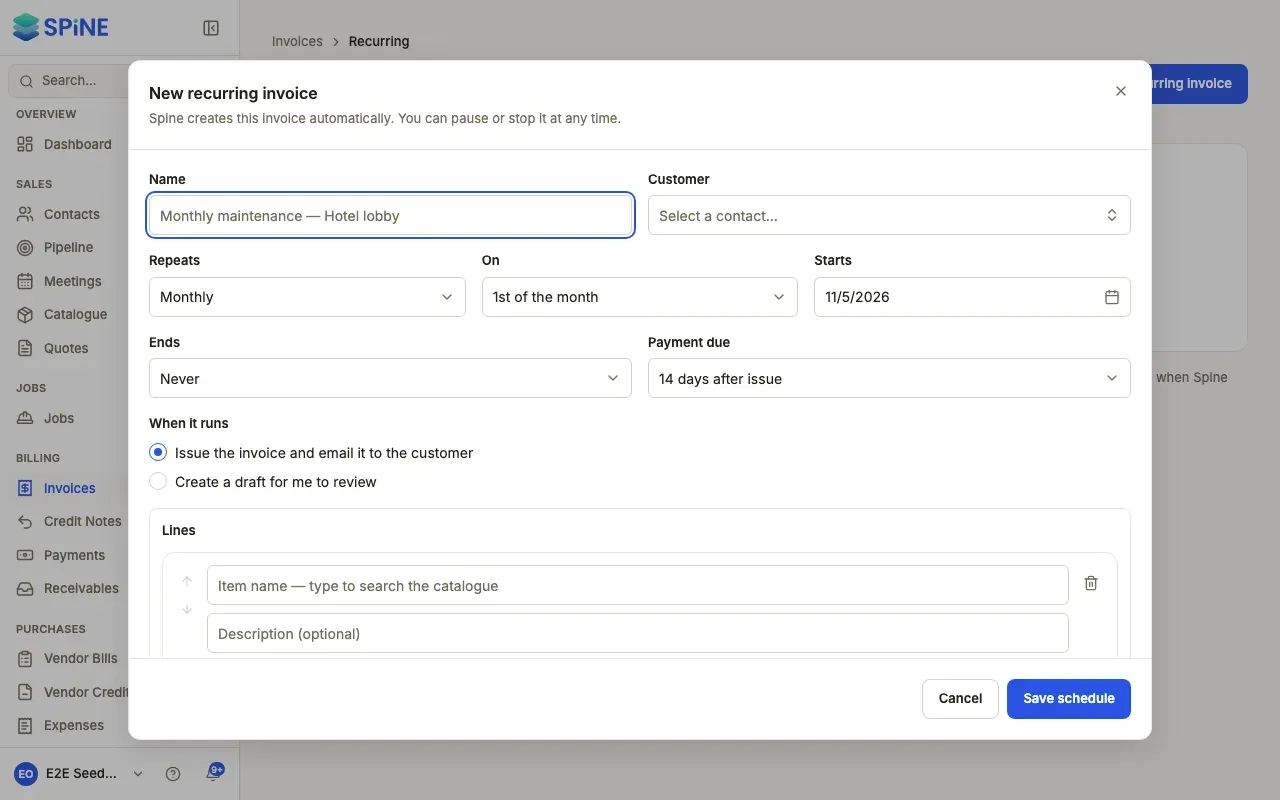
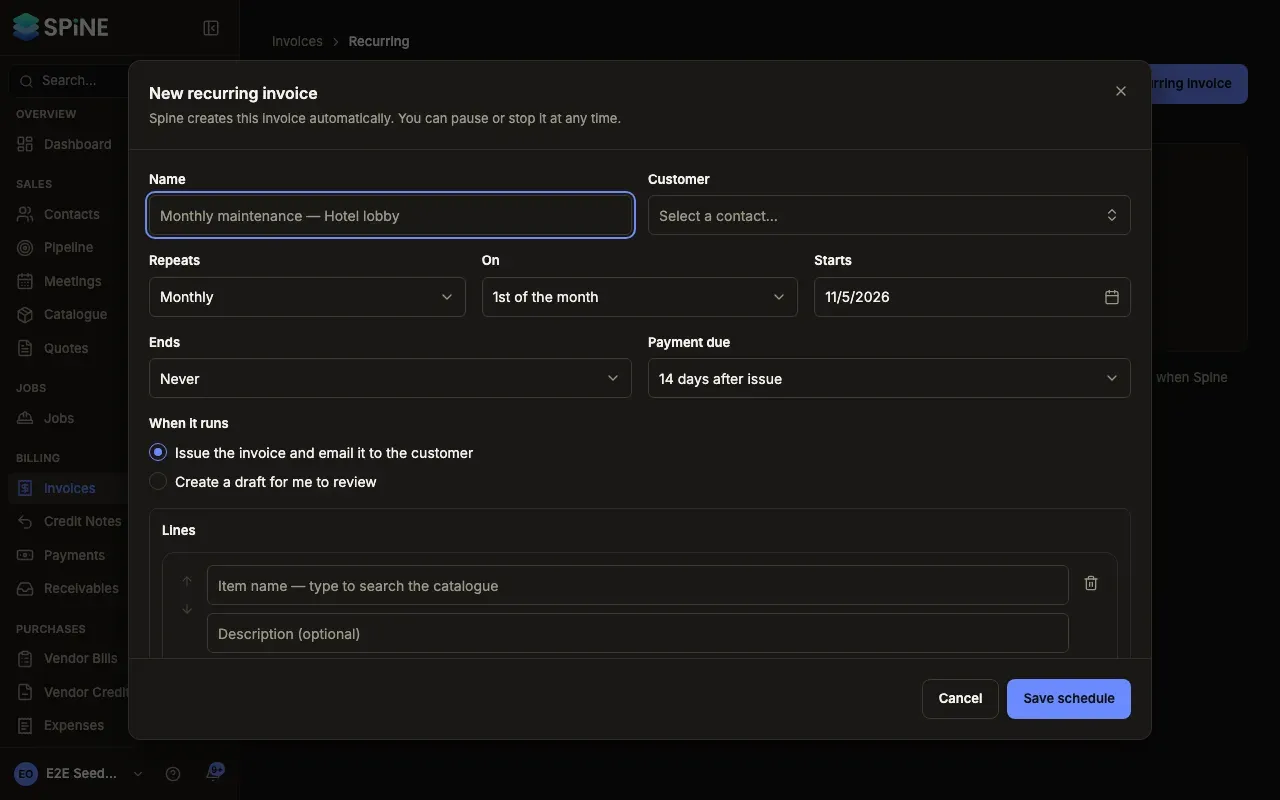
Name it and pick the customer — Enter a Name, such as “Monthly maintenance — Hotel lobby”, and choose the Customer.
-
Set when it repeats — Choose Repeats (Weekly, Monthly, Every 3 months or Yearly) and On: a weekday, a day of the month from the 1st to the 28th, or Last day of the month.
-
Set the start and end — Pick Starts (today or later). For Ends, choose Never, On a date or After a number of invoices.
-
Set the payment terms — Choose Payment due: On receipt, or 7, 14, 30 or 60 days after issue.
-
Choose what happens — Under When it runs, choose Issue the invoice and email it to the customer or Create a draft for me to review.
-
Add the lines — Press Edit lines, add the items, then press Done.
-
Save — Press Save schedule.
A toast says Schedule saved, with the date of the first invoice. The schedule is listed as Active with its next invoice date.
What happens on each date
Section titled “What happens on each date”Runs happen at 6:00 AM in your organisation’s time zone. Each invoice uses the schedule’s lines with the tax rates of that day.
- Issue and email — the invoice is issued with the next number, posted to your books and emailed to the customer, as if you’d done it yourself.
- Create a draft — Owners get a notification, “Recurring invoice ready to review: …”. Open the draft, check it and issue it.
A schedule never makes more than one invoice for the same date, even if the server was off and catches up. When the end you set is reached, the schedule shows Finished.
If Spine won’t save
Section titled “If Spine won’t save”- “Pick today or a later start date.” — the start date is in the past.
- “Pick a customer.” or “Pick a start date.” — a required field is empty.
- “End after at least 1 invoice.” — the number of invoices is 0.
To change, pause or delete a schedule, see Pause, change or stop a recurring invoice.
Last updated with Spine 1.0.0-beta.2