

Send payment reminders automatically
With automatic reminders on, “Spine emails customers about unpaid invoices on a schedule, so you don’t have to chase.” You choose when reminders go, relative to each invoice’s due date.
-
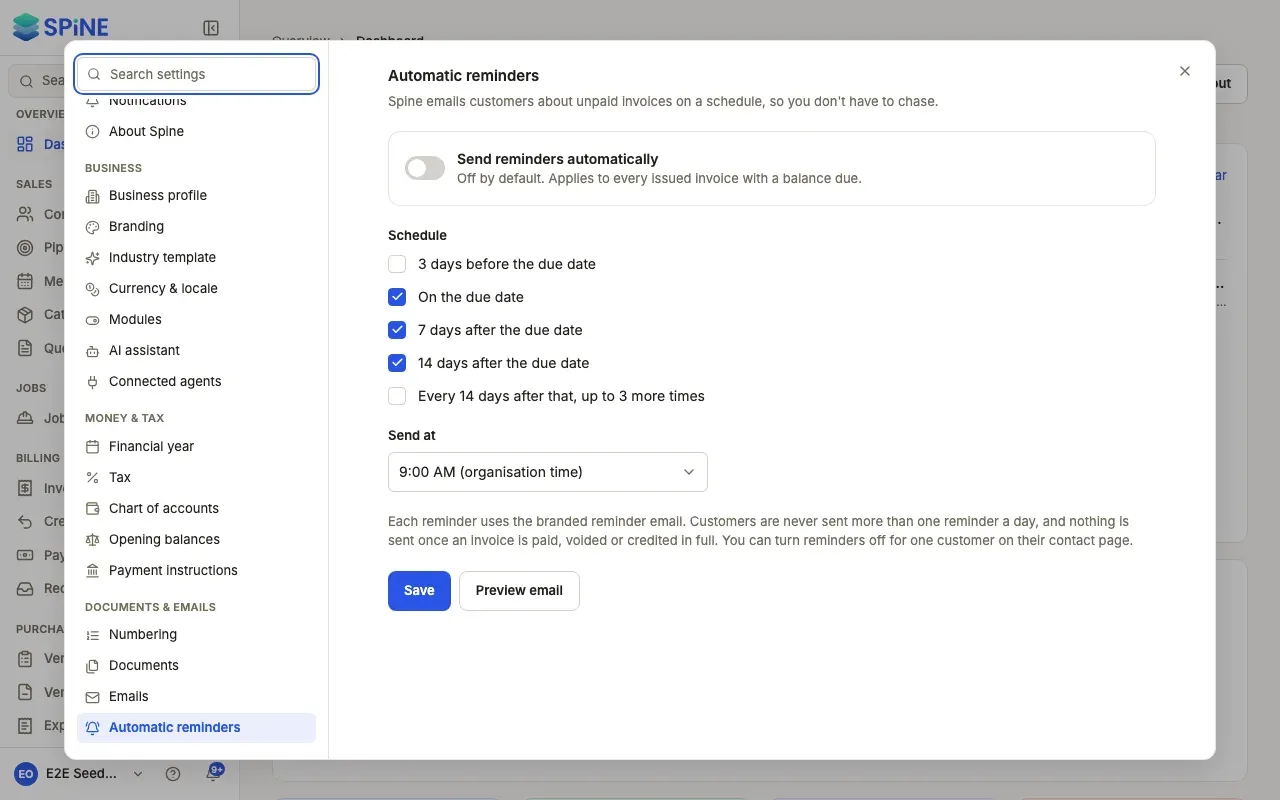
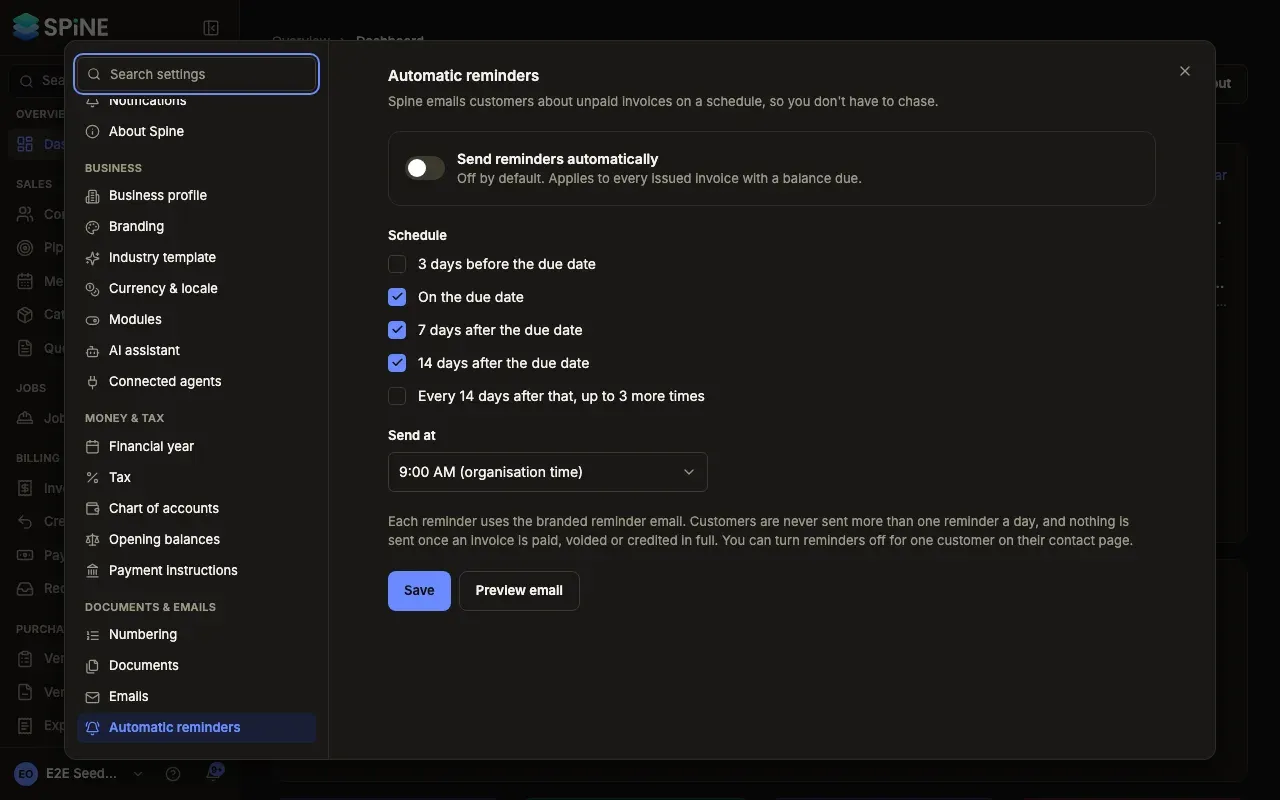
Open Settings › Automatic reminders — Open your user menu, choose Settings, and pick Automatic reminders under Documents & emails.
-
Turn on Send reminders automatically — It’s off by default and applies to every issued invoice with a balance due.
-
Choose the schedule — Under Schedule, tick any of 3 days before the due date, On the due date, 7 days after the due date, 14 days after the due date and Every 14 days after that, up to 3 more times.
-
Choose the time — Send at sets the time of day, in your organisation’s time zone.
-
Preview the email — Preview email shows the reminder for your most overdue invoice, or a sample if none is overdue.
-
Press Save — A “Saved” message appears. With reminders on and nothing ticked, you see “Pick at least one reminder.”
Good to know
Section titled “Good to know”- Never more than one a day. A customer gets at most one reminder a day for an invoice, whether it was sent automatically or by hand.
- Paid invoices stop. Nothing is sent once an invoice is paid, voided or credited in full.
- Pause one customer. You can turn reminders off for one customer on their contact page.
- The words are yours. Reminders use the Payment reminder email — see Write the emails customers get.
For sending a reminder by hand, see Invoices and credit notes.
Last updated with Spine 1.0.0-beta.2