

See profit and loss
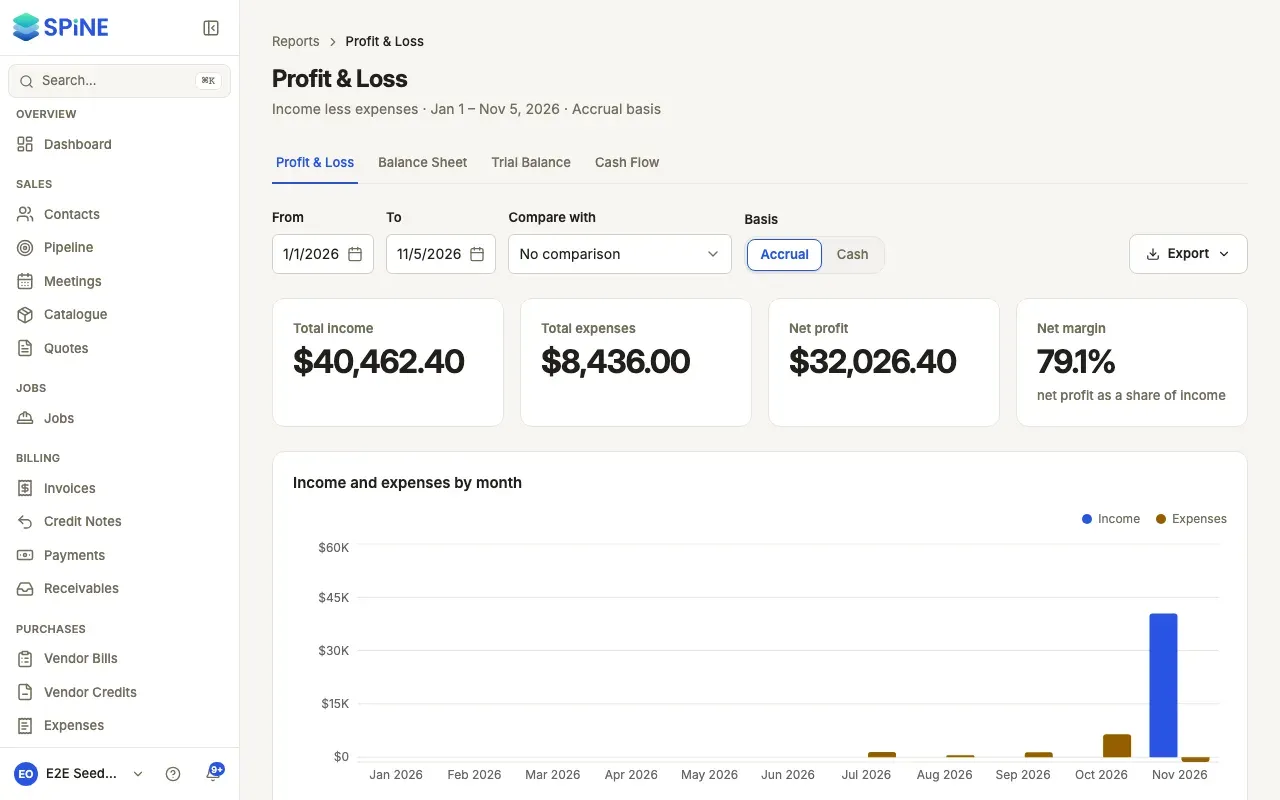
Profit & Loss tells you whether the business made money in a period: income less expenses. You can compare it with the previous period, the same period last year or each month, and see it on a cash basis when you want it to match money that actually moved.
- Open the report — Go to Reports › Profit & Loss.
- Set the range — From and To start at your financial year to date.
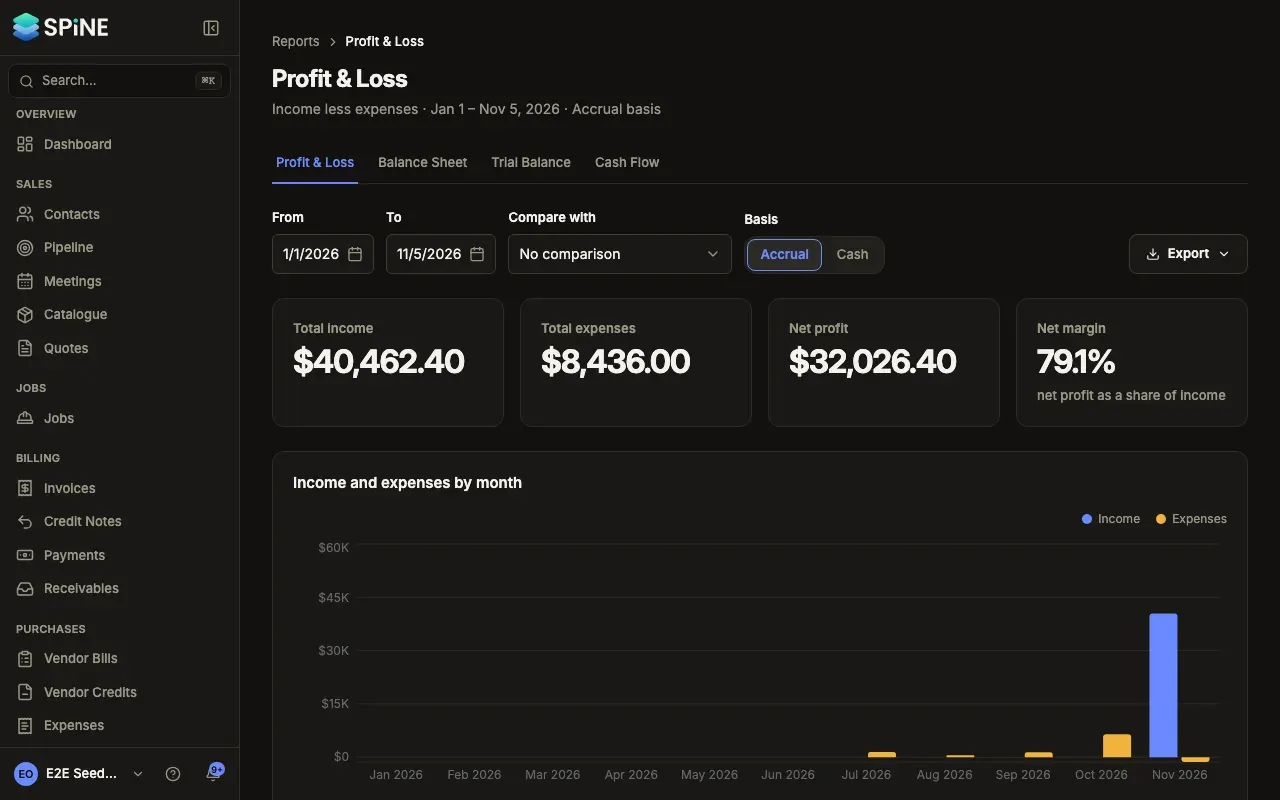
- Read the cards — Total income, Total expenses, Net profit and Net margin (net profit as a share of income).
- Read the table — Income by account with Total income, Expenses by account with Total expenses, then Net profit. A chart of income and expenses by month shows for ranges of 24 months or fewer.
- Click an account — See every journal entry behind it (see See the entries behind a figure).
With nothing posted in the range you see “No income posted in this range.” and “No expenses posted in this range.”
Compare periods
Section titled “Compare periods”Under Compare with, choose:
- Previous period or Same period last year: adds a column for the other period, plus Change and Change %. Each change carries an arrow and a sign, not colour alone.
- Each month: one column per month plus Total. It covers up to 24 months.
Choose No comparison to go back.
Switch to the cash basis
Section titled “Switch to the cash basis”Under Basis, switch from Accrual to Cash. Income then counts only what customers paid in the range, and expenses only what was paid, split across accounts in proportion to each invoice’s or bill’s lines. For example, a half-paid 1,000.00 invoice for services shows 500.00 under Sales — Services, before tax.
The subtitle reads “Cash basis”, and exports carry it.
To export, press Export (see Export or print a report).
Last updated with Spine 1.0.0-beta.2