

Edit your dashboard layout
Your dashboard is yours to arrange. Put the cards you check first at the top and hide the ones you don’t need. The layout is saved to your account, so it follows you to every browser and device, and changing it never affects anyone else’s dashboard.
- Start editing — Press Edit layout in the dashboard’s header. Each card gets a small bar at its top right with its name, an eye button and a drag handle. The button now reads Done.
- Move a card — Drag it by its handle to a new position.
- Hide or show a card — Press the eye button (Hide widget). A hidden card fades. Press it again (Show widget) to bring it back.
- Finish — Press Done. Hidden cards are gone from your dashboard, and the rest pack in your new order.
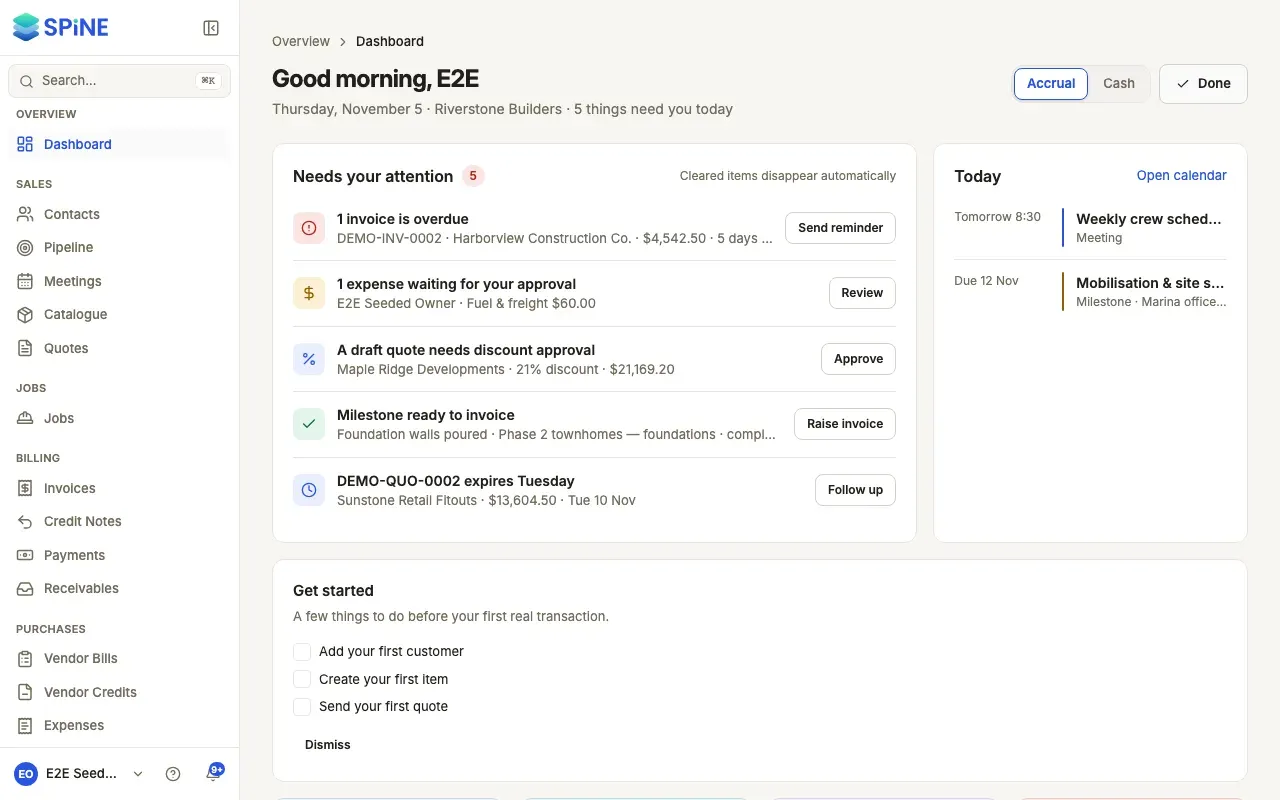
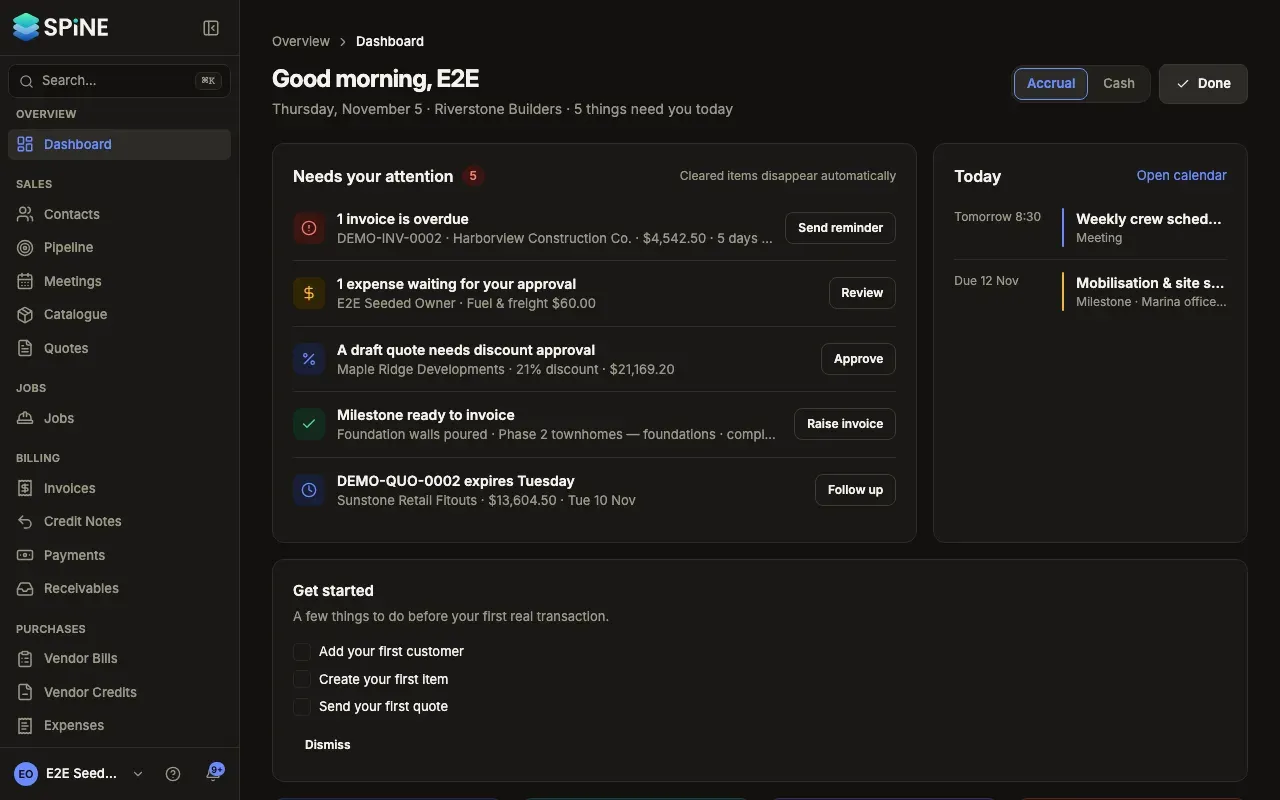
Showing a hidden card again puts it back where it was.
What stays in place
Section titled “What stays in place”Needs your attention, Today and the key figures row can’t be moved or hidden. Recent activity can be moved and hidden like any other card. The Income and expenses chart always spans the full width straight after the key figures.
How cards are laid out
Section titled “How cards are laid out”Each card keeps its own height and goes into whichever column is shortest, in your layout order, so there are no stretched cards or empty gaps. Columns depend on your screen: 3 from 1280 pixels wide and 2 from 1024 pixels. From 1440 pixels, your tasks move to a column on the right and the cards use 2 columns beside it.
New and removed cards
Section titled “New and removed cards”- When you gain access to a new card, for example after an Owner gives your Team a new right, it appears at the end of your layout.
- If a card no longer exists, it’s skipped without an error.
- For a business on the Construction template, Retention held and Jobs in progress start shown. For other templates they start hidden, so show them here if you want them.
Last updated with Spine 1.0.0-beta.2