

Delete the demo data
When you’ve finished exploring, delete the demo business and start real work in the same Spine. Deleting removes every demo record, its document numbers and its entries in your books, so your reports show only your own business. Records you created yourself are never touched.
-
Open Settings › Demo data — Open your user menu, choose Settings, and pick Demo data under Data. It says “Demo data is loaded” and “Removing it only deletes demo records — your real data is never touched.”
-
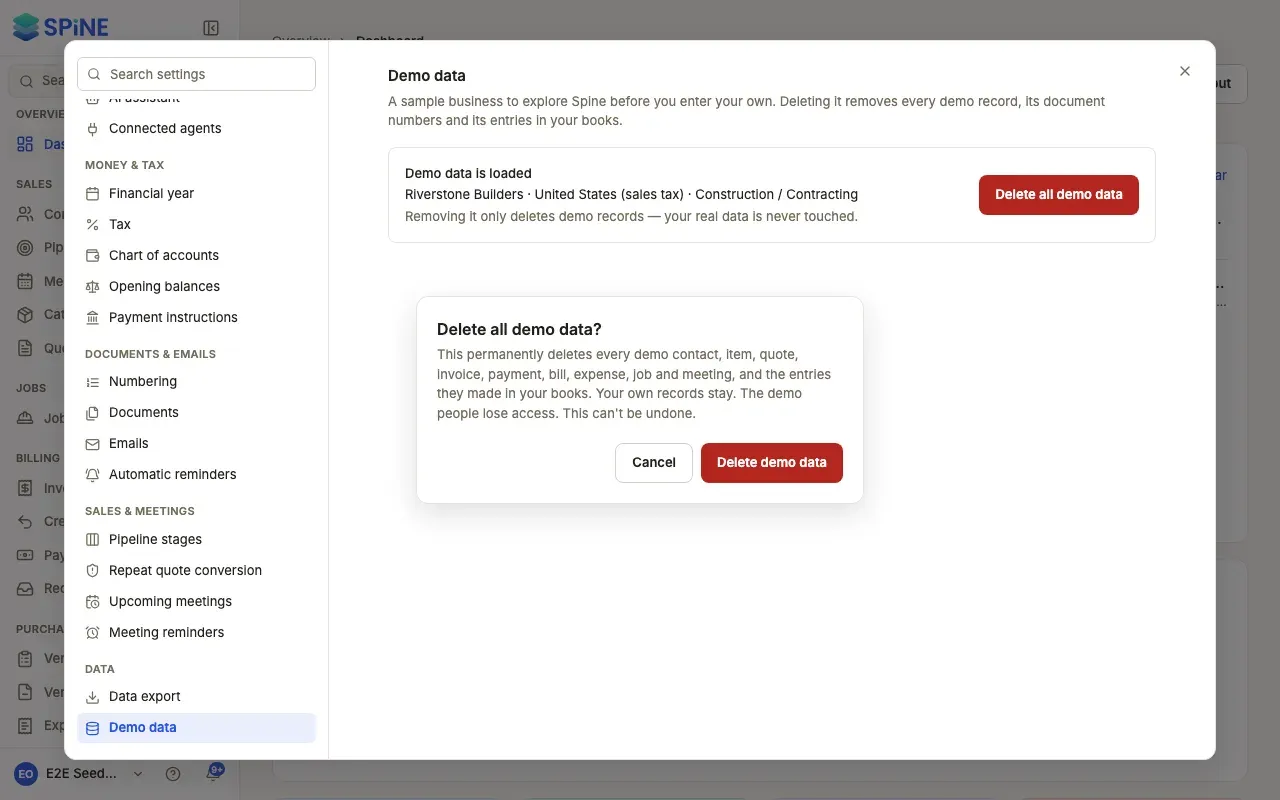
Press Delete all demo data — Spine asks first: “Delete all demo data?” explains what’s removed.
-
Confirm with Delete demo data — Or press Cancel to keep it. When it’s done, a message says “Demo data deleted · Your own records stay.” and the pane shows “No demo data is currently loaded.”
What’s removed
Section titled “What’s removed”Every demo contact, item, quote, invoice, payment, bill, expense, job and meeting, and the entries they made in your books. Afterwards, nothing from the demo appears on the Trial Balance, Profit and Loss, General ledger, Day book, tax reports, Receivables, the dashboard or the Tally export.
- Demo people lose access. Their memberships, the demo Team and the demo invites go. Teams and invites you set up yourself stay.
- Demo numbers start again. If you load a demo later, its invoices start at
DEMO-INV-0001again. Your own series isn’t affected.
What’s kept
Section titled “What’s kept”- Your own records stay exactly as they are. Quotes, invoices, payments, bills and expenses you made for a demo customer, vendor or job were demo too, so they go with the demo.
- A demo contact your own records still use. If you recorded something of your own against a demo contact that isn’t demo — such as a refund, a vendor credit or a bank entry — that record and its contact stay. The message says, for example, “Kept 1 demo contact that your own records use.”
Last updated with Spine 1.0.0-beta.2